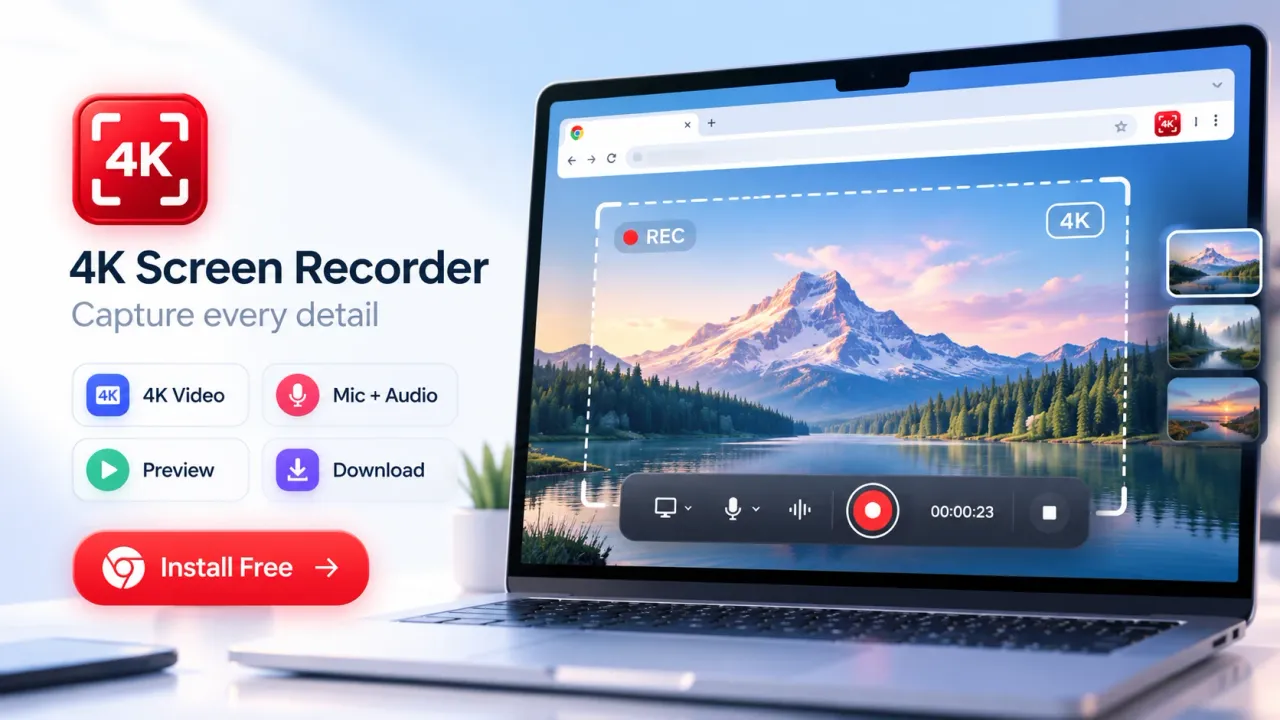

Creating high-quality videos faster with a free screen recorder for Google Chrome means capturing browser activity, application windows, presentations, and desktop content directly from Chrome without installing separate desktop recording software. A Chrome screen recorder such as 4K Screen Recorder by DotnDot lets users capture Full HD, 2K, and 4K videos with supported audio, microphone narration, webcam overlays, and built-in editing tools. The process combines recording, previewing, trimming, and exporting into one browser-based workflow. It is useful for content creators, digital marketers, educators, software developers, businesses, and professionals who need clear videos without…
Creating high-quality videos faster with a free screen recorder for Google Chrome means capturing browser activity, application windows, presentations, and desktop content directly from Chrome without installing separate desktop recording software.
A Chrome screen recorder such as 4K Screen Recorder by DotnDot lets users capture Full HD, 2K, and 4K videos with supported audio, microphone narration, webcam overlays, and built-in editing tools.
The process combines recording, previewing, trimming, and exporting into one browser-based workflow.
It is useful for content creators, digital marketers, educators, software developers, businesses, and professionals who need clear videos without spending unnecessary time on video production.
High-quality screen videos do not always require expensive cameras, recording studios, or complicated editing software. Many useful videos begin with material already visible on a computer screen.
A software tutorial can demonstrate a feature through a browser recording. A marketing professional can explain a dashboard using screen capture and narration.
An educator can record a presentation, while a developer can document a technical problem by showing the exact steps that produce it.
The speed of video production depends on choosing the right recording source, setting suitable video quality, preparing the screen, capturing clear audio, and minimizing unnecessary editing.
Why Google Chrome Screen Recording Makes Video Creation Faster
A free screen recorder for Google Chrome simplifies video production by allowing users to record screen activity from the browser toolbar. The recording process can begin without launching a separate desktop application or moving content between multiple tools.
Traditional screen-video production often involves separate steps for recording, previewing, editing, converting, and exporting. Each additional step introduces another opportunity for delays or compatibility problems.
Chrome-based screen recording reduces these transitions by keeping the main production activities close together.
A typical workflow includes:
- Select the content: Choose a browser tab, application window, or screen.
- Configure recording quality: Set the resolution and frame rate.
- Enable audio: Include available tab audio, microphone narration, or webcam video.
- Record the demonstration: Capture the actions viewers need to understand.
- Preview the video: Identify mistakes or unnecessary sections.
- Edit the recording: Trim unwanted footage or combine supported clips.
- Export the result: Save the finished video in an available supported format.
The biggest practical benefit comes from reducing repeated work.
For example, a product manager explaining a website feature can prepare the page, start recording, demonstrate the feature, and export a short tutorial. A separate camera setup is unnecessary because the website itself provides the visual content.
Browser-based recording also makes it easier to create updated videos when a website design, software feature, product interface, or presentation changes.
4K Screen Recorder for Chrome: Features That Support Faster Video Production
4K Screen Recorder is a Chrome extension developed by DotnDot for capturing browser tabs, application windows, entire screens, and supported webpage regions. The extension supports recording resolutions up to 3840 × 2160 pixels, available source audio, microphone input, webcam overlays, local recording, and video editing.
The product combines several functions that are normally handled through separate steps.
Its capabilities include:
- Browser-tab recording for websites and Chrome-based applications.
- Full-screen recording for desktop demonstrations.
- Application-window recording for focused software tutorials.
- Selected-area recording for supported webpage regions with Pro.
- Full HD recording at 1920 × 1080 pixels.
- 2K QHD recording at 2560 × 1440 pixels.
- 4K UHD recording at 3840 × 2160 pixels.
- 30 frames per second recording.
- Up to 60 FPS recording with Pro.
- Available browser-tab or system audio recording.
- Microphone narration and webcam overlays.
- Recording countdown, pause, resume, and live controls.
- Video preview, trimming, and clip stitching.
- Advanced editing tools available with Pro.
- MP4 export where supported, with WebM as a fallback.
- Local recording and editing inside Chrome.
The extension is free to install, with optional paid features for users who require longer recording sessions or additional editing capabilities.
The distinction between free installation and unrestricted recording is important. The free version has different recording-duration limits depending on the selected resolution.
For creators producing short demonstrations or recording tests, the free features provide a practical starting point. Longer recordings and more detailed editing require the appropriate Pro capabilities.
Choose the Right Recording Mode Before Creating a Video
The recording mode determines which screen content appears in the finished video. Choosing the correct capture source helps creators avoid unrelated information, unnecessary cropping, and additional editing.
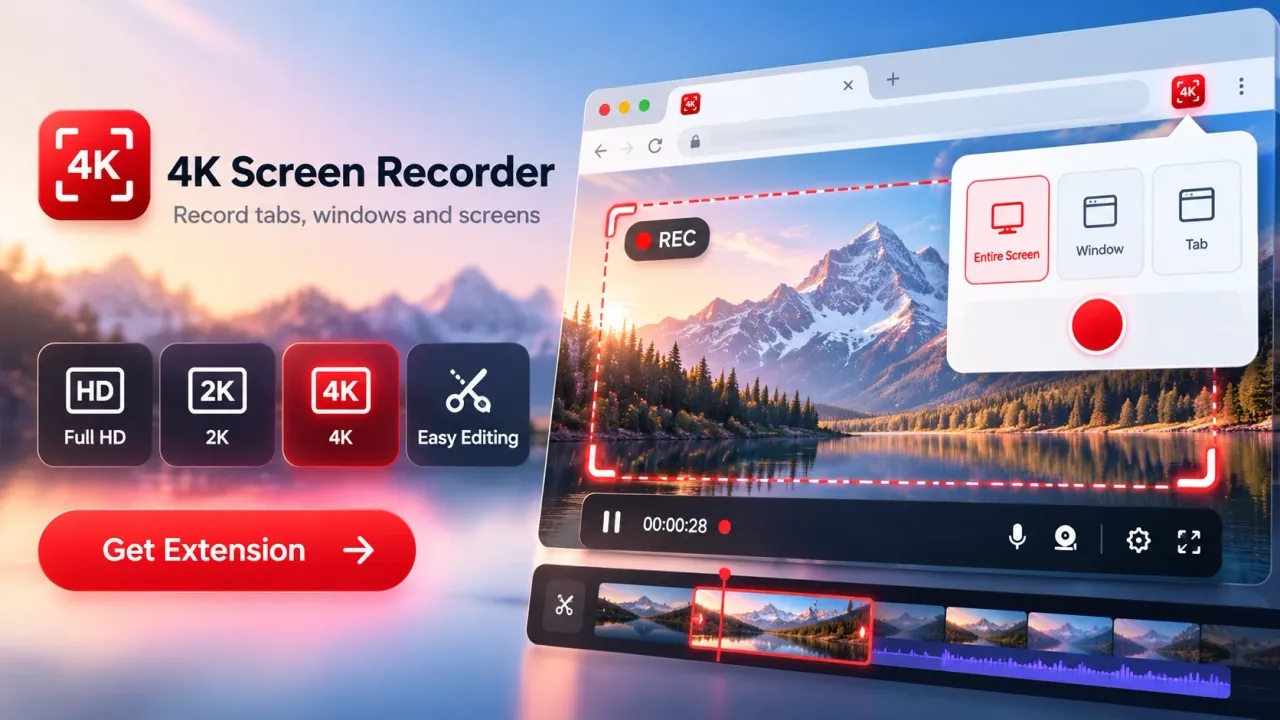
4K Screen Recorder supports browser-tab, full-screen, application-window, and Pro selected-area recording.
Browser-tab recording for focused tutorials
Browser-tab recording captures the selected Chrome tab. It works well when every action takes place inside a website or web application.
Common uses include website tutorials, online dashboards, browser-based product demonstrations, content management systems, and marketing analytics walkthroughs.
A digital marketer demonstrating a campaign reporting page can use tab recording to keep unrelated desktop activity outside the video.
Full-screen recording for complete workflows
Full-screen recording captures the selected desktop display through Chrome's screen-sharing interface.
It is useful when a demonstration moves between multiple applications or requires viewers to see the overall desktop workflow.
For example, a presenter explaining how to prepare and upload content may need to show a local file, a browser window, and the final publishing interface.
Full-screen recording provides flexibility, but users should close unrelated applications and hide private information before starting.
Application-window recording for software demonstrations
Application-window recording captures a selected program window.
The recording focuses on the relevant application rather than the entire desktop.
This mode works well for desktop software tutorials, design application demonstrations, office productivity lessons, and technical support instructions.
Selected-area recording for specific webpage regions
Selected-area recording lets Pro users capture a particular part of a supported webpage.
A creator can focus on a chart, interface component, reporting panel, or another region without including the complete page.
Selected-area recording should not be confused with unrestricted desktop-region recording. The feature focuses on webpage regions.
A well-chosen recording area helps viewers concentrate on the intended action.
How to Record High-Quality Videos in Google Chrome
Recording a video with 4K Screen Recorder involves installing the extension, selecting the source, configuring recording settings, capturing the required activity, and exporting the finished file.
The following process is suitable for tutorials, product demonstrations, presentations, and other screen-based videos.
Install the Chrome extension
Open the 4K Screen Recorder product page and follow the installation option to its Chrome Web Store listing.
Review the permissions before installing the extension. Once installed, the extension can be opened from Chrome's extensions menu.
Pinning the extension to the browser toolbar makes it easier to access during regular recording sessions.
Prepare the content
Open the website, application, presentation, or document that needs to be recorded.
Close unrelated tabs and applications. Remove private information, clear unnecessary notifications, and position the relevant content where viewers can see it.
For tutorials, prepare the sequence of actions before starting.
Select the recording source
Open 4K Screen Recorder and choose the available recording mode.
Select Browser Tab for website demonstrations, Screen for complete desktop workflows, or Window for individual applications.
Pro users can use Selected Area when recording a supported webpage region.
Chrome may display a source-selection dialog that requires users to approve the content being shared.
Configure video resolution and frame rate
Choose Full HD, 2K QHD, or 4K UHD according to the recording requirements.
Use 30 FPS for typical tutorials, presentations, and screen demonstrations. Pro users can select 60 FPS when smoother motion is useful.
The selected quality must also fit the available recording duration under the current plan.
Configure microphone, audio, and webcam
Enable the microphone when the video requires spoken explanations.
Enable supported tab or system audio when the recorded content contains relevant sound.
Turn on the webcam overlay when the presenter's face adds value to the explanation.
Review the available browser permission requests.
Start recording
Begin recording after confirming the source and settings.
Use the recording countdown to prepare the first action. Speak clearly and demonstrate one concept at a time.
Use pause and resume when a supported recording session requires a temporary break.
Preview and edit the recording
Stop the recording and review the result.
Check the video for readable text, clear narration, relevant actions, correct source selection, and unnecessary pauses.
Use available trim and stitch controls to prepare the final recording.
Export the finished video
Export the recording to the device.
4K Screen Recorder supports MP4 output where the browser permits it and WebM when a compatibility fallback is required.
Open the exported file and verify that video, audio, webcam content, and edits appear correctly before deleting any temporary recording.
4K, 2K, and Full HD Recording: Choosing the Best Video Quality
Screen recording resolution determines how many pixels are available in each recorded frame. Higher resolution can preserve more interface detail, but the best setting depends on the source content, viewing device, computer performance, and final publishing requirements.
4K Screen Recorder provides three resolution options.
4K Ultra HD
3840 × 2160 pixels.
Approximately 8.3 million pixels per frame. Suitable for detailed interfaces, design applications, spreadsheets, and large-screen presentations.
2K Quad HD
2560 × 1440 pixels.
Approximately 3.7 million pixels per frame. Useful for detailed software demonstrations and tutorials that need more visual detail than Full HD.
Full HD
1920 × 1080 pixels.
Approximately 2.1 million pixels per frame. Suitable for common tutorials, educational presentations, bug reports, and business demonstrations.
4K contains four times as many pixels as Full HD. That difference can help preserve small text and fine visual details when the original recording source contains enough information.
However, selecting 4K does not automatically make a lower-resolution source sharper.
A video recorded from a lower-resolution screen cannot gain authentic detail simply because the output is set to 3840 × 2160 pixels.
Recording quality also depends on browser support, display scaling, encoding, computer resources, and the selected source.
For many educational and marketing videos, Full HD is a sensible starting point. Creators working with detailed interfaces can consider 2K or 4K when the additional resolution serves a clear purpose.
30 FPS vs 60 FPS: Frame Rate and Smooth Screen Recording
Frame rate measures how many video frames are captured every second. A higher frame rate can make scrolling, animation, cursor movement, and other fast visual changes appear smoother.
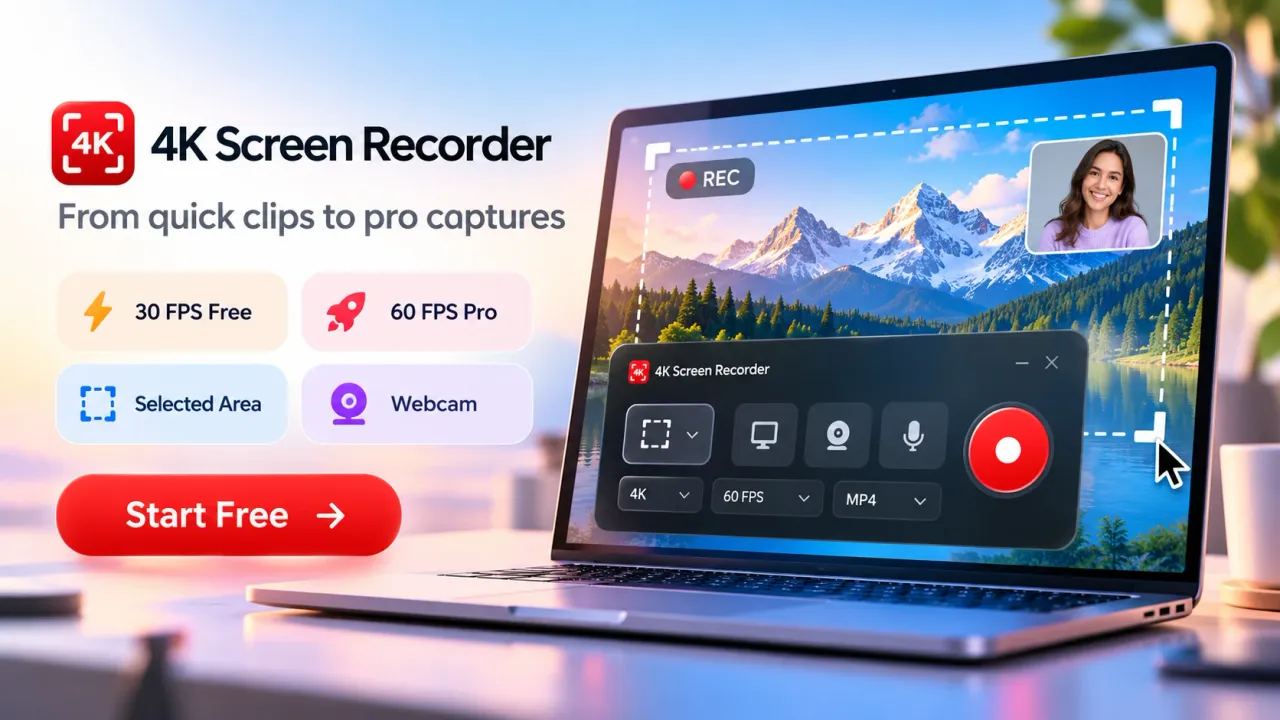
4K Screen Recorder supports 30 FPS in its free version and up to 60 FPS with Pro.
30 FPS for standard recording
Thirty frames per second is suitable for many screen-recording activities.
Examples include slide presentations, software instructions, dashboard demonstrations, website walkthroughs, and narrated lessons.
When a tutorial contains mostly static content and deliberate cursor movement, 30 FPS can provide enough motion detail.
60 FPS for movement-heavy demonstrations
Sixty frames per second records more frames during each second.
The additional frames can help represent continuous scrolling, fast interface transitions, animations, and other movement more smoothly.
However, a higher frame rate also increases processing requirements and can affect recording performance.
A stable 30 FPS recording can be more useful than an unstable 60 FPS recording.
The correct choice depends on the type of content and the capabilities of the recording computer.
Record Screen, Microphone, and Webcam Together
Combining screen video, microphone narration, and webcam footage allows creators to explain visual information while showing the relevant actions. 4K Screen Recorder supports these inputs within the recording workflow, subject to available browser permissions and capture-source capabilities.
Screen recording provides the visual demonstration. Microphone input adds spoken explanations. Webcam video can introduce the presenter or maintain a personal connection during a lesson.
Each input serves a different purpose.
Microphone narration
Microphone recording is useful when viewers need explanations beyond what appears on the screen.
A presenter can describe why a setting matters, identify an interface element, or explain the outcome of an action.
Clear narration usually improves instructional usefulness more than recording resolution alone.
For better microphone audio:
- Record in a quiet location.
- Position the microphone consistently.
- Avoid unnecessary background noise.
- Speak at a natural, steady pace.
- Test the microphone before recording important content.
Browser-tab and system audio
Supported source audio can capture sounds from the selected browser tab or available system audio paths.
This capability is useful for demonstrating video playback, website sound, interactive media, or applications where audio is part of the explanation.
Audio availability depends on the capture mode, browser, operating system, and source.
Webcam overlay
A webcam overlay displays the presenter's camera footage over the screen recording.
Webcam recording can help with online lessons, professional presentations, training sessions, and personal demonstrations.
The webcam should not hide important buttons, charts, text, or other instructional content.
Creators can choose screen-only recording when the presenter's appearance does not improve understanding.
Free Screen Recorder vs Pro: Recording Limits and Advanced Tools
The free version of 4K Screen Recorder supports short screen recordings at Full HD, 2K, and 4K resolutions. The Pro version removes the published recording-duration limits and provides additional capture and editing capabilities.
The free recording limits are:
- Full HD at 1920 × 1080: Up to 60 seconds.
- 2K QHD at 2560 × 1440: Up to 30 seconds.
- 4K UHD at 3840 × 2160: Up to 10 seconds.
- Frame rate: 30 FPS.
The free version includes browser-tab recording, screen or window capture, supported audio, video preview, trimming, and clip stitching.
These capabilities are suitable for short how-to videos, quick software demonstrations, technical issue recordings, and tests of recording settings.
Pro provides additional capabilities, including:
- Unlimited recording duration under the plan comparison.
- Up to 60 FPS recording.
- Selected-area recording for webpage regions.
- Advanced editing tools.
- Captions and text overlays.
- Branding and color customization.
- Video annotations.
- Thumbnail creation tools.
The unlimited recording description refers to the absence of the free plan's duration limits. Actual recording capacity still depends on device performance, available storage, and browser conditions.
For occasional short videos, the free version provides useful recording functionality.
For longer educational lessons, detailed demonstrations, professional tutorials, and regular content production, the additional Pro features support a broader workflow.
Edit Screen Recordings Faster Without Separate Video Editing Software
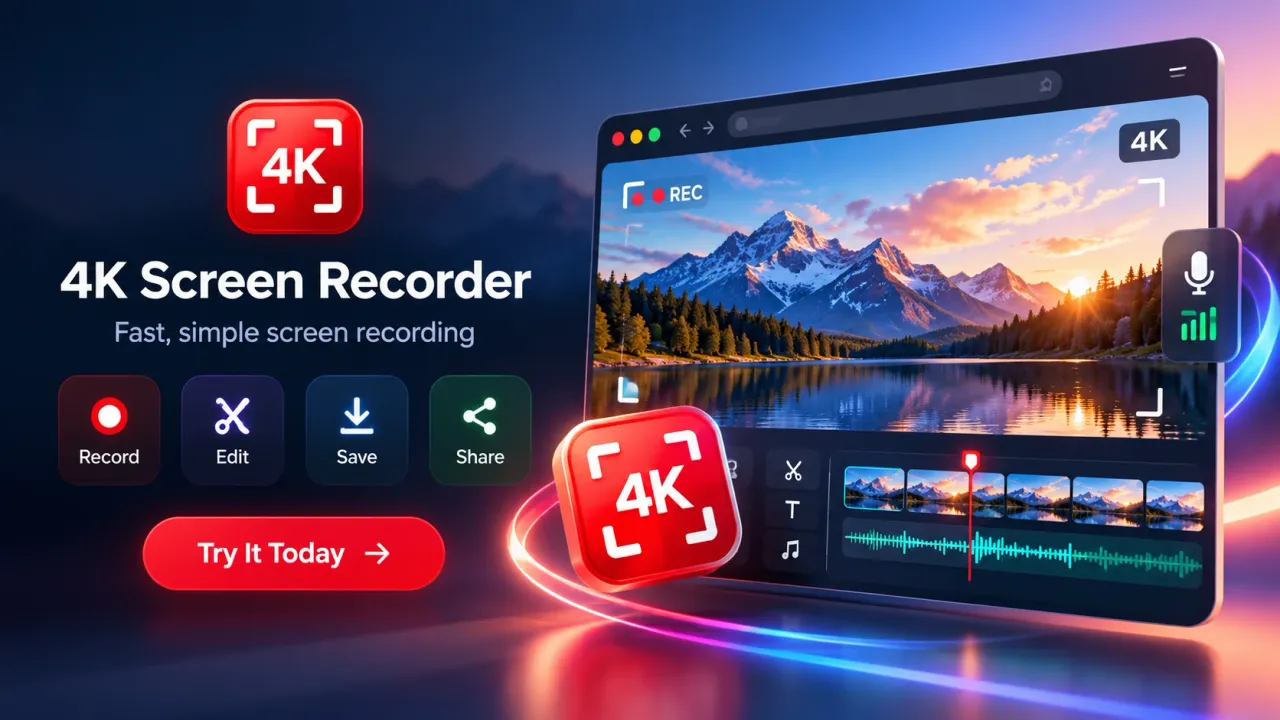
Built-in video editing reduces the number of applications needed to produce a finished screen recording. 4K Screen Recorder allows users to preview captured footage, trim unnecessary sections, combine clips, and export videos from its Chrome-based workflow.
Editing is particularly useful because screen recordings often contain small delays, unnecessary actions, or mistakes.
A tutorial may begin with several seconds of cursor positioning. A demonstration may contain a pause while a page loads. A presenter may repeat an explanation after making a mistake.
Trimming removes unwanted content from the start or end of a clip, or from supported sections of the editing timeline.
Clip stitching combines recorded segments into a single output. Creators can organize short explanations into a more complete instructional video, subject to their recording and editing limits.
Advanced Pro tools provide additional presentation options.
Captions and text overlays can help identify important terms, explain settings, or make technical instructions easier to follow.
Annotations can draw attention to buttons, fields, menus, and selected interface components.
Branding tools can help maintain a consistent visual style across business tutorials and marketing videos.
Color adjustments and background customization provide additional presentation control.
Thumbnail creation helps creators prepare a visual cover for supported publishing workflows.
The most efficient editing process begins before recording.
When creators prepare the demonstration, remove unnecessary screen content, and organize their narration, fewer corrections are needed later.
Editing should improve clarity rather than compensate for an unplanned recording.
Video Production Workflow for YouTube, Social Media, and Marketing
A Chrome screen recorder can support video marketing by capturing product demonstrations, educational content, website walkthroughs, and interface-based explanations. The recording becomes a source video that creators can prepare for different publishing channels.
The most useful workflow starts with a specific communication objective.
A product demonstration might need to explain one feature. A YouTube tutorial may require a complete sequence of actions. A social media video may focus on a single problem and its solution.
Creating YouTube tutorials
Screen recordings work well for software tutorials, browser tips, marketing guides, website demonstrations, and online learning content.
A useful tutorial structure includes a brief description of the result, a clear demonstration, and a short explanation of what viewers should understand or do next.
For longer tutorials, creators should consider the recording-duration requirements before selecting the plan.
YouTube video performance can be evaluated after publication using metrics such as impressions, click-through rate, watch time, and audience retention in YouTube Analytics.
These metrics describe how viewers discover and watch the content. They do not measure the screen recorder's technical performance.
Creating social media videos
Short screen recordings can show individual features, interface changes, quick tips, or brief solutions.
A creator might record a software setting, trim the beginning and ending, and publish the result as an instructional clip.
For vertical publishing formats, composition matters. A standard 16:9 desktop recording does not automatically become a suitable 9:16 video.
Creators may need to reframe the recording, enlarge relevant interface elements, or prepare the final aspect ratio using appropriate editing tools.
The capabilities of 4K Screen Recorder should not be interpreted as a guarantee of dedicated vertical-video conversion.
Creating digital marketing demonstrations
Digital marketers can record campaign dashboards, reporting interfaces, website changes, product features, and training material.
Screen videos are useful when text descriptions alone make a process difficult to explain.
For example, a marketing professional can record a campaign setup walkthrough and describe the purpose of individual settings.
Sensitive campaign information should be hidden before capture.
Creating product education content
Businesses can develop short demonstrations that explain frequently used product features.
A product team can show how to complete a task, locate a setting, or understand a feature without requiring viewers to read lengthy written instructions.
Recording separate videos for separate tasks also makes future updates easier.
Practical Use Cases for Content Creators, Educators, and Businesses
Google Chrome screen recording is useful whenever a process, explanation, or problem is easier to understand visually. Different professional groups can use the same recording features for different communication needs.
Content creators
Creators can capture browser tutorials, software workflows, design explanations, online resources, and educational demonstrations.
A planned screen recording can become part of a longer video, provided the creator has suitable rights to use the recorded material.
Educators and trainers
Teachers can record presentations, browser-based lessons, online demonstrations, and step-by-step instructions.
Microphone narration helps explain concepts while the screen displays examples.
Short recordings can also separate a large lesson into smaller subjects that are easier to review.
Software developers
Developers can record interface problems, software bugs, unexpected behavior, and reproduction steps.
A useful bug recording should show the starting condition, the action that produces the problem, and the visible result.
Application-window recording can help keep the recording focused on the affected software.
Customer support teams
Support professionals can create visual instructions for common questions.
A short video can demonstrate where a setting is located or how to complete a specific workflow.
Support teams should use test accounts or remove customer information before recording.
Business professionals
Professionals can record internal training, application walkthroughs, process documentation, and project demonstrations.
Screen recordings are particularly useful for repeatable processes that remain consistent across different users.
Remote teams
Distributed teams can use recordings to explain software changes or document workflows for colleagues who cannot attend a live demonstration.
Recordings should complement written documentation when users need searchable instructions, reference information, or accessibility support.
How to Improve Screen Recording Quality Without Extra Equipment
High-quality screen recording depends on readable screen content, clear sound, stable capture, and purposeful presentation. Increasing resolution alone does not solve poor narration, cluttered interfaces, or recording interruptions.
Several practical adjustments can improve the finished result.
Use readable interface text
Increase browser zoom when important labels appear too small.
Avoid showing an entire desktop when the viewer needs to understand only one panel.
Keep the important content large enough to remain readable after publication.
Prepare the screen before recording
Close unrelated tabs, remove unnecessary browser extensions from view, and hide confidential details.
Turn off notifications that might interrupt the demonstration.
Open the required pages before starting the recording when possible.
Move the cursor deliberately
Fast, irregular cursor movements can make tutorials difficult to follow.
Move toward the relevant button, pause briefly, and complete the action.
Keep cursor movements connected to the explanation.
Maintain consistent audio
Use a microphone position that produces clear sound.
Avoid sudden changes in speaking volume and reduce avoidable background noise.
Record a short test before beginning an important presentation.
Choose suitable resolution
Full HD is often adequate for standard demonstrations.
Use 2K or 4K when detailed interface content requires additional pixel information.
Avoid unnecessarily high output settings when the source contains limited visual detail.
Reduce competing computer activity
Close unnecessary applications when recording performance becomes unstable.
High-resolution screen recording requires the computer to process and encode substantial amounts of visual information.
Available memory, CPU resources, GPU capabilities, and storage performance can affect results.
Review the exported video
A successful recording session does not guarantee that every exported file is ready for publication.
Play the finished file and check audio synchronization, text clarity, duration, and any editing changes.
Local Screen Recording, Privacy, and Data Protection
4K Screen Recorder processes the core recording workflow locally inside Google Chrome. Screen recordings, selected webpage content, microphone audio, and webcam video are not uploaded to an external recording server as part of normal recording.
Chrome controls the source-selection process and requests relevant permissions for supported recording features.
The user selects the browser tab, application window, or screen to record.
Microphone and webcam access require permission when those inputs are enabled.
Recorded files may remain temporarily in local browser or extension storage during preview and editing.
The user controls the final export to the device.
Local processing offers a practical benefit for people who prefer not to send routine screen recordings to an external recording service.
However, local processing does not remove the need for responsible handling of sensitive information.
Users should:
- Avoid recording passwords, private messages, and confidential documents.
- Remove personal information from demonstrations.
- Obtain permission before recording another person's protected content or communications.
- Follow workplace recording policies.
- Review Chrome extension permissions.
- Save important exported files in a suitable location.
- Back up recordings that must be retained.
Browser storage should not be treated as permanent storage.
Clearing browser data, removing the extension, or performing device cleanup may remove locally stored recordings.
Optional features that involve external services, such as supported automatic transcription, should be reviewed separately from core local recording.
Privacy therefore depends on the particular feature being used, the relevant permissions, and the handling of exported files.
Fix Common Chrome Screen Recording Problems
Chrome screen recording problems commonly involve source selection, permissions, missing audio, unclear video, recording performance, or export compatibility. Identifying the affected part of the workflow helps users choose an appropriate correction.
Screen recording does not start
Check whether Chrome has displayed a source-selection request.
Confirm that a supported browser tab, window, or display has been selected.
Review extension permissions and restart the recording process if necessary.
Microphone audio is missing
Confirm that microphone recording is enabled.
Check the selected input device and Chrome's microphone permissions.
Run a short test to determine whether sound is being captured.
Browser audio is missing
Confirm that the selected capture mode supports the required audio source.
Audio availability can differ across browser-tab, window, and screen capture.
Operating-system behavior also affects whether particular audio sources can be included.
Recording appears blurry
Review the resolution setting, source resolution, browser zoom, and display scaling.
Small text can remain difficult to read even when the output file uses a high resolution.
Increasing the size of the relevant interface elements often helps.
Video playback is not smooth
Try a lower resolution or frame rate.
Reduce unnecessary computer activity and verify available storage.
Device performance and browser encoding capabilities can affect frame delivery.
Export does not produce MP4
4K Screen Recorder uses MP4 where supported and WebM as a compatibility fallback.
Check the exported file format before using it in another application.
An external conversion step may be necessary if the destination requires a particular format that the browser did not produce.
A recording disappears
Check whether the finished file was exported to the device.
Temporary browser or extension storage can be cleared under certain conditions.
Important recordings should be exported and backed up after completion.
Measure Video Quality and Production Efficiency
Screen recording quality can be evaluated through technical playback checks, instructional clarity, and the effort required to produce a finished video. The most useful measurements depend on whether the video is intended for education, marketing, documentation, or technical support.
Technical checks include:
- Resolution: The pixel dimensions of the exported video.
- Frame rate: The number of frames delivered each second.
- Audio clarity: Whether narration and source audio are understandable.
- Audio synchronization: Whether sound matches the relevant screen activity.
- Visual readability: Whether text, menus, and interface details remain clear.
- File compatibility: Whether the exported format works with the intended destination.
- Playback stability: Whether the video plays without unexpected interruptions.
Production efficiency can be assessed separately.
Creators can record the time spent preparing content, capturing footage, correcting mistakes, editing clips, and exporting the final file.
For example, repeated retakes may indicate that the demonstration needs better preparation. Excessive trimming may indicate unnecessary actions during recording.
Marketing teams can also measure content results after publication.
YouTube Analytics, website analytics, and supported social media reporting tools provide audience-related information such as viewing duration, engagement, traffic, and conversion activity.
These measurements help evaluate the published content, not the recording extension itself.
No particular improvement in production speed, engagement, or conversions should be attributed to a screen recorder without a controlled comparison or genuine performance data.
When a Free Chrome Screen Recorder Is the Right Choice
A free Chrome screen recorder is a practical choice when users need to capture short tutorials, browser demonstrations, technical issues, presentations, or other screen-based content without a separate recording application.
The decision depends on the required recording length, output resolution, editing requirements, available computer resources, and sensitivity of the material being recorded.
For short clips, 4K Screen Recorder's free plan provides access to Full HD, 2K, and 4K recording within its time limits.
For longer videos, advanced editing, selected-area recording, or 60 FPS capture, the Pro features are more appropriate.
A browser-based recorder is especially suitable when screen content provides most of the visual material.
Complex productions involving multiple external cameras, advanced audio mixing, extensive animation, or specialist post-production may require additional software.
The most effective approach is to choose recording settings that match the final purpose rather than using the highest settings for every project.
Create Better Videos with a Simple, Repeatable Recording Process
Creating high-quality videos faster with Google Chrome depends on a repeatable process that combines preparation, focused recording, clear narration, efficient editing, and reliable export.
4K Screen Recorder brings several of these activities into a single Chrome extension, supporting browser-tab, screen, window, and Pro selected-area recording.
Its Full HD, 2K, and 4K options serve different levels of visual detail. Microphone input, supported source audio, and webcam overlays provide different presentation styles. Built-in trimming, clip stitching, and optional advanced editing features help prepare recordings for sharing or publication.
The free version is useful for short demonstrations and recording tests, while Pro supports longer sessions and additional production requirements.
The best screen recording is not necessarily the one with the largest file size or highest resolution. It is the one that lets viewers clearly understand the intended information with minimal distraction.
A focused recording source, readable interface, clear explanation, and carefully reviewed export are the foundation of an effective screen video.
A free screen recorder for Google Chrome can make video creation faster by bringing recording, audio capture, webcam input, preview, editing, and export into a single browser-based workflow. 4K Screen Recorder supports browser tabs, application windows, full-screen capture, Full HD, 2K, and 4K recording, making it useful for tutorials, product demonstrations, marketing videos, online lessons, technical support, and business training.
The best recording settings depend on the type of content being created. Full HD and 30 FPS are suitable for many tutorials and presentations, while 2K, 4K, or 60 FPS can be useful when additional visual detail or smoother motion is needed. Clear narration, readable screen content, careful source selection, and a prepared recording sequence often have a greater effect on video quality than resolution alone.
For short recordings, the free version provides a practical way to start creating screen videos directly in Chrome. Users who need longer recording sessions, selected-area capture, 60 FPS recording, or additional editing tools can consider the Pro features.
A well-planned screen recording workflow reduces unnecessary retakes and editing while helping creators produce clear, focused videos for YouTube, social media, education, marketing, customer support, and internal communication.
Free Screen Recorder for Google Chrome: FAQs
What is a free screen recorder for Google Chrome?
A free screen recorder for Google Chrome is a browser-based tool that lets users record a browser tab, application window, or full screen directly from Chrome. It can be used for tutorials, product demonstrations, presentations, training videos, bug reports, and marketing content.
Can 4K Screen Recorder record videos in 4K resolution?
Yes. 4K Screen Recorder supports recording up to 3840 × 2160 pixels. It also supports 2K QHD at 2560 × 1440 pixels and Full HD at 1920 × 1080 pixels, depending on the selected settings and plan.
What is the recording limit in the free version?
The free version supports up to 60 seconds at Full HD, up to 30 seconds at 2K QHD, and up to 10 seconds at 4K UHD. These limits make the free version suitable for short tutorials, quick demonstrations, and recording tests.
Can I record microphone audio and webcam video together?
Yes. 4K Screen Recorder supports microphone narration and webcam overlays along with screen recording. Users must grant the required Chrome permissions before microphone or webcam input can be captured.
Can I record browser audio or system audio?
Supported browser-tab or system audio can be recorded depending on the selected recording mode, browser behavior, and operating system. Audio availability can vary between browser-tab, window, and full-screen capture.
What is the difference between 30 FPS and 60 FPS recording?
30 FPS is suitable for most tutorials, presentations, and software demonstrations. 60 FPS can provide smoother motion for fast scrolling, animations, and movement-heavy recordings. 4K Screen Recorder supports 30 FPS in the free version and up to 60 FPS with Pro.
Can I edit a screen recording after capturing it?
Yes. 4K Screen Recorder includes video preview, trimming, and clip stitching. Pro features can also include advanced editing tools such as captions, text overlays, annotations, branding options, and thumbnail creation.
Which recording mode should I use for a tutorial?
Browser-tab recording is usually best for website tutorials and browser-based applications. Application-window recording works well for software demonstrations, while full-screen recording is useful when the tutorial moves between multiple applications. Selected-area recording can be useful when only part of a webpage needs to be shown.
Is 4K always the best resolution for screen recording?
No. Full HD is sufficient for many tutorials, presentations, and business videos. 2K or 4K can be useful when the screen contains small text, detailed dashboards, spreadsheets, or complex interfaces. The best resolution depends on the source quality, computer performance, final publishing platform, and viewing device.
Who can use a Chrome screen recorder for video creation?
Chrome screen recording can be useful for content creators, YouTubers, digital marketers, educators, software developers, customer support teams, remote workers, trainers, product teams, and businesses. It is particularly useful when a process or explanation is easier to understand visually than through text alone.