
Recording speeches, training sessions, and important updates with a free Chrome screen recorder means capturing presentations, browser content, application windows, voice narration, and webcam video directly through Google Chrome. A Chrome screen recording extension such as 4K Screen Recorder by DotnDot allows political teams, educators, trainers, business professionals, organizations, and content creators to produce video recordings without installing separate desktop recording software. Users can select a recording source, configure audio and video quality, capture their content, edit the recording, and export it for sharing. Understanding recording modes, microphone settings, free…
Recording speeches, training sessions, and important updates with a free Chrome screen recorder means capturing presentations, browser content, application windows, voice narration, and webcam video directly through Google Chrome. A Chrome screen recording extension such as 4K Screen Recorder by DotnDot allows political teams, educators, trainers, business professionals, organizations, and content creators to produce video recordings without installing separate desktop recording software. Users can select a recording source, configure audio and video quality, capture their content, edit the recording, and export it for sharing. Understanding recording modes, microphone settings, free recording limits, and privacy controls helps users choose the right workflow for each type of video.
Why Chrome Screen Recording Works for Speeches, Training, and Updates
Chrome screen recording combines visual content and spoken explanations into a video that people can watch later. It is particularly useful when a message includes slides, documents, websites, demonstrations, or information that viewers need to see while listening.
A written training guide can describe a process, but a screen recording can show each action as it happens. A speech accompanied by presentation slides can preserve the speaker's explanation and supporting information in one recording.
Common recording purposes include:
- Political speeches: Record policy explanations, campaign announcements, public messages, and speech presentations.
- Volunteer training: Explain registration processes, communication guidelines, and campaign procedures.
- Educational training: Create recorded lessons, software demonstrations, and instructional presentations.
- Business updates: Share project progress, operational changes, and team announcements.
- Community updates: Explain public services, local developments, and upcoming activities.
- Remote communication: Prepare video instructions for people who cannot attend a live session.
- Digital content: Produce informational clips for websites, YouTube, and social media.
Screen recording is especially suitable when the speaker's message depends on information displayed on a computer.
The recording can be reviewed before publication, allowing the creator to remove mistakes, check audio quality, and confirm that the intended information is visible.
How to Start Recording with 4K Screen Recorder in Google Chrome
4K Screen Recorder by DotnDot is a Chrome extension designed to capture browser tabs, application windows, desktop screens, and selected webpage regions. The extension supports microphone recording, webcam overlays, local video editing, and export options.
The basic recording process consists of selecting the content, configuring capture settings, recording the presentation, and exporting the finished video.
Install the Chrome extension
Open the 4K Screen Recorder product page or its Chrome Web Store listing and choose the installation option.
Complete the Chrome installation process and make the extension accessible from the browser toolbar.
Check the permissions requested during installation. Screen recording, microphone access, and webcam recording require relevant browser or device permissions.
Prepare the recording content
Open the speech presentation, training website, online document, or application that needs to appear in the video.
Before recording:
- Close unrelated browser tabs.
- Hide confidential notifications.
- Open the correct presentation.
- Check that the text is readable.
- Arrange application windows.
- Prepare the speech or training notes.
- Connect the required microphone or webcam.
A prepared desktop reduces accidental interruptions and unwanted information appearing in the recording.
Select the recording mode
Open 4K Screen Recorder and choose the appropriate source.
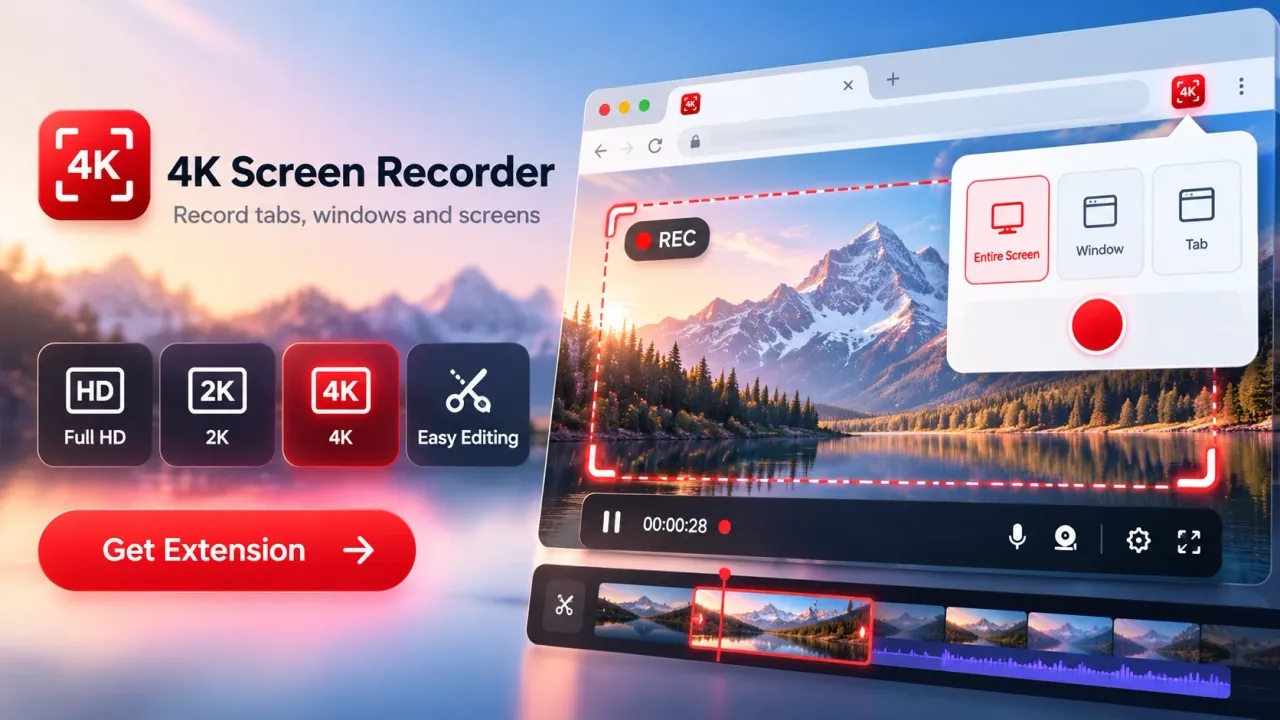
Browser Tab recording captures the selected Chrome tab. Screen recording captures a selected display. Window recording focuses on a chosen application window.
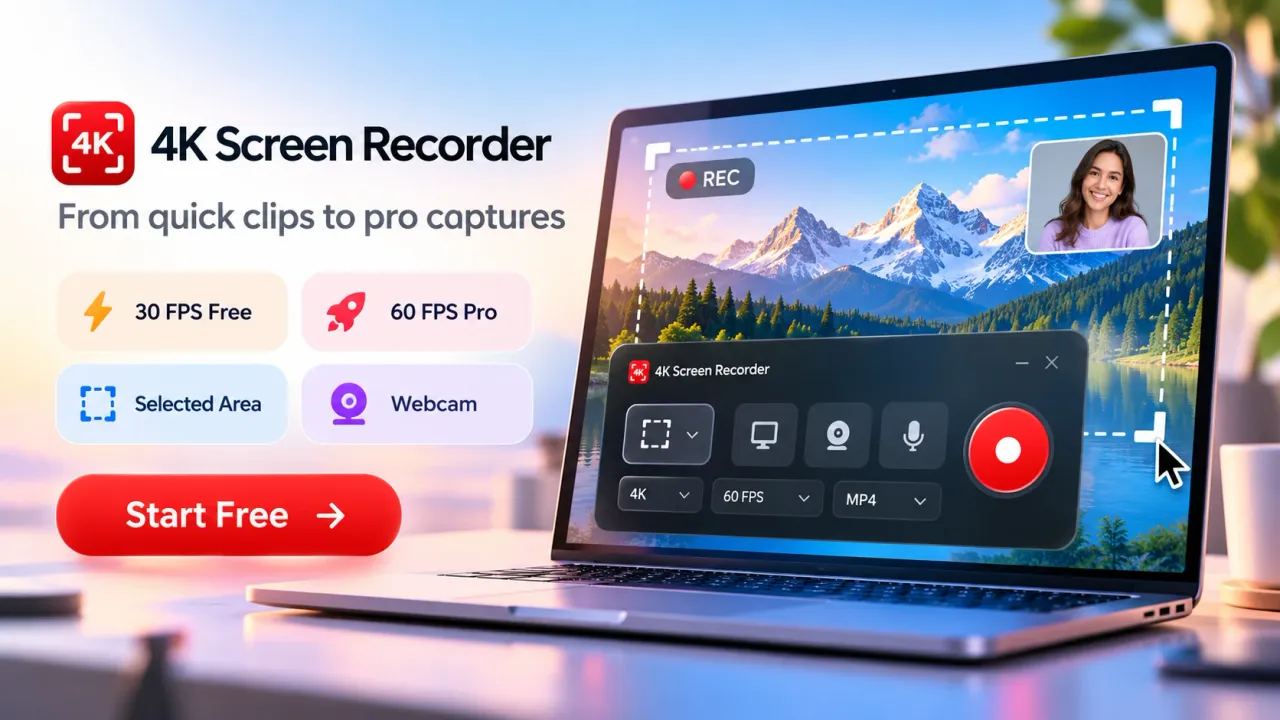
Selected Area recording is an additional Pro feature for capturing a defined webpage region.
Configure video and audio
Choose the resolution and frame rate supported by the selected plan.
Enable microphone input when recording a live explanation or narration. Enable webcam recording when the speaker needs to appear alongside the screen content.
If the source contains audio, check whether Chrome offers the appropriate audio-sharing option.
Start and finish the recording
Start the recording and allow the countdown to finish before speaking.
Present the content at a comfortable pace. Keep the pointer movement controlled and avoid unnecessary switching between applications.
When finished, stop recording, open the preview, check the video and audio, make the required edits, and export the file.
Chrome's screen-sharing system gives users control over the selected tab, window, or screen and provides an indication when screen sharing is active.
How to Record a Speech with Slides and Voice Narration
Recording a speech with slides requires capturing the presentation and the speaker's microphone audio together. The method is useful for policy presentations, educational speeches, organizational announcements, and recorded briefings.
The objective is to make the speech understandable even when the viewer is not physically present.
Prepare a Speech Presentation
Arrange the presentation so each slide supports a specific part of the speech.
A speech recording can contain:
- An opening title with the speaker's name and topic.
- A short explanation of the main subject.
- Supporting facts, statistics, or examples.
- Relevant images and presentation slides.
- An explanation of decisions or proposed actions.
- A closing message with the next steps.
Avoid placing complete paragraphs on every slide. Large headings, short points, and readable charts make the recording easier to follow.
For a political speech explaining a public development project, slides could show the project description, affected areas, proposed activities, and implementation information.
Every factual statement should come from verified records.
Record the Presentation
Open the presentation in Chrome or in the relevant desktop application.
Choose Browser Tab recording when the complete presentation runs in one Chrome tab.
Choose Window recording when the presentation runs in a separate desktop application.
Enable the microphone and make a short test recording before beginning the full speech.
If the speaker wants to appear in the video, enable the webcam overlay and position it where it does not cover important text.
Start recording before delivering the opening sentence so the beginning is not cut off.
Maintain Clear Speech Audio
Speech recordings depend heavily on microphone quality.
Use a quiet room, position the microphone consistently, and avoid sudden changes in speaking volume.
A headset or external microphone can help reduce unwanted room sound, although the final quality depends on the device and surroundings.
Speak naturally and pause between major ideas.
Review the test recording for distortion, background sound, missing words, or excessive echo.
A high-resolution presentation cannot compensate for unclear narration.
Record Existing Speech Videos
A Chrome screen recorder can capture supported video playback in a browser tab when the content is available for recording and the user has the necessary permission.
The selected tab's audio must be enabled and supported.
Some streaming services and protected video sources restrict recording. Copyright permissions and recording consent remain relevant even when content is technically accessible.
A screen recorder should not be treated as a universal tool for capturing protected media.
Record Political Campaign Speeches, Policy Briefings, and Public Messages
Political teams can use Chrome screen recording to prepare speeches, explain policy proposals, train volunteers, and distribute public information. The recording process is most effective when the content is accurate, clearly presented, and reviewed before publication.
Political communication often combines spoken messages with documents, charts, maps, news reports, and public records.
Screen recording allows presenters to explain those materials while showing the relevant information.
Policy explanation videos
A policy team can record a presentation explaining a proposed road project, public welfare initiative, water supply plan, or infrastructure development.
The presenter can display official documents, explain relevant figures, and distinguish completed activities from proposed work.
Campaign spokesperson briefings
A spokesperson can prepare a recorded explanation of an announcement or public statement.
Using slides allows the spokesperson to organize the information before publication.
The video can be reviewed for factual accuracy and clarity.
Public-service information
Community teams can produce short instructions showing residents how to locate official services, understand application requirements, or find public information.
The video should direct viewers toward verified procedures and avoid exposing private citizen information.
Internal campaign training
Campaign managers can record instructions for team members covering administrative procedures, field reporting, event coordination, and approved communication practices.
Sensitive information, such as voter contact details or internal account credentials, must not appear in the recording.
Public statement archiving
Teams can maintain an organized collection of recorded public announcements.
Each recording should retain its original date, speaker identification, and context.
Editing should not change the meaning of the original statement.
Screen recording is valuable for explaining campaign material and keeping internal records, but it is not a replacement for proper camera recording when the goal is to document a speaker physically addressing an audience.
How to Create Volunteer and Staff Training Videos
Volunteer and staff training videos record a process once so team members can review the same instructions when needed. Chrome screen recording is particularly effective for demonstrating browser-based tasks, online forms, reporting dashboards, and internal workflows.
The training should focus on one clear learning objective.
For example, a volunteer onboarding video could explain how to access an approved registration portal.
A simple training sequence would include:
- Introduce the purpose of the task.
- Show the correct website or application.
- Explain the required login or access procedure without revealing credentials.
- Demonstrate the process using test information.
- Explain common errors.
- Show how to confirm successful completion.
- Summarize the task and provide a support contact.
For longer training subjects, create separate modules.
A volunteer training library could include onboarding, event preparation, public communication procedures, data protection, and issue reporting.
Short, focused lessons are easier to update when a procedure changes.
Screen Recording for Software Training
Software training requires readable interface details and carefully paced actions.
A trainer can record the browser while demonstrating how to complete a form, manage a dashboard, locate a report, or use a digital workflow.
Move the cursor deliberately and allow viewers enough time to recognize each action.
Avoid showing passwords, personal records, access tokens, or confidential dashboards.
Where possible, use demonstration accounts and sample data.
Screen Recording for Remote Teams
Distributed teams may not share the same schedule.
Recorded training provides a consistent reference that team members can review independently.
Organizations can create a library of approved instructional videos and group them by department, responsibility, or subject.
The training library should identify the latest version of each lesson.
Outdated tutorials should be updated or clearly marked as historical, particularly when software interfaces or operating procedures change.
How to Record Announcements and Regular Updates
Recorded updates communicate new information without requiring every viewer to attend a live meeting. A Chrome screen recorder can capture a presentation, project dashboard, document, or application while the speaker explains the changes.
Regular updates work best when they have a specific purpose and a clear structure.
A project update might explain completed activities, work currently underway, unresolved issues, and upcoming responsibilities.
A community update might focus on a service announcement, an event schedule, or changes to an application process.
For a campaign or organization, a useful recording format includes:
- Update title: Identify the subject and recording date.
- Current status: Explain the present situation.
- Important changes: Describe what has changed since the previous update.
- Supporting information: Show the relevant document, dashboard, or presentation.
- Required actions: Explain responsibilities or next steps.
- Closing information: Identify where viewers can obtain further details.
Different update types require different recording lengths.
A brief announcement can fit into a short video, while a detailed presentation may require several minutes.
The content should determine the duration rather than an arbitrary target.
However, the free recording limits of the selected extension must be considered before preparing longer presentations.
Free Recording Limits and When Pro Features Are Necessary
4K Screen Recorder offers free recording at multiple resolutions with specific duration limits. The Pro plan provides longer recording capability and additional editing functions.
The free plan includes:
- 4K UHD (3840 × 2160): Up to 10 seconds per recording.
- 2K QHD (2560 × 1440): Up to 30 seconds per recording.
- Full HD (1920 × 1080): Up to 1 minute per recording.
- Frame rate: 30 frames per second.
- Recording sources: Browser tabs, screens, and application windows.
- Basic editing: Trimming and joining video clips.
The Pro plan includes unlimited recording duration, 60 FPS capture, selected-area recording, captions, overlays, branding controls, annotations, and additional editing options.
These distinctions matter when recording speeches or training sessions.
The free plan is suitable for short introductions, brief announcements, quick demonstrations, recording tests, and individual training segments.
A complete speech or lengthy training program will generally require longer recording capability.
The Pro plan is therefore more appropriate when continuous recording is necessary.
Users should confirm the latest plan terms before beginning an important session.
The word free describes access to a limited recording plan. It does not mean every recording duration, resolution, or editing feature is available without payment.
Choosing Between Browser Tab, Window, and Full-Screen Recording
Chrome recording modes determine which content appears in the final video. Choosing the correct source can reduce unwanted information, improve privacy, and simplify editing.
Browser Tab Recording
Browser Tab recording captures the content of a selected Chrome tab.
It is useful for website demonstrations, online slide presentations, browser-based training, and narrated policy documents.
The recorder can include supported tab audio where available.
Choose this mode when the entire presentation remains within one webpage or browser tab.
Window Recording
Window recording captures a selected application window.
It works for desktop presentations, software demonstrations, application training, and project briefings.
Capturing one application window reduces the chance of displaying unrelated desktop content.
However, pop-up dialogs and application behavior should be checked before recording.
Full-Screen Recording
Full-screen recording captures a selected display.
It is useful when a presentation requires switching between multiple applications or showing desktop-level activities.
Full-screen recording also introduces a greater chance of exposing notifications, private documents, or unrelated windows.
Disable notifications and close unnecessary applications before recording.
Selected Area Recording
Selected Area recording focuses on a specified part of a webpage.
The feature is available through the Pro plan.
It can be useful when the presenter wants to emphasize a dashboard section, chart, or webpage component without recording surrounding content.
The best capture mode depends on the material being shown, not simply the maximum amount of screen space available.
Microphone, Webcam, and Screen Audio Settings Explained
A Chrome screen recording can contain multiple media inputs. Microphone audio captures the speaker's voice, source audio captures supported playback from the selected content, and webcam recording displays the presenter.
Each input has a different role.
Microphone audio is suitable for narrated speeches, tutorials, commentary, and verbal instructions.
Browser-tab audio is relevant when the presentation includes video playback, audio demonstrations, or other sounds originating from the selected tab.
System audio refers to computer playback audio, but its availability depends on the operating system, browser, selected source, and capture permissions.
Webcam video allows the speaker or trainer to appear alongside the displayed material.
A webcam overlay can make a recorded presentation feel more personal, particularly when the speaker is explaining a complex subject.
However, a webcam is not necessary for every recording.
Some training videos benefit from a clean screen without additional visual elements.
Preventing Common Audio Problems
Several recording problems involve selecting the wrong audio input.
When a recording has no narration, verify that the correct microphone was selected and that Chrome has permission to use it.
When the speaker's voice is audible but presentation audio is missing, check the source-audio sharing option.
When the recording contains echo, the microphone may be capturing audio played through external speakers.
Headphones can help separate playback from microphone input.
Always record a short test and play it back before beginning a lengthy speech or training session.
Full HD, 2K, and 4K Video Quality for Presentations
Recording resolution determines the pixel dimensions of the captured video. Higher resolution can preserve smaller text and interface details, but it also places greater demands on recording, processing, and storage.
4K Screen Recorder supports three resolution options.
Full HD, 1920 × 1080
Full HD contains approximately 2.1 million pixels per frame.
It is suitable for standard presentations, training demonstrations, explanatory videos, and many social media publishing workflows.
Full HD is often a practical choice when the source content is already readable and the final video will be viewed on ordinary screens.
2K QHD, 2560 × 1440
2K QHD contains approximately 3.7 million pixels per frame.
It provides additional detail for browser demonstrations, software interfaces, charts, and presentations containing smaller text.
The recording can require more processing resources than Full HD.
4K UHD, 3840 × 2160
4K UHD contains approximately 8.3 million pixels per frame, four times the pixel count of Full HD.
It is useful when a recording needs to preserve fine interface details or support high-resolution publishing.
However, choosing 4K does not automatically improve an unclear source.
A low-resolution presentation or blurry video remains limited by the original content quality.
When 30 FPS Is Enough
Frames per second (FPS) measures the number of video frames captured each second.
For speeches, static slides, online lessons, and slower software demonstrations, 30 FPS is generally a practical option.
The Pro plan supports 60 FPS for recording content with more movement, such as fast scrolling, animated interfaces, or other motion-heavy demonstrations.
For most speech presentations, microphone clarity and readable slides matter more than the difference between 30 FPS and 60 FPS.
Editing Recorded Speeches and Training Videos Before Sharing
Editing allows a recording creator to remove unwanted material, improve presentation flow, and prepare a video for its intended audience.
4K Screen Recorder includes local editing capabilities.
The free plan supports trimming and joining clips. Pro includes additional tools such as captions, text overlays, annotations, branding, color adjustments, and thumbnail creation.
Trim unnecessary sections
Remove preparation time, extended silence, accidental pauses, and unwanted footage from the beginning or end.
When editing a public speech, preserve the speaker's original meaning and relevant context.
Join related clips
A trainer may record several short demonstrations and combine them into a longer instructional video.
This approach is particularly useful when the subject contains multiple separate tasks.
Add captions
Captions help viewers follow spoken information when audio playback is unavailable or difficult to hear.
They can also support people with hearing difficulties.
Captions should be reviewed for errors in names, numbers, technical terminology, and policy details.
Use annotations
Annotations can direct attention toward buttons, fields, charts, or presentation details.
For software training, clear annotations can make an unfamiliar interface easier to understand.
Prepare the thumbnail
A thumbnail should identify the video topic accurately.
Useful thumbnail elements include the presentation title, relevant speaker information, and a readable description of the subject.
Avoid using unrelated images or misleading text.
Editing should improve clarity without altering factual information or removing context needed for correct interpretation.
Recording Privacy, Permissions, and Responsible Use
Chrome screen recording can capture confidential information, personal records, private conversations, and protected material if the selected source contains them. Responsible recording requires permission management, content review, and appropriate file handling.
4K Screen Recorder processes screen capture, recording, and editing locally in Chrome. Recorded screen content, microphone audio, webcam footage, and browser content can remain on the user's device during the recording workflow.
Local processing is a useful privacy characteristic, but it does not eliminate every security risk.
Recordings can still contain sensitive information, and exported files can be copied or shared.
Before recording:
- Obtain appropriate permission from speakers and participants.
- Avoid recording private meetings without authorization.
- Remove confidential browser tabs and documents.
- Use demonstration data for training.
- Disable desktop notifications.
- Check microphone and webcam permissions.
- Review the complete video before distribution.
- Store sensitive recordings in approved locations.
- Restrict access to internal training materials.
For political teams, personal information deserves particular attention.
Volunteer contact records, voter information, private campaign documents, internal communications, and account credentials should not appear in public recordings.
For educational and workplace training, follow applicable privacy rules and organizational policies.
Recording a meeting or speech does not automatically grant permission to publish the resulting video.
Copyright, participant consent, confidentiality, and publication rights must be considered separately.
How to Export and Share Screen Recordings
Exporting converts the completed recording into a video file that can be saved, reviewed, and distributed.
4K Screen Recorder supports MP4 export where browser capabilities allow it, with WebM available as a compatibility fallback.
MP4 is commonly accepted by video platforms, presentation tools, and many media players.
WebM is another digital video format used for browser-compatible media.
After editing:
- Review the entire recording.
- Check microphone and presentation audio.
- Confirm that the intended content is visible.
- Verify names, dates, figures, and labels.
- Select the available export settings.
- Save the video to an appropriate folder.
- Play the exported file to confirm it works.
- Share the recording through the intended channel.
Use meaningful filenames.
For example, a training recording might use a filename containing the subject, date, and version.
A political briefing might include the announcement topic and recording date.
Clear filenames make recording libraries easier to manage.
Publishing Speech and Training Videos on YouTube
YouTube can host public speeches, educational recordings, and training content intended for a wider audience.
Before uploading, prepare a title that accurately identifies the subject.
The video description can include the speaker's role, recording date, main topics, and relevant supporting information.
For longer content, timestamps can help viewers find specific sections.
Choose the appropriate visibility setting.
Public videos are accessible to general viewers. Unlisted videos are accessible to people who have the link. Private videos provide more restricted access.
Unlisted status should not be treated as a complete security control for confidential material.
Sharing Short Updates on Social Media
Short screen recordings can communicate a specific announcement, software feature, or public information update.
Social media videos benefit from readable text, clear audio, and a focused message.
A recording created for a wide presentation screen may require reframing for a vertical publishing format.
Check whether the important slide content remains readable after cropping.
Avoid placing essential information near areas that platform interfaces may cover.
A complete video and a short excerpt can serve different purposes. Short clips should retain enough context to communicate the original message accurately.
Measuring the Usefulness of Recorded Training and Updates
The effectiveness of a screen recording should be evaluated according to its purpose. Training videos, public announcements, and recorded speeches have different success measures.
A training video should help viewers understand or complete a task.
A public update should communicate accurate information.
A recorded speech should preserve the message clearly.
Useful measures include:
Video completion
Completion information indicates how many viewers reach the end of a video when the publishing platform provides that metric.
Low completion may suggest that the recording is too long, the title attracts the wrong audience, or viewers find the needed information earlier.
Completion alone does not establish whether viewers understood the content.
Audience retention
Audience retention shows how viewership changes during playback on platforms that provide retention analytics.
Large changes at specific points can help identify sections that deserve review.
Training comprehension
A short assessment, practical demonstration, or supervisor review can determine whether participants understand the recorded procedure.
This is more directly related to training outcomes than video views alone.
Repeated support questions
If team members repeatedly ask about a documented procedure, the video may need clearer instructions or an updated demonstration.
Information accuracy
Recorded updates should be checked against the latest approved documents and processes.
A video with high viewership can still be unsuitable if its information is outdated.
Accessibility
Check whether spoken instructions remain understandable, captions are accurate, and important text is readable.
A recording should communicate effectively to its intended audience, not merely achieve high video quality.
Common Chrome Screen Recording Problems and Practical Fixes
Chrome screen recording problems commonly involve permissions, audio inputs, recording source selection, device performance, or video export compatibility.
Most problems can be investigated with a short test recording.
The recording has no sound
Check microphone permissions, the selected microphone, and the recording audio settings.
If browser playback audio is missing, verify whether the selected recording source supports audio sharing.
The webcam does not appear
Confirm that camera access is enabled in Chrome and the operating system.
Check whether another application is using the camera.
The screen recording is blurry
Inspect the recording resolution and the original source quality.
Use readable presentation text and avoid excessive zooming or scaling.
The video is not smooth
High-resolution recording can place additional demands on the computer.
Close unnecessary applications and test a lower resolution or frame rate.
The wrong window was recorded
Confirm the selected source before beginning the recording.
When using Chrome's screen-sharing interface, select the exact tab, window, or display required.
The recording stops unexpectedly
Check recording duration restrictions, available device resources, browser behavior, and whether the selected source remains accessible.
The free plan's duration limits should be considered first.
The exported file is not compatible
Check whether the recorder exported MP4 or WebM.
Use playback software or publishing services that support the selected format.
The file is larger than expected
Video file size depends on duration, resolution, frame rate, encoding format, and content complexity.
Lowering unnecessary resolution or shortening the recording can reduce storage requirements.
Building a Reusable Recording Workflow for Teams
A repeatable recording workflow helps organizations produce consistent speeches, training videos, and announcements without rebuilding the process for every session.
The workflow should cover preparation, capture, review, approval, storage, and publication.
For example, a campaign communication team could organize its recording process around the following responsibilities.
Content preparation
The subject owner prepares accurate information, presentation slides, and the intended message.
Recording preparation
The recording operator checks browser settings, capture mode, microphone, webcam, and available storage.
Presentation recording
The speaker or trainer delivers the content while the selected source is captured.
Editorial review
A reviewer checks sound, presentation clarity, factual accuracy, privacy, and editing.
Approval
The appropriate team member confirms that the recording is suitable for its intended audience.
Distribution
The final video is shared through approved channels.
Archiving
The team stores the original recording and finished export with descriptive filenames and dates.
A centralized recording library can separate public speeches, internal training, operational updates, and historical material.
Each file should include enough context to identify its purpose and current relevance.
For regularly changing procedures, include version information and schedule periodic reviews.
Quick Facts About Recording Speeches and Training in Chrome
Chrome screen recording provides a practical method for capturing presentations, spoken explanations, and computer-based demonstrations.
- Recording software: 4K Screen Recorder by DotnDot is designed for Google Chrome.
- Capture sources: Browser tabs, desktop screens, and application windows, with selected webpage area capture in Pro.
- Video quality: Full HD, 2K QHD, and 4K UHD options are available.
- Free recording durations: Up to one minute in Full HD, 30 seconds in 2K, and 10 seconds in 4K.
- Audio recording: Microphone narration and supported source audio can accompany captured video.
- Webcam: An optional camera overlay can show the presenter.
- Editing: Basic clip trimming and joining are available, with additional Pro editing functions.
- Export and privacy: Recordings can be processed locally, with MP4 export where supported and WebM fallback.
These features make the free plan suitable for brief demonstrations and announcements. Longer speeches and continuous training sessions require consideration of the available recording limits.
Making Recorded Speeches, Training, and Updates More Useful
A useful screen recording delivers understandable information, preserves the intended context, and remains accessible to its audience.
The recording process should begin with the communication objective.
For speeches, focus on clear narration, readable slides, and accurate presentation of the speaker's message.
For training, show each action in the correct order and provide enough explanation for viewers to repeat the task.
For updates, identify what changed, why the information matters, and what action viewers need to take.
4K Screen Recorder by DotnDot provides browser-based capture, microphone and webcam options, local editing, and video export for these workflows.
The free plan is best suited to short recordings within its available duration limits. Pro features support longer sessions and more detailed editing.
The most effective recording is not necessarily the one with the highest resolution. It is the one that communicates accurate information clearly, protects sensitive content, and gives viewers a useful record they can review when needed.
A free Chrome screen recorder can make it much easier to record speeches, training sessions, presentations, campaign updates, tutorials, and internal communication without using separate desktop recording software. With 4K Screen Recorder by DotnDot, users can capture browser tabs, application windows, screens, microphone narration, and webcam video from Chrome.
The best recording setup depends on the purpose. Short announcements can work well with the free plan, while longer speeches and detailed training sessions may require extended recording and editing features. Clear audio, readable slides, the right capture mode, privacy checks, and a short test recording can prevent many common problems.
For political teams, trainers, educators, businesses, and content creators, screen recording can turn spoken explanations and on-screen information into reusable video content. When recordings are accurate, easy to follow, and properly reviewed before sharing, they can support training, communication, public updates, and digital publishing across multiple channels.
Recording Speeches, Training, and Updates with a Free Chrome Screen Recorder: FAQs
Can I record speeches using a free Chrome screen recorder?
Yes. A free Chrome screen recorder can capture presentation slides, browser content, microphone narration, and supported audio. It works well for short speeches, announcements, policy explanations, and presentation-based messages.
Can 4K Screen Recorder record both my screen and microphone?
Yes. 4K Screen Recorder can capture the selected screen content while recording microphone narration. This is useful for speeches, tutorials, training sessions, presentations, and recorded updates.
Can I show my webcam while recording the screen?
Yes. Webcam recording can place the presenter alongside the captured screen content. The webcam window should be positioned so it does not cover important presentation text, charts, or interface controls.
What can I record with 4K Screen Recorder?
You can record browser tabs, application windows, and desktop screens. Selected-area recording is available as an additional Pro feature for capturing a specific part of a webpage.
What are the free recording limits of 4K Screen Recorder?
The free plan allows recordings of up to 10 seconds at 4K UHD, 30 seconds at 2K QHD, and 1 minute at Full HD. The free plan supports recording at 30 frames per second.
Is Full HD or 4K better for training videos?
Full HD is suitable for most training videos, presentations, and tutorials. 4K can preserve finer interface details and smaller text, but it also produces larger files and requires more processing resources. Clear audio and readable content are usually more important than maximum resolution.
Can I record browser audio and microphone audio together?
Microphone narration and supported browser audio can be recorded when the selected source and Chrome permissions allow it. Audio-sharing availability can vary depending on the recording source, operating system, browser settings, and device configuration.
Can Chrome screen recording be used for staff and volunteer training?
Yes. Screen recording is useful for demonstrating online forms, dashboards, software workflows, reporting procedures, onboarding steps, and internal processes. Trainers should use sample information and avoid displaying passwords, personal records, or confidential data.
Are Chrome screen recordings processed locally?
4K Screen Recorder is designed to process recording and editing locally in Chrome. Users should still review recordings carefully because exported videos can contain private information, notifications, account details, or confidential material that appeared on the screen.
Can I edit and export a recording after capturing it?
Yes. Basic editing can include trimming unwanted sections and joining clips. Additional editing options can include captions, text overlays, annotations, branding controls, and other tools depending on the plan. Recordings can be exported in supported video formats for sharing on websites, YouTube, social media, training portals, or internal communication channels.