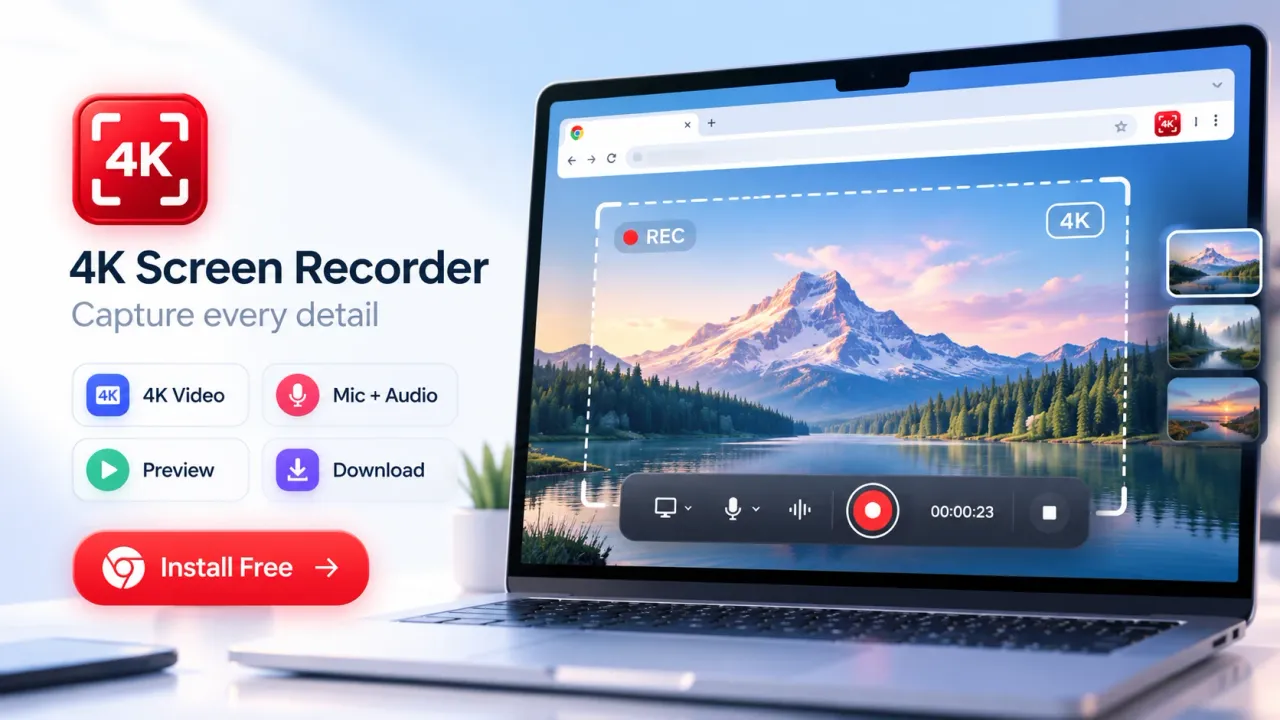

A free Chrome screen recorder lets video creators capture browser tabs, application windows, a full screen, microphone narration, supported tab or system audio, and optional webcam video directly from Chrome. For creators, the value is not only recording what appears on screen. The real benefit is a shorter production workflow for tutorials, product demos, lessons, presentations, YouTube content, social clips, and visual explanations. A creator can choose the right capture source, set the recording quality, record the content, review the result, make basic edits, and export the finished file without building a separate desktop recording setup. Current 4K Screen Recorder features include…
A free Chrome screen recorder lets video creators capture browser tabs, application windows, a full screen, microphone narration, supported tab or system audio, and optional webcam video directly from Chrome. For creators, the value is not only recording what appears on screen. The real benefit is a shorter production workflow for tutorials, product demos, lessons, presentations, YouTube content, social clips, and visual explanations. A creator can choose the right capture source, set the recording quality, record the content, review the result, make basic edits, and export the finished file without building a separate desktop recording setup. Current 4K Screen Recorder features include Full HD, 2K QHD, and 4K UHD recording at 30 FPS on the free plan, with specific time limits by resolution, while Pro adds unlimited recording, 60 FPS, selected-area capture, and advanced editing.
Why a Chrome Screen Recorder Fits the Way Video Creators Work
A Chrome screen recorder is especially useful when the content already lives inside a browser, web application, online dashboard, presentation, course platform, website, or cloud tool. Recording from the same browser where the work happens reduces setup steps and keeps the creator focused on the material being explained.
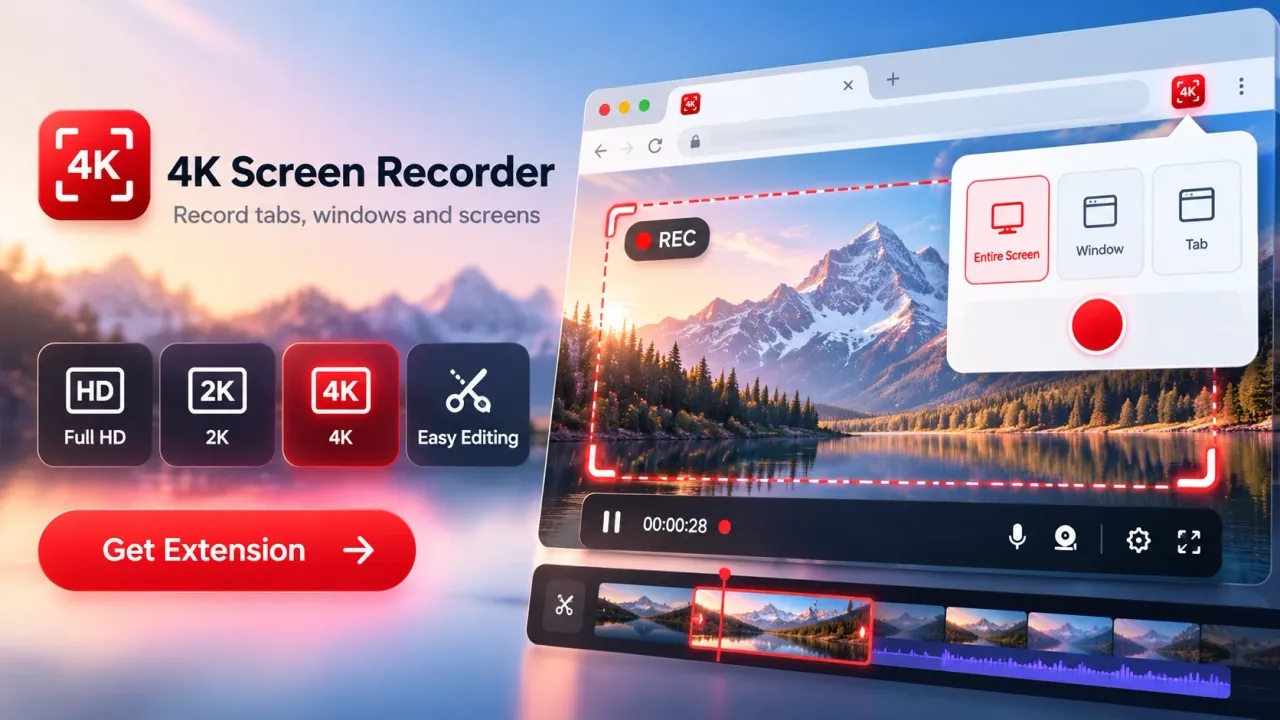
For tutorial creators, the screen is often the main subject. The audience needs to see menus, buttons, forms, settings, browser tabs, charts, documents, and on-screen actions clearly. Browser tab capture keeps the recording focused on one tab. Window capture isolates one application. Full-screen capture is better when the explanation moves across several applications. Selected-area capture can be useful when only one part of a webpage needs to appear in the video. The current 4K Screen Recorder supports tab, screen, window, and selected-area recording, with selected-area capture offered through Pro.
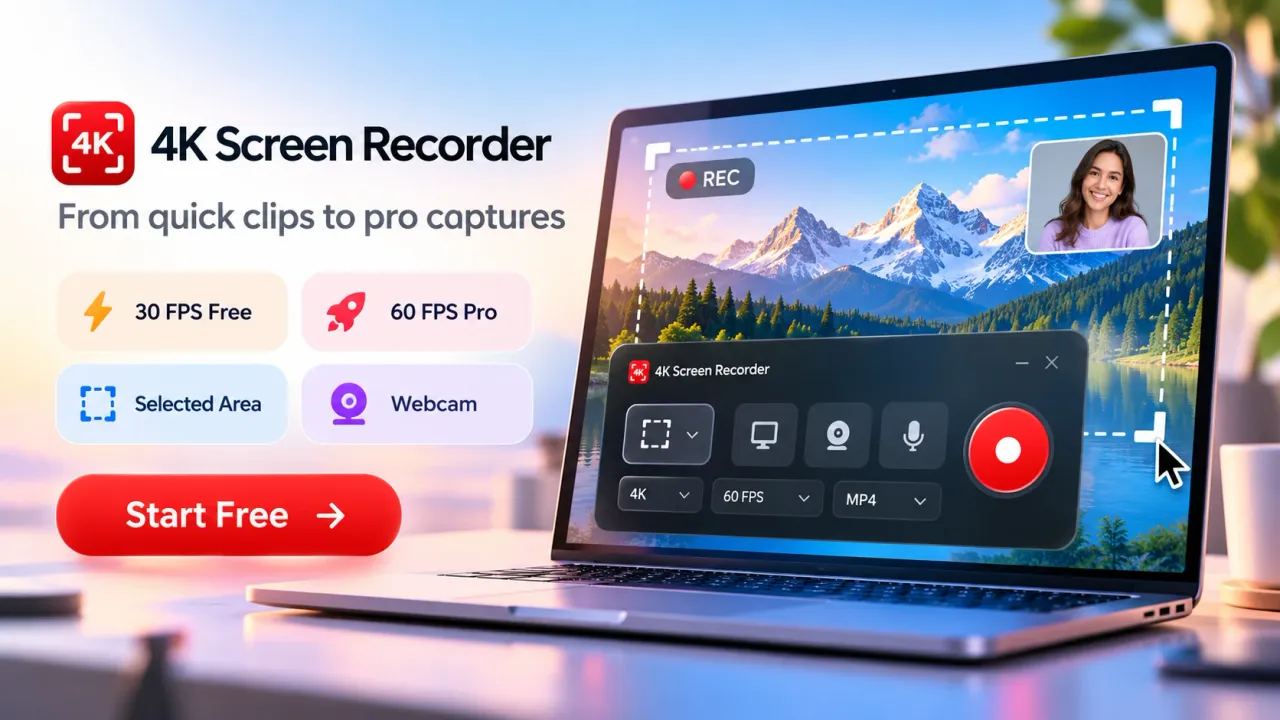
The same tool can also support face-led creator formats. A webcam overlay lets the creator remain visible while showing the screen. Microphone recording adds narration. Supported tab or system audio can capture sound from the selected source when the browser and source allow it. This combination is useful for walkthroughs, software lessons, reaction-style explanations, course material, and product demonstrations.
Quick Facts About Free Chrome Screen Recording for Creators
A creator should understand the recording limits, quality settings, audio controls, and local processing model before pressing record.
- 4K UHD means 3840 × 2160 pixels, while 2K QHD means 2560 × 1440 and Full HD means 1920 × 1080.
- The free plan supports 30 FPS recording. Pro adds 60 FPS.
- Free recording length is currently limited to 10 seconds at 4K, 30 seconds at 2K, and 60 seconds at Full HD.
- Browser Tab and Screen or Window recording are included in the free plan. Selected Area recording is a Pro feature.
- Trim and Stitch are included in the free plan. Captions, overlays, branding tools, color controls, annotations, and thumbnail tools are listed as Pro editing features.
- Recordings are processed locally in Chrome during the normal recording workflow and can be exported to the device by the user.
- MP4 is preferred where the browser supports it, with WebM used as a compatibility fallback.
- The current Chrome Web Store listing shows version 1.9.1, updated October 28, 2026.
Choose the Capture Mode Before You Choose the Resolution
The best recording quality begins with choosing the correct source. Resolution cannot fix a recording that shows too much of the desktop, exposes unrelated windows, or forces viewers to search for the part of the screen being discussed.
Browser Tab recording is a strong choice for website tutorials, browser tools, web apps, online research demonstrations, and content where one tab contains the full story. It keeps the viewer focused and can include supported tab audio. It also reduces the risk of unrelated desktop content appearing during the recording.
Screen recording is more appropriate when the creator needs to move between browser tabs, desktop apps, slides, file managers, design software, or other tools. The tradeoff is that the creator must prepare the desktop more carefully. Notifications, private files, background windows, and unrelated browser content can appear if the full screen is shared.
Window recording is useful for a software walkthrough that stays inside one application. It creates a cleaner frame than recording the entire display and reduces accidental visual distractions.
Selected-area recording is useful for narrow demonstrations, such as a chart, a web form, a specific dashboard panel, or a fixed section of a page. In the current product configuration, selected-area recording is available with Pro.
Chrome controls the screen-sharing picker when a screen or application window is recorded. The user chooses the source, and the extension records the selected source. This source-level control is also part of the product's privacy model.
Match Resolution and Frame Rate to the Content
Resolution controls image detail, while frame rate controls how frequently frames are captured. Video creators should select both settings according to what the viewer needs to see, not simply choose the largest numbers available.
4K UHD at 3840 × 2160 contains about 8.3 million pixels per frame. That additional detail is useful when the recording contains small interface text, dense dashboards, design work, spreadsheets, code, detailed product screens, or footage that may be cropped during later editing. The source still matters. A small source window does not gain new detail simply because the recorder is set to 4K. The product documentation also notes that actual recording quality depends on the source, Chrome, and device performance.
2K QHD at 2560 × 1440 can be a practical middle option for creators who want more detail than Full HD without the processing demand of 4K. Full HD at 1920 × 1080 remains suitable for many tutorials, slide explanations, browser demonstrations, and social video workflows where the final platform does not require 4K.
Frame rate should follow motion. Thirty frames per second works well for slides, static dashboards, browser settings, documents, slower tutorials, and many educational recordings. Sixty frames per second is useful when the screen contains fast scrolling, animation, rapid cursor movement, or interfaces where smoother motion improves readability. The current free plan records at 30 FPS, while 60 FPS is a Pro feature.
Creators should also consider editing and publishing plans. A high-resolution master can preserve detail for future crops or reframing, but larger recordings can place more pressure on the browser and computer. If a device struggles, lowering the resolution or frame rate can produce a cleaner result than forcing a heavier setting. The support guidance specifically recommends closing heavy tabs and apps, connecting a laptop to power, or trying 2K, Full HD, or 30 FPS when 4K recording appears soft or choppy.
Treat Audio as a Separate Production Layer
Screen quality attracts attention, but audio quality often determines whether an instructional recording is easy to follow. A creator should decide separately whether the video needs source audio, microphone narration, webcam presence, or a combination of the three.
Microphone narration is the main explanation layer for many tutorials. Before recording, the creator should test microphone input, reduce room noise, move the microphone close enough for clear speech, and avoid unnecessary fan or keyboard noise. The recorder supports microphone input when the creator enables it and grants browser permission.
Tab or system audio is useful when the source itself contains sound, such as a video, music example, interface alert, web presentation, or media demo. Audio availability can depend on the browser and selected recording source, so creators should verify the chosen source before beginning a long take. The current Chrome Web Store listing explicitly notes that available tab or system audio can be included, subject to browser and source support.
Webcam overlays work best when the creator's face adds context. A face overlay can help during teaching, commentary, software onboarding, presentations, and personal creator content. It can also occupy screen space that the tutorial needs. The webcam should be positioned where it does not cover buttons, menus, charts, captions, or other elements that the viewer must read.
A short test clip is useful before the real recording. The creator can check microphone level, source audio, webcam position, cursor visibility, browser zoom, text size, and the selected recording area in less time than it takes to repair a flawed full take.
Prepare the Screen Before Recording Begins
A polished screen recording starts before the recording button is pressed. Small preparation choices improve clarity, reduce editing work, and lower the chance of exposing private information.
Creators can improve the screen by closing unrelated tabs, hiding personal bookmarks when needed, disabling distracting notifications, enlarging small interface text, choosing a clean desktop background, and opening every page required for the recording. If the content moves between several tabs or apps, arranging them in advance reduces hesitation during the take.
Browser zoom deserves special attention. A 4K recording can still be hard to watch if interface text appears tiny in the final video. Increasing browser zoom can make menus and labels readable, especially for mobile viewers who may watch a tutorial on a small screen.
Cursor movement should also be deliberate. Rapid mouse movement makes instructional content harder to follow. Move the pointer only when it supports the explanation. Pause briefly over the button or setting being discussed before clicking it.
Creators should also prepare the spoken structure. A short outline can define the opening, the task being demonstrated, the main steps, and the final result. The goal is not to sound scripted. The goal is to avoid unnecessary detours that create extra editing later.
The recording countdown, pause and resume controls, live timer, and custom filename options can help creators manage the take. These controls are part of the current recorder feature set.
Use a Record, Review, Edit, Export Workflow
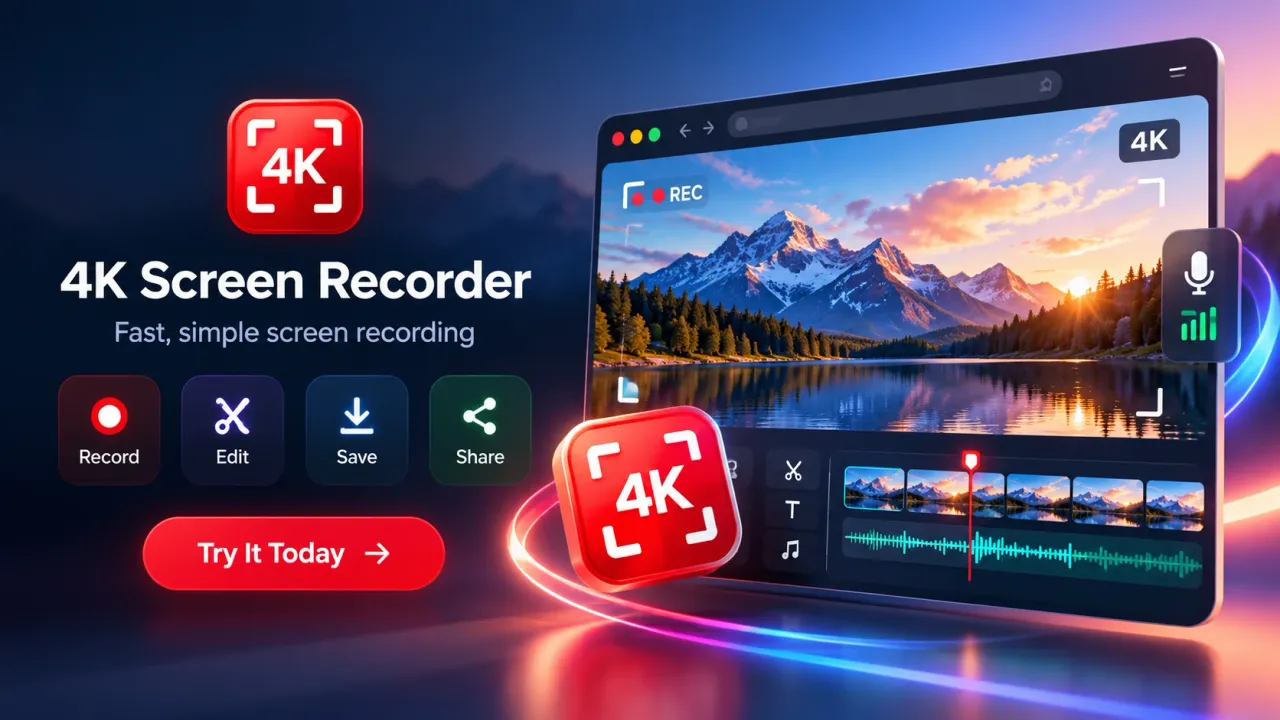
A browser recorder is most useful when the recording process is treated as one connected workflow. The current 4K Screen Recorder sequence is straightforward: choose the source, configure the recording, record the content, preview the result, edit what is needed, then export the file.
Before recording, the creator selects Browser Tab, Screen or Window, or Selected Area where available. The creator then chooses resolution, frame rate, audio, microphone, webcam, and other preferences. During the recording, live controls allow pause, resume, and stop. After the recording ends, the creator can preview the video before exporting it.
Previewing matters because screen recordings can fail in small ways that are easy to miss during the take. A notification may appear. The microphone may be too quiet. A menu may cover the important part of a page. The wrong tab may have been selected. The webcam may cover a button. A preview gives the creator a chance to catch those problems before publishing.
Naming files clearly also helps creators working on multiple videos. A filename that includes the topic, version, and date is easier to manage than a generic recording name. That becomes more valuable when one tutorial has several takes, edited versions, thumbnails, captions, and platform-specific exports.
Edit for Clarity, Not for Decoration
Editing a screen recording should remove friction from the viewer's experience. The first editing priorities are usually trimming dead time, removing mistakes, joining useful clips, adding context where needed, and making important on-screen details easier to follow.
The free plan currently includes Trim and Stitch. That means creators can cut unwanted sections and combine clips without moving immediately into a separate editor. The Pro editor adds captions, text and overlays, branding tools, color controls, annotations, and thumbnail tools. Editing is described as local inside the browser.
Captions can make spoken explanations easier to follow and can support viewers who watch without sound. Text overlays can label a step, shortcut, setting, or key result. Annotations can point to buttons, interface regions, or values that would otherwise be easy to miss. Branding tools can help recurring creator series maintain a consistent presentation. Thumbnail tools can support the publishing step when the finished recording is intended for a channel or content feed.
Creators should avoid over-editing instructional footage. Too many overlays, effects, or visual changes can compete with the screen itself. The edit should make the task easier to understand.
MP4 is the preferred export format where browser support allows it, with WebM used as a fallback when needed. Creators who depend on a specific editing application or publishing system should check format compatibility before recording a large project.
Creator Use Cases Need Different Recording Decisions
A Chrome screen recorder can serve many creator formats, but each format benefits from a different combination of source, resolution, audio, camera, and editing choices.
For software tutorials, browser tab or window capture usually keeps the frame clean. Full HD or 2K can work well for normal interfaces, while 4K becomes more useful when the screen contains dense detail or the creator expects to crop into parts of the interface.
For product demos, the recording should show a clear path from problem to action to result. Window or tab recording can reduce distractions. Webcam can be added when the creator needs a personal introduction or commentary, but the product interface should remain readable.
For online classes, microphone clarity and readable text matter more than extreme motion quality. Slides, documents, browser demonstrations, and lesson platforms often work well at 30 FPS. The recorder's webcam overlay can support instructor presence, while local editing can remove pauses or setup time. The product identifies tutorials, product demos, online classes, presentations, and creator content as supported use cases.
For YouTube screen-based content, creators should think beyond capture. The opening seconds need a clear promise, the on-screen content needs readable framing, and the edit should remove delays. A screen recorder supplies the raw material, but topic choice, structure, narration, thumbnail, title, and audience retention still shape the performance of the published video.
For short social clips, the creator may record a longer desktop sequence and later isolate the strongest moment. Higher source resolution can give more room for cropping, but the final composition still needs to match the target platform. If the final clip is vertical, the creator should keep the important interface content near the area that can survive a vertical crop.
For presentations and visual explainers, pause and resume controls reduce the need to restart after a short interruption. A clean window capture can also prevent unrelated desktop content from entering the frame.
Understand What the Free Plan Actually Includes
A free Chrome screen recorder should be evaluated by what can be completed without payment, not only by the highest resolution shown on the product page. The current free plan provides Browser Tab and Screen or Window capture, 30 FPS recording, preview and download, and basic Trim and Stitch editing. It also offers Full HD, 2K, and 4K capture with different recording length limits.
The current free limits are:
- Full HD recording up to 60 seconds
- 2K QHD recording up to 30 seconds
- 4K UHD recording up to 10 seconds
- 30 FPS recording
- Browser Tab recording
- Screen or Window recording
- Trim and Stitch editing
Pro removes the listed recording time limits and adds 60 FPS, Selected Area recording, captions, overlays, branding tools, color controls, annotations, thumbnail tools, and the broader advanced editor.
These differences affect creator planning. The free plan is useful for short demonstrations, test clips, social inserts, quick bug explanations, short browser walkthroughs, and evaluating the recording workflow. Longer tutorials, extended courses, detailed product videos, high-motion 60 FPS capture, or selected-area recording require the paid feature set under the current plan structure.
Creators should check the live product listing before a major project because features, limits, supported formats, and browser behavior can change as the extension and Chrome change. The Chrome Web Store currently lists 4K Screen Recorder version 1.9.1, updated October 28, 2026.
Local Processing Changes the Privacy Workflow
Local processing means the normal screen recording workflow is handled inside the Chrome browser rather than uploading the recording to an external recording server. That can be useful for creators working with drafts, client interfaces, private dashboards, unreleased products, or other material that should not be sent automatically to a remote recording service.
The privacy policy states that the extension records only the source selected by the user. Microphone and webcam inputs are used when the creator enables them and grants browser permission. Recordings can be stored temporarily in local browser or extension storage so they can be previewed, edited, saved, or deleted. The user controls when the finished recording is exported to the device.
Local recording does not remove the creator's responsibility to protect sensitive material. A full-screen capture can expose notifications, private tabs, customer data, personal files, account names, internal dashboards, or confidential content. Creators should prepare the screen before recording and choose the narrowest capture source that fits the job.
The current Chrome Web Store listing also states that optional automatic transcription may send audio to the browser's speech recognition service after confirmation. The store listing includes a separate data-handling disclosure covering categories such as personally identifiable information, authentication information, web history, user activity, and website content. Creators who work with sensitive material should review the current store disclosure and product privacy policy before enabling optional features.
Consent and rights still matter. Recording a screen does not automatically give a creator permission to publish private conversations, copyrighted material, paid content, customer records, or another person's confidential information.
Fix Soft, Choppy, or Incomplete Recordings at the Source
Recording problems are often caused by source resolution, device load, browser restrictions, permission settings, or format support. Troubleshooting should begin with the source and device before the creator repeats the same recording at a higher setting.
If a 4K recording looks soft, check the actual source size first. A smaller source cannot provide 4K detail that does not exist. If motion looks uneven, close heavy tabs and applications, connect a laptop to power, reduce the recording to 2K or Full HD, or use 30 FPS. These steps are part of the current support guidance.
Some Chrome pages restrict extension behavior. The support documentation notes that tab recording may not start on restricted pages such as Chrome settings pages or the Chrome Web Store. Screen or Window recording can be used when appropriate.
If microphone or camera access was blocked, the creator needs to review Chrome's permission settings and allow the relevant input before starting a new recording. If an exported file is WebM rather than MP4, browser support may have triggered the fallback format. Keeping Chrome current can improve compatibility, but creators should still test the exact recording and editing workflow they plan to use.
A good creator workflow includes a short technical test before every important recording session. That test should confirm source selection, resolution, frame rate, audio, webcam, browser zoom, cursor visibility, and export format.
Publishing Quality Depends on More Than Recording Quality
A screen recorder creates the video file, but publishing performance depends on how the recording is packaged and edited for the audience. Creators should separate capture quality from content quality.
A technically sharp 4K recording can still feel slow if the introduction takes too long. A clear tutorial can still lose viewers if the cursor moves without explanation. A useful demonstration can still be difficult to follow if the interface text is too small. Recording quality supports the content, but it does not replace planning, narration, pacing, titles, thumbnails, captions, or platform-specific formatting.
For YouTube, the creator should review audience retention, watch time, traffic sources, impressions, and click-through rate in YouTube Analytics after publishing. Those metrics do not measure the recorder itself. They show how viewers respond to the topic, packaging, opening, pacing, and value of the finished video. Screen recording decisions can still influence those results indirectly by affecting readability, clarity, motion, audio, and pacing.
For social video, creators should plan for the platform's viewing context. Many viewers use phones, so tiny desktop text can become unreadable. Crop decisions, captions, larger interface zoom, shorter clips, and clear visual focus can matter more than recording at the highest available resolution.
For courses and documentation, consistency matters. Repeating the same resolution, microphone setup, webcam placement, browser zoom, filename pattern, and editing approach can make a series easier to produce and easier for viewers to follow.
The Current 2026 Creator Workflow Is Capture, Edit, and Export in One Browser Tool
The current category has moved beyond simple screen capture. Modern browser recording workflows commonly combine screen or camera capture, audio, pause or resume controls, editing, export, and sharing or publishing steps. In the current 4K Screen Recorder release, recording, previewing, editing, and exporting are all designed to happen from the Chrome-based workflow.
As of November 2026, the current store listing describes 4K Screen Recorder as a Chrome extension that records tabs, windows, screens, or selected areas, with Full HD, 2K, and 4K options. The free plan records at 30 FPS with time limits by resolution. Pro adds unlimited recording, 60 FPS, selected-area capture, and advanced editing. The Chrome Web Store lists version 1.9.1 with an October 28, 2026 update date.
For creators, the practical direction is clear. Browser recording is becoming a compact production process rather than a single capture action. The creator can prepare the screen, choose the correct source, record narration and camera when needed, preview the take, make focused edits, and export a publishable file without moving through several separate applications.
A Better Screen Recording Comes From Better Recording Decisions
Video creators get better results from a free Chrome screen recorder when they choose settings according to the content rather than chasing maximum specifications. The capture source should fit the subject. Resolution should fit the level of detail. Frame rate should fit the amount of motion. Audio should be tested independently. Webcam should add context without covering the screen. Editing should remove friction. Privacy settings should be reviewed before sensitive material is recorded.
The current free 4K Screen Recorder plan gives creators a useful starting point for short screen recordings with tab, screen, or window capture, 30 FPS, multiple resolution choices, preview, download, and Trim and Stitch editing. The paid feature set extends that workflow for longer recordings, 60 FPS, selected-area capture, and deeper editing.
The most useful recording workflow is simple. Prepare the screen, choose the narrowest source that shows the task, make text readable, test audio, record a short sample, capture the full take, preview it carefully, trim what does not help the viewer, export in a compatible format, and then optimize the finished video for the platform where it will be published.
A free Chrome screen recorder gives video creators a practical way to produce tutorials, product demos, online lessons, presentations, YouTube videos, and social content directly from the browser. Better results come from choosing the right capture mode, resolution, frame rate, microphone setup, webcam position, and editing workflow rather than simply selecting the highest available quality.
4K Screen Recorder supports browser tab, screen, and window capture, along with Full HD, 2K, and 4K recording options. Creators can also use microphone narration, supported audio capture, webcam recording, preview tools, basic editing, and compatible export formats. More advanced options such as longer recording, 60 FPS, selected-area capture, captions, annotations, and additional editing tools are available through Pro features.
For creators, preparation remains one of the biggest factors in recording quality. A clean screen, readable text, clear audio, controlled cursor movement, a short test recording, and focused editing can make videos easier to watch and understand. When these production choices are combined with a clear topic, strong narration, and platform-specific publishing, a Chrome screen recorder can become a useful part of a repeatable video creation workflow.
Free Chrome Screen Recorders for Video Creators: FAQs
What is a free Chrome screen recorder?
A free Chrome screen recorder is a browser extension that lets users capture a browser tab, application window, or full screen directly from Google Chrome. Depending on the tool and plan, it can also record microphone narration, tab or system audio, and webcam video.
Can video creators record in 4K using a Chrome screen recorder?
Yes. 4K Screen Recorder supports recording up to 4K UHD at 3840 × 2160 pixels. The free plan currently allows 4K recording for up to 10 seconds at 30 FPS, while longer recording requires Pro.
What recording quality is available on the free plan?
The free plan supports Full HD 1920 × 1080, 2K QHD 2560 × 1440, and 4K UHD 3840 × 2160 recording at 30 FPS. Current recording limits are 60 seconds for Full HD, 30 seconds for 2K, and 10 seconds for 4K.
Can a Chrome screen recorder capture microphone and webcam video?
Yes. Video creators can enable microphone narration and webcam input when browser permissions are granted. Webcam overlays are useful for tutorials, presentations, online classes, product demonstrations, and creator-led videos.
What is the best recording mode for creating tutorials?
Browser Tab recording works well when the entire tutorial happens inside one website or web application. Window recording is useful for a single desktop application, while full-screen recording is better when the tutorial moves between several apps or browser windows.
Does 4K recording automatically make a screen recording clearer?
No. Recording quality also depends on the original screen resolution, browser zoom, source size, device performance, and the readability of on-screen text. A low-resolution source does not gain additional detail simply by being recorded in 4K.
Can video creators edit recordings inside the Chrome screen recorder?
Yes. The free plan includes Trim and Stitch tools for removing unwanted sections and combining clips. Pro adds additional editing options such as captions, text overlays, annotations, branding controls, color adjustments, and thumbnail tools.
Are Chrome screen recordings processed locally?
The normal 4K Screen Recorder workflow processes recordings locally in Chrome and allows users to preview, edit, save, or delete recordings from their device. Optional features such as automatic transcription can involve browser-based speech recognition services when the user enables them.
Which export formats are supported?
MP4 is the preferred export format when browser support is available. WebM can be used as a compatibility fallback. Creators should check whether their video editor or publishing platform supports the exported format before starting a large project.
How can creators improve the quality of their screen recordings?
Creators should select the correct capture source, increase browser zoom when text is small, close unnecessary applications, test microphone levels, position the webcam carefully, use controlled cursor movements, record a short test clip, preview the result, and edit unnecessary pauses before publishing.