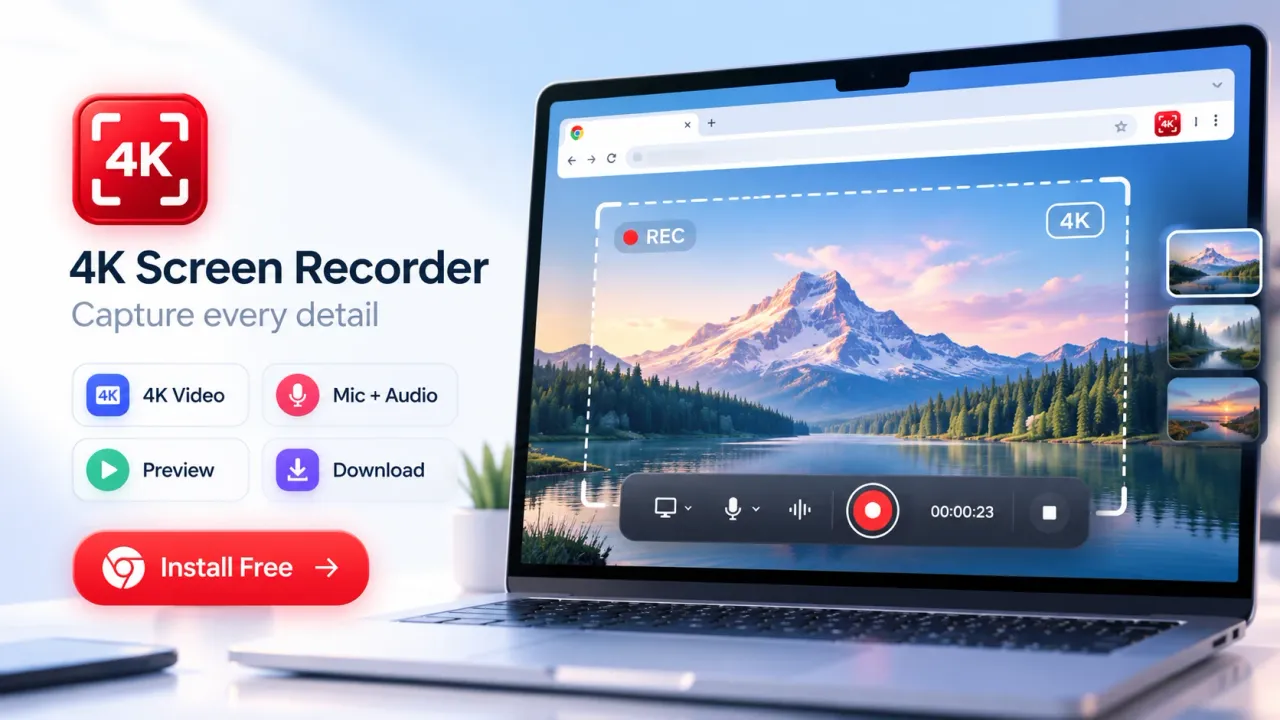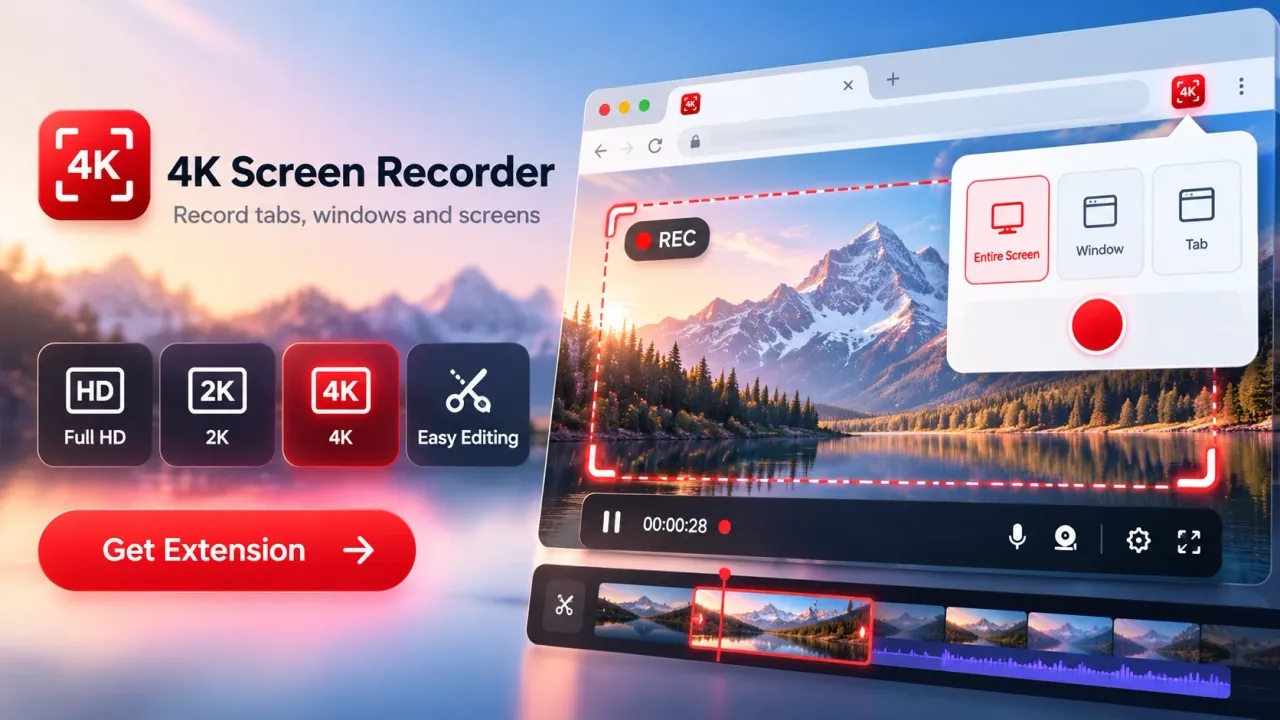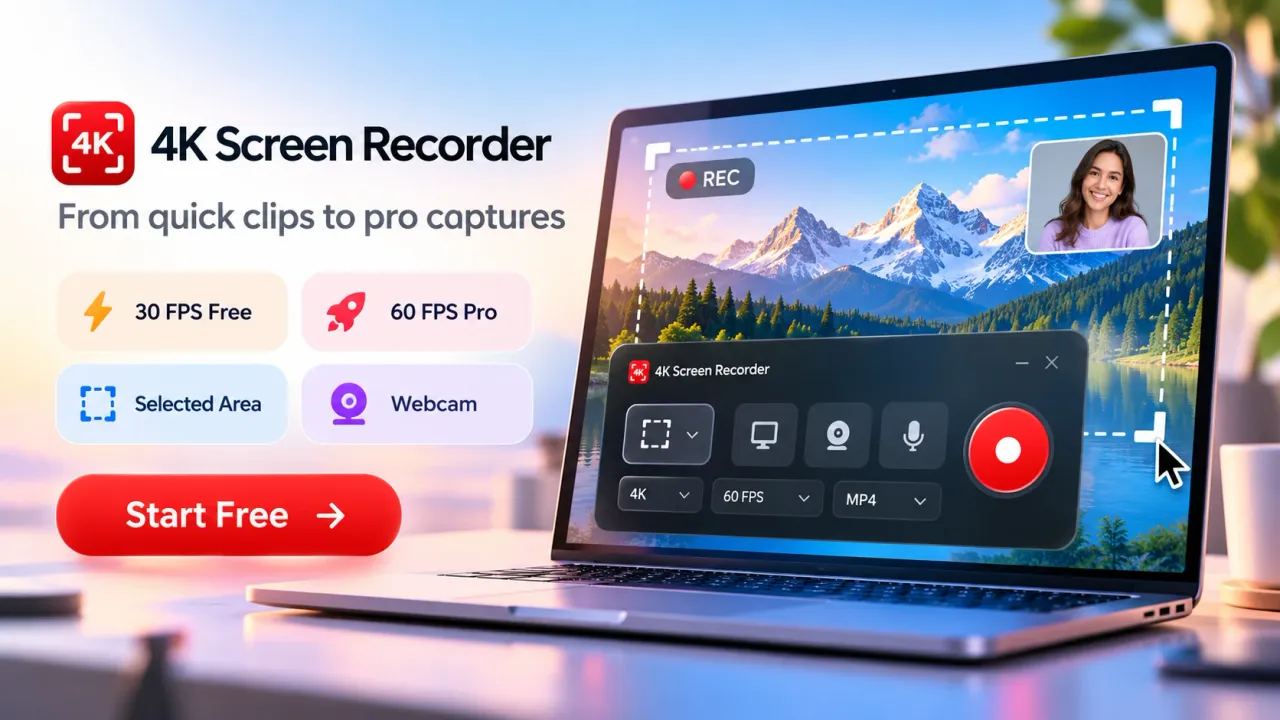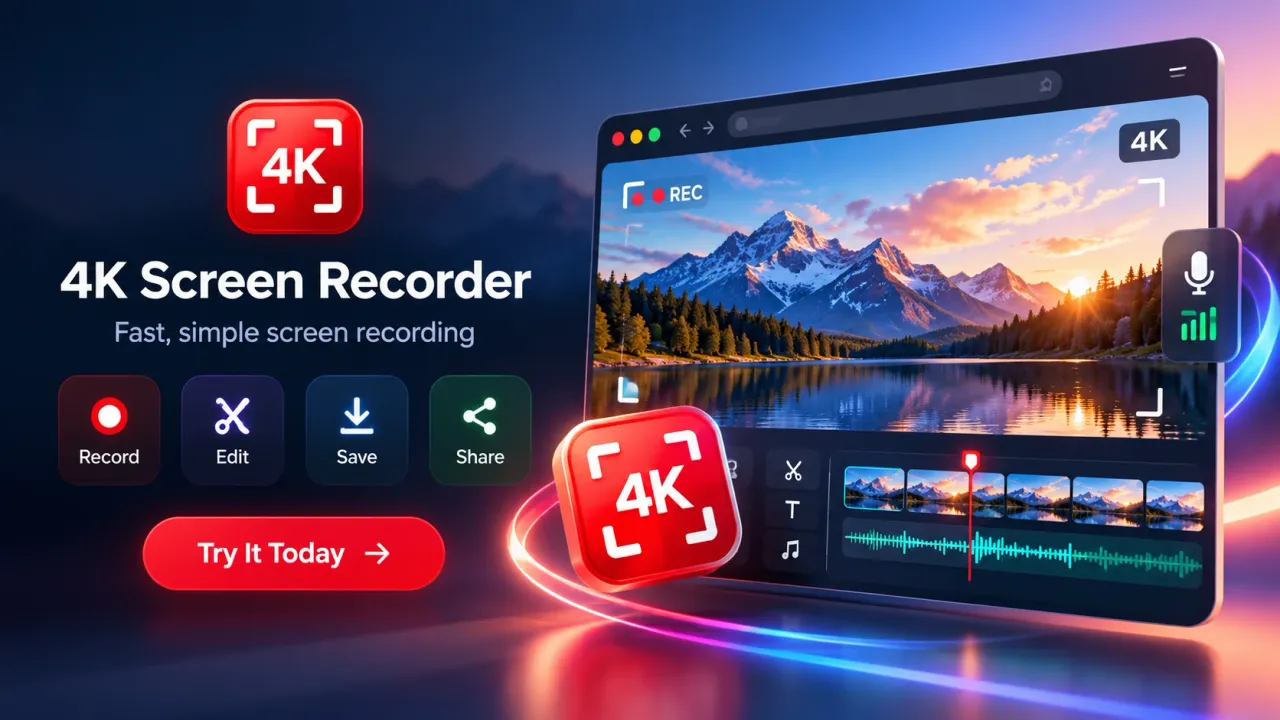

A free screen recorder for Google Chrome is a browser extension that records Chrome tabs, application windows, full desktop screens, audio, microphone input, and, when supported, webcam video directly from the browser. For video creators, screen recording provides a practical way to produce tutorials, software walkthroughs, product demonstrations, online lessons, presentations, YouTube videos, social media content, and technical explanations without relying on a separate desktop recording application. 4K Screen Recorder by DotnDot currently supports Full HD, 2K QHD, and 4K UHD capture, 30 FPS recording in the free plan, optional 60 FPS recording in Pro, multiple capture sources, local…
A free screen recorder for Google Chrome is a browser extension that records Chrome tabs, application windows, full desktop screens, audio, microphone input, and, when supported, webcam video directly from the browser. For video creators, screen recording provides a practical way to produce tutorials, software walkthroughs, product demonstrations, online lessons, presentations, YouTube videos, social media content, and technical explanations without relying on a separate desktop recording application. 4K Screen Recorder by DotnDot currently supports Full HD, 2K QHD, and 4K UHD capture, 30 FPS recording in the free plan, optional 60 FPS recording in Pro, multiple capture sources, local processing, editing, and video export.
Screen-based video has become an important production format because so much creator content begins on a computer. Software demonstrations, website tutorials, design lessons, marketing walkthroughs, coding sessions, educational presentations, browser research, and product onboarding all depend on showing viewers what happens on a screen.
A Chrome screen recorder shortens the distance between performing an activity and turning that activity into a video. The creator chooses a capture source, enables the required audio or camera inputs, records the demonstration, reviews the footage, edits unwanted sections, and exports the finished file.
The value of a screen recorder is not determined only by resolution. Capture source, frame rate, audio quality, microphone clarity, webcam placement, editing controls, browser support, device performance, privacy, and export compatibility all affect the finished recording.
Why Screen Recording Has Become a Core Creator Workflow
Screen recording allows creators to show an action while explaining it, which is especially useful when the subject exists inside software, a browser, an application, or a digital service.
A written explanation can describe where a setting is located. A screen recording can show the exact menu, cursor movement, button, field, result, and next step. That visual context makes screen recording useful across education, software, marketing, design, technical support, and creator publishing.
Common creator workflows include:
- Software tutorials
- Website walkthroughs
- Product demonstrations
- Browser tutorials
- Online classes
- Slide presentations
- Coding demonstrations
- Marketing tutorials
- Design workflows
- Technical troubleshooting
- Bug demonstrations
- Feature announcements
- YouTube educational videos
- Social media clips
- Internal training material
The Chrome Web Store listing for 4K Screen Recorder describes the extension as a recorder for browser tabs, screens, windows, and selected areas. The current listing also confirms microphone audio, available source audio, webcam overlay, preview, download, and editing capabilities.
For creators whose work already takes place inside Chrome, keeping capture controls close to the browser can reduce unnecessary application switching.
How Chrome Screen Recording Works
Chrome screen recording uses browser capture technology that lets the user choose which display surface will be recorded. Chrome can expose a browser tab, individual application window, or screen through its screen capture interfaces after the user grants permission.
Chrome documentation describes getDisplayMedia() as a method that opens a user-facing selection dialog and returns the chosen tab, window, or screen as a media stream. Chrome's extension APIs also support screen, window, tab, and audio capture.
The recording workflow generally contains four parts.
Capture source: The user chooses the content that Chrome is allowed to capture.
Media inputs: Audio from the selected source, microphone input, and webcam video can be added when the recorder and browser support them.
Recording: Browser media recording technology converts the incoming media stream into recorded video data.
Saving or export: The recorded video is previewed, edited when required, and saved in a supported video format.
The MediaRecorder interface used by modern web applications can record a MediaStream and supports recording states such as start, pause, resume, and stop. Supported container formats depend on browser capabilities.
This browser-controlled model also explains why the user must explicitly choose a screen source. Chrome does not simply expose every screen or window to an extension without a user-controlled capture process.
4K Screen Recorder by DotnDot
4K Screen Recorder by DotnDot is a Chrome extension designed for high-resolution screen video capture and local editing. It records browser tabs, desktop screens, application windows, and selected webpage areas, with supported recording resolutions reaching 3840 × 2160 pixels.
As of November 7, 2026, the Chrome Web Store lists the extension as version 1.9.1, updated on October 28, 2026. The store description states that the extension is free to install and offers optional paid Pro functionality.
The extension's current feature set includes:
- Browser tab recording
- Entire screen recording
- Application window recording
- Selected webpage area recording with Pro
- Full HD recording
- 2K QHD recording
- 4K UHD recording
- 30 FPS recording
- 60 FPS recording with Pro
- Supported tab or system audio
- Microphone narration
- Webcam overlay
- Recording countdown
- Pause and resume
- Live recording controls
- Custom filenames
- Video preview
- Trim and stitch editing
- Advanced editing with Pro
- MP4 export where supported
- WebM fallback where required
- Local recording processing
The combination is designed for creators who want capture, review, editing, and export within a Chrome-based workflow.
Browser Tab, Screen, Window, and Selected Area Recording
The recording source determines how much information appears in the finished video. 4K Screen Recorder currently supports four capture approaches, although selected-area recording requires Pro.
Browser Tab Recording
Browser tab recording captures the selected Chrome tab. This mode works well for website tutorials, browser tools, online applications, web dashboards, research demonstrations, and browser-based presentations.
Supported tab audio can be included when available.
Entire Screen Recording
Screen recording captures the desktop through Chrome's screen-sharing interface.
This mode is useful when a creator needs to move between multiple applications during one recording. It also creates a higher privacy risk if notifications, private messages, unrelated windows, or sensitive information appear during capture.
Application Window Recording
Window recording limits capture to the chosen application window.
A creator demonstrating one application can use window recording to reduce unrelated desktop content and keep the viewer focused on the subject.
Selected Area Recording
Selected-area recording lets Pro users choose a specific region of a webpage.
This mode is useful when only part of a browser interface matters, particularly when surrounding page elements would distract from the demonstration.
Selecting the narrowest appropriate capture source generally produces cleaner content and reduces accidental exposure of unrelated information.
Full HD, 2K, and 4K Recording Explained
4K Screen Recorder currently provides 1920 × 1080 Full HD, 2560 × 1440 2K QHD, and 3840 × 2160 4K UHD recording options. The product documentation identifies approximately 2.1 million pixels per Full HD frame, 3.7 million per 2K frame, and 8.3 million per 4K frame.
Higher resolution is useful when a screen contains small interface elements, detailed text, code, charts, design work, or software controls.
4K UHD contains four times the pixel count of Full HD. That additional detail can help preserve interface clarity when viewers use large displays or when editors crop a recording during post-production.
However, selecting 4K does not guarantee that every recording will contain true 4K source detail.
The actual result depends on factors including:
- Source display resolution
- Browser behavior
- Computer performance
- Available graphics resources
- Operating system
- Capture source
- Recording settings
- Export support
The product documentation explicitly states that actual recording quality and frame delivery depend on the source, browser capabilities, and device performance.
Creators should choose resolution according to the content rather than automatically selecting the largest option.
Full HD can be sufficient for many presentations, simple browser tutorials, and social videos.
2K provides additional detail for software interfaces and higher-resolution displays.
4K is especially useful for detailed UI demonstrations, design workflows, high-resolution tutorials, large-screen playback, and recordings that may later be cropped.
30 FPS and 60 FPS for Screen-Based Video
Frame rate controls how many video frames are captured each second. 4K Screen Recorder provides 30 FPS in the free and Pro plans, while 60 FPS is currently a Pro feature.
30 FPS is suitable for many creator tasks, including:
- Slide presentations
- Software tutorials
- Static dashboards
- Form demonstrations
- Educational lessons
- Browser walkthroughs
- Talking-head webcam overlays
60 FPS records twice as many frames per second and can make motion appear smoother.
Higher frame rates can be useful for:
- Rapid scrolling
- Animated interfaces
- Fast cursor movement
- Motion-heavy demonstrations
- Detailed design workflows
- Software with frequent visual updates
A higher frame rate can also increase processing requirements. Resolution and frame rate should be selected together according to the computer, source material, and intended publishing format.
Audio, Microphone, and Webcam Recording
Screen video becomes easier to follow when visual actions are paired with clear narration. 4K Screen Recorder supports available source audio, microphone input, and an optional webcam overlay.
Source Audio
Available browser-tab or system audio can be included when the browser, operating system, and selected source permit it.
Audio availability is not identical for every recording mode. The Chrome Web Store listing specifically states that source audio availability depends on the browser and selected recording source.
Microphone
Microphone recording lets creators explain actions while recording them.
Narration works particularly well for tutorials because viewers can connect an instruction with the action happening at that moment.
Webcam Overlay
Webcam overlay places camera video over the screen recording.
This format works well for online teaching, personal tutorials, creator commentary, presentations, software courses, and videos where the presenter's presence contributes to the explanation.
Creators should keep webcam placement away from menus, text, buttons, captions, or other information that viewers need to see.
The Free Recording Limits
4K Screen Recorder is free to install, but the current free plan applies different time limits according to recording resolution.
The free plan currently provides:
- 4K UHD: up to 10 seconds
- 2K QHD: up to 30 seconds
- Full HD: up to 1 minute
- 30 FPS: included
- Browser tab recording: included
- Screen or window recording: included
- Trim and stitch: included
Pro removes the listed recording time limits and adds 60 FPS, selected-area recording, and the advanced editing features described by the product.
These distinctions matter when someone searches for a "free Chrome screen recorder."
Free does not mean that every feature has unlimited use. The extension is free to install and offers functional screen recording without payment, while longer recordings and several production features belong to the Pro plan.
Short free recordings can still be useful for testing the extension, recording quick demonstrations, capturing a short problem, or producing brief clips.
Long tutorials, extended educational lessons, full product demonstrations, and longer creator videos require a workflow that fits the plan's current duration limits.
Built-In Editing Changes the Creator Workflow
4K Screen Recorder includes local editing so creators can review and modify screen recordings without immediately moving the file into a separate editor. Basic trim and stitch functions are available in the free plan, while the current Pro feature set expands editing options.
Current editing capabilities described by the product include:
- Trim clips
- Stitch clips
- Background customization
- Resolution controls
- Video preview
- MP4 export
- Local editing
Pro adds:
- Captions
- Text and overlays
- Branding
- Color controls
- Annotations
- Thumbnail creation
- Advanced editing
Trimming is particularly useful for screen recordings because the beginning and end often contain setup actions that viewers do not need.
Stitching allows separate recordings to become one video. A creator can record individual sections, correct mistakes between sections, and combine the usable clips later.
Annotations help viewers locate a button, menu item, setting, or visual detail.
Captions add text-based accessibility and can also help viewers understand spoken explanations in sound-sensitive viewing situations.
Thumbnail tools connect the recording process with publishing preparation, particularly for YouTube and other video destinations that depend on a representative preview image.
A Practical Recording Workflow for Video Creators
A productive screen recording begins before the record button is pressed. Planning the recording source, visual sequence, narration, and output settings can reduce editing work later.
A practical creator workflow looks like this:
Define the video outcome. Decide exactly what the viewer should understand or complete after watching.
Prepare the screen. Close unrelated tabs and applications. Hide personal information, notifications, passwords, customer data, private messages, and unnecessary browser elements.
Choose the capture source. Use tab recording for a browser-only tutorial, window recording for one application, or screen recording when the video requires multiple applications.
Choose resolution. Match the recording quality to the amount of detail viewers need.
Choose frame rate. Use 30 FPS for normal tutorials and presentations. Use 60 FPS with Pro when smoother fast movement is useful.
Configure audio. Enable source audio only when the video needs it. Select a microphone for narration.
Add the webcam when useful. Camera video should support the presentation rather than cover important screen information.
Record a short test. Check text readability, microphone volume, webcam position, audio capture, cursor visibility, and source selection.
Record the main content. Follow the planned sequence and keep cursor movements intentional.
Preview the recording. Look for dead time, mistakes, private information, missing audio, or unreadable interface elements.
Edit the video. Remove unnecessary sections and add supported production elements where appropriate.
Export and review. Watch the exported file before publishing it.
4K Screen Recorder condenses the product-specific part of this workflow into choosing the source, configuring recording options, recording, previewing, editing, and exporting.
YouTube Tutorials and Educational Videos
A Chrome screen recorder is particularly useful for YouTube creators producing instructional content. Screen recording directly shows the process that the video is teaching.
Suitable YouTube formats include:
- Chrome tutorials
- Software guides
- Website tutorials
- Design demonstrations
- Coding lessons
- Marketing tutorials
- Productivity guides
- Online tool walkthroughs
- Product onboarding
- Technical troubleshooting
- Presentation-based education
For instructional videos, readability should guide recording choices.
Small interface text should remain visible after YouTube processing and playback. Cursor movements should correspond with narration. Zoom level should be large enough for viewers watching on smaller screens.
Editing should remove searching, loading delays, typing errors, repeated attempts, and unrelated actions.
A creator should also evaluate the published video using YouTube Studio and YouTube Analytics. Screen recording software creates the video file, while YouTube Analytics measures how viewers respond after publication.
Relevant YouTube metrics include impressions, click-through rate, watch time, audience retention, and traffic sources. These metrics measure different parts of video performance and should not be confused with recorder quality.
Screen Recording for Short-Form and Social Video
Screen recordings can also supply source footage for short social videos. A brief browser action, product feature, workflow shortcut, comparison, or educational demonstration can become a compact social clip.
Creators should account for the difference between desktop recording dimensions and mobile-oriented publishing formats.
A 16:9 desktop recording contains a wide visual area. A vertical social video usually requires tighter framing.
Selected-area recording can help Pro users capture a smaller webpage region. Editing can also isolate the part of the interface that matters.
For short videos, creators should keep these elements readable:
- Interface labels
- Cursor location
- Captions
- Browser text
- Buttons
- Important numbers
- Input fields
- Demonstrated results
Large amounts of desktop detail compressed into a small vertical frame can become difficult to understand. Recordings designed for social publishing should focus on one action or one explanation at a time.
Product Demonstrations and Software Walkthroughs
Screen recording is a natural format for showing how a digital product works because viewers see the real interface and the sequence required to complete a task.
4K Screen Recorder's tab, window, screen, microphone, webcam, and editing options support this type of content. The product documentation specifically identifies tutorials, product demonstrations, classes, presentations, bug reports, and creator videos as supported use cases.
A good software demonstration should focus on the user's task rather than every available feature.
For example, a demonstration can show:
- Where a feature is located
- What input the user provides
- What action starts the process
- What result appears
- What settings affect the result
- What the user does next
Recording a single application window can keep unrelated desktop material out of the video.
Annotations and text overlays can add visual direction during editing when those Pro features are available.
Online Classes, Presentations, and Training
Chrome screen recording can convert presentations, browser demonstrations, and digital lessons into reusable video material.
An instructor can combine slides, microphone narration, webcam video, browser examples, and application demonstrations.
This works well for:
- Course lessons
- Employee training
- Student explanations
- Recorded presentations
- Software training
- Process documentation
- Remote learning material
For educational recordings, audio clarity often matters as much as video resolution. Students must be able to understand the explanation even when the screen contains detailed material.
Pausing between major ideas can make later editing easier. Recording lessons in smaller sections can also simplify revision when information changes.
Bug Reports and Technical Communication
Screen recordings can document software problems more clearly than a text description alone.
The recording can show the starting state, user action, unexpected result, error message, and sequence that triggers the problem.
For bug reporting, creators should keep the recording focused.
The video should capture:
- The relevant application
- The action that causes the issue
- The visible result
- Any relevant error message
- Enough context to reproduce the sequence
Sensitive information should be removed before recording.
Window capture can be useful because it isolates the affected application and reduces unrelated screen content.
Local Processing and Recording Privacy
4K Screen Recorder states that screen recordings are processed locally inside Chrome. Its privacy policy says the recording workflow does not upload screen recordings, selected webpage content, microphone audio, or webcam video to an external recording server.
Temporary local storage can be used so recordings can be previewed, edited, saved, or deleted.
The user controls when a finished recording is exported to the device.
Microphone and webcam inputs are accessed only when enabled and when the required browser permission is granted.
Chrome also controls its own screen, microphone, and camera permission prompts. Users can review or revoke extension permissions through Chrome.
There is an additional point creators should understand.
The current Chrome Web Store disclosure lists personally identifiable information, authentication information, web history, user activity, and website content among the data categories the extension handles. The store also states that the developer declares the data is not sold to third parties and is not transferred for unrelated purposes.
The store listing separately states that optional automatic transcription can send audio to the browser's speech recognition service after user confirmation.
Local screen recording and optional external browser services are therefore different parts of the product workflow. Users working with confidential material should review current permissions, privacy disclosures, and feature behavior before recording.
Permissions, Consent, Copyright, and Responsible Recording
A screen recorder gives the user the technical ability to capture content, but technical access does not automatically provide permission to record or redistribute everything visible on a screen.
The current 4K Screen Recorder terms place responsibility on users to ensure they have the right to record, copy, edit, store, or share captured material. Users must follow applicable laws, workplace rules, platform terms, intellectual property requirements, privacy requirements, and consent requirements.
Creators should avoid recording:
- Private conversations without required permission
- Confidential company information
- Customer information
- Passwords
- Authentication codes
- Financial information
- Private messages
- Restricted content
- Copyrighted material when recording or redistribution is not permitted
- Content protected by access controls that the user is not authorized to capture
Meeting recording deserves particular care because consent requirements can vary by jurisdiction and organization.
Screen recording software should be treated as a capture tool, not as automatic authorization to reproduce everything displayed by a computer.
MP4 Export, WebM, and Browser Compatibility
4K Screen Recorder currently prefers MP4 export where the browser supports it and uses WebM as a compatibility fallback when required.
This distinction exists because browser-supported recording formats can vary.
The MediaRecorder API allows applications to check whether a particular media MIME type is supported by the browser. Support can differ according to browser version and encoding capabilities.
MP4 is widely used in publishing and editing workflows, which makes direct MP4 output useful when available.
WebM remains a common browser recording format and can be used when browser support requires it.
Creators should review the exported file before publishing and confirm:
- Video playback works correctly
- Audio is present
- Audio remains synchronized
- Resolution matches expectations
- Text is readable
- No private information is visible
- The destination accepts the exported format
Why 4K Does Not Automatically Mean Better Content
Resolution affects image detail, but content quality depends on several production factors working together.
A 4K recording with unclear narration, tiny interface text, unnecessary desktop clutter, or poor explanation can be less useful than a clear Full HD tutorial.
Creators should judge screen recording quality using several factors:
- Text readability
- Cursor visibility
- Audio clarity
- Narration quality
- Capture stability
- Frame delivery
- Resolution
- Frame rate
- Webcam placement
- Editing quality
- Information accuracy
- Video pacing
- Export compatibility
The product itself notes that recording quality and performance depend on selected source, browser support, device hardware, operating system, and other technical conditions.
This means a creator should test actual output on the computer used for production.
Quick Facts About 4K Screen Recorder for Chrome
4K Screen Recorder currently combines browser capture, screen capture, audio, webcam, editing, and local export inside a Chrome extension workflow.
- The extension supports browser tab, screen, and window recording in its free plan.
- Selected-area recording is a Pro feature.
- Supported resolutions include Full HD 1920 × 1080, 2K QHD 2560 × 1440, and 4K UHD 3840 × 2160.
- The free plan supports 30 FPS, while Pro adds 60 FPS.
- Free recording limits are currently one minute for Full HD, 30 seconds for 2K, and 10 seconds for 4K.
- Microphone, available source audio, and webcam overlay are supported.
- Trim and stitch editing are included in the free plan, while advanced editing tools require Pro.
- Screen recordings are described as locally processed inside Chrome, with finished files exported under user control.
Who Benefits Most From a Chrome Screen Recorder
A Chrome screen recorder is most useful for people whose video subject already exists on a browser or computer screen.
YouTube creators can record tutorials, software guides, browser demonstrations, and educational content.
Educators can record lessons, slides, browser examples, and software instructions.
Digital marketers can explain dashboards, campaign workflows, reports, websites, and online tools.
Software teams can create demos, onboarding videos, feature walkthroughs, and bug reports.
Designers can record design processes and interface demonstrations.
Developers can document coding workflows, browser behavior, software issues, and product features.
Support teams can produce visual answers for common customer problems.
Business professionals can record presentations and process explanations.
The common requirement across these audiences is the need to show what happens on a screen while preserving enough visual and audio clarity for viewers to understand the process.
What Video Creators Should Check Before Recording
A short pre-recording check can prevent many problems that are difficult to repair later.
Before recording, check:
- Correct tab, window, or screen selected
- Required resolution selected
- Required frame rate selected
- Microphone working
- Source audio working when needed
- Webcam positioned correctly
- Personal notifications disabled
- Confidential information hidden
- Browser zoom readable
- Cursor visible
- Desktop clutter removed
- Recording duration fits the selected plan
- Enough device resources available
- Correct export workflow understood
A short test recording is especially useful for 4K or 60 FPS production because device performance can affect actual output.
The Role of Free Screen Recording in a Creator Production System
A free Chrome screen recorder works best as one part of a larger creator production process. Recording captures the demonstration. Editing improves the footage. Publishing distributes it. Analytics measures what viewers do after publication.
These stages should be treated separately.
Recording metrics concern technical output, including resolution, frame rate, audio capture, source selection, and recording length.
Editing decisions concern pacing, captions, annotations, cuts, overlays, branding, and thumbnail preparation.
Publishing decisions concern title, description, format, destination, thumbnail, and audience.
Performance metrics concern viewer behavior after publication.
For YouTube, performance can be evaluated through YouTube Analytics metrics such as impressions, click-through rate, watch time, audience retention, and traffic sources.
A screen recorder cannot guarantee higher click-through rate, longer retention, or greater watch time. Those outcomes depend on the video topic, audience intent, packaging, content quality, delivery, and other publishing factors.
Keeping technical recording quality separate from audience performance prevents creators from attributing publishing results to the recorder without supporting data.
What Has Changed From Basic Browser Recording to Modern Creator Tools
Browser screen recording began as a way to capture a visible screen or browser activity. Modern Chrome recording tools can combine several production tasks within the browser.
Chrome's current screen capture technology gives users explicit control over selecting tabs, windows, or screens. MediaRecorder technology provides browser-level recording of captured media streams. Chrome APIs continue to support richer screen-capture controls and privacy-focused source selection.
Modern creator-oriented recorders can build on those browser capabilities with:
- Higher recording resolutions
- Frame-rate selection
- Microphone recording
- Source audio
- Webcam overlays
- Local preview
- Editing
- Captions
- Annotation
- Branding
- Thumbnail preparation
- Format export
4K Screen Recorder reflects this broader change by combining screen capture and creator production features within Chrome rather than functioning only as a simple browser-tab recorder.
Choosing the Right Recording Settings for Each Video
The best recording settings depend on the subject, motion, level of detail, publishing destination, and available computer performance.
For a static presentation, Full HD at 30 FPS can provide a practical balance.
For a detailed software tutorial, 2K or 4K can preserve smaller interface elements.
For fast scrolling, animation, or motion-heavy interfaces, 60 FPS can provide smoother movement when Pro is used.
For browser-only demonstrations, tab recording limits the captured material to the browser content.
For one desktop application, window recording can keep unrelated applications out of view.
For workflows involving several programs, full screen capture gives the creator more freedom but requires more attention to privacy.
For a small website element, selected-area recording with Pro can reduce visual distraction.
Recording settings should serve the explanation. Technical maximums are useful only when the content benefits from them.
A Free Chrome Screen Recorder Is Most Useful When Recording, Privacy, and Publishing Are Planned Together
A free screen recorder for Google Chrome can give video creators a direct way to convert browser and desktop activity into tutorials, demonstrations, lessons, presentations, support videos, and social content. 4K Screen Recorder currently combines Full HD, 2K, and 4K capture, multiple recording sources, microphone and webcam support, local processing, editing, and browser-based export, with defined free recording limits and additional Pro features.
The most effective workflow begins with the viewer's need, not the largest resolution setting. Creators should choose the right capture source, make screen text readable, record clear audio, protect private information, remove unnecessary footage, and verify the exported result before publication.
For short recordings, the free plan provides access to the main screen capture workflow. Longer creator projects, selected-area capture, 60 FPS recording, and advanced editing require the current Pro feature set.
Chrome screen recording has progressed from simple screen capture into a browser-based production process that can cover recording, narration, camera presentation, basic editing, advanced creator tools, and export. For creators who spend much of their production time in Chrome, that combination can make screen-based video creation more direct while keeping the user responsible for permissions, privacy, content rights, and final publishing quality.
A free screen recorder for Google Chrome gives video creators a practical way to capture browser activity, software demonstrations, presentations, tutorials, training material, and support content without relying on separate desktop recording software. 4K Screen Recorder by DotnDot brings tab, screen, window, audio, microphone, webcam, editing, and export features into one Chrome-based workflow, with Full HD, 2K, and 4K recording options.
The best results come from choosing settings that match the content. Clear narration, readable on-screen text, the right capture source, suitable resolution and frame rate, careful editing, and privacy checks often matter more than simply recording at the highest possible quality. Creators should also verify permissions, protect sensitive information, and review the exported video before publishing.
For short recordings, the free plan provides access to the main screen recording features. Creators who need longer recordings, 60 FPS capture, selected-area recording, or advanced editing can use the available Pro features. For YouTubers, educators, marketers, developers, trainers, and other digital creators, a Chrome screen recorder can become a useful part of a repeatable video production workflow.
Free Screen Recorder for Google Chrome: FAQs
What is a free screen recorder for Google Chrome?
A free screen recorder for Google Chrome is a browser extension that can record Chrome tabs, application windows, full desktop screens, microphone narration, available source audio, and, when supported, webcam video. It is useful for tutorials, software demonstrations, presentations, online classes, YouTube videos, product walkthroughs, and technical support content.
What is 4K Screen Recorder by DotnDot?
4K Screen Recorder by DotnDot is a Chrome extension designed for recording browser tabs, desktop screens, application windows, and selected webpage areas. It supports Full HD, 2K QHD, and 4K UHD recording, along with microphone input, webcam overlay, editing tools, and video export.
Can 4K Screen Recorder record videos in 4K resolution?
Yes. 4K Screen Recorder supports recording at up to 3840 × 2160 resolution when the browser, selected source, operating system, and computer hardware support the required capture quality. Actual recording quality can vary according to device performance and source resolution.
What are the free recording limits in 4K Screen Recorder?
The current free plan supports up to 1 minute of Full HD recording, up to 30 seconds of 2K QHD recording, and up to 10 seconds of 4K UHD recording. Longer recordings are available through the Pro plan.
Does 4K Screen Recorder support 60 FPS recording?
Yes. The extension supports 30 FPS recording in the free plan and offers 60 FPS recording as a Pro feature. Thirty frames per second works well for presentations and standard tutorials, while 60 FPS is more useful for fast scrolling, animation, rapid cursor movement, and motion-heavy demonstrations.
Can I record microphone audio, browser audio, and webcam video together?
4K Screen Recorder supports microphone narration, available browser-tab or system audio, and webcam overlay. Audio availability can depend on the selected capture source, Chrome capabilities, and operating system.
What types of screen recording can creators use?
Creators can use browser tab recording for website tutorials, full-screen recording for workflows involving several applications, window recording for a specific program, and selected-area recording for focusing on a particular webpage region. Selected-area recording is currently a Pro feature.
Can I edit a recording after capturing it?
Yes. The free plan includes basic trim and stitch tools. Pro expands the editing workflow with features such as captions, text, overlays, branding, annotations, color controls, and thumbnail creation. These tools can help remove unwanted footage and prepare recordings for publishing.
Is 4K Screen Recorder suitable for YouTube creators and educators?
Yes. It can be used for YouTube tutorials, software guides, browser demonstrations, online lessons, presentations, product walkthroughs, coding videos, marketing tutorials, training material, and technical explanations. Creators should still focus on readable screen text, clear narration, suitable resolution, and careful editing.
Does 4K Screen Recorder process recordings locally?
The product states that screen recordings are processed locally inside Chrome, with temporary browser storage used for previewing and editing. Users control when finished recordings are exported. Microphone, webcam, and screen access also depend on browser permissions, so creators should review current privacy settings and avoid recording confidential or private information without proper authorization.