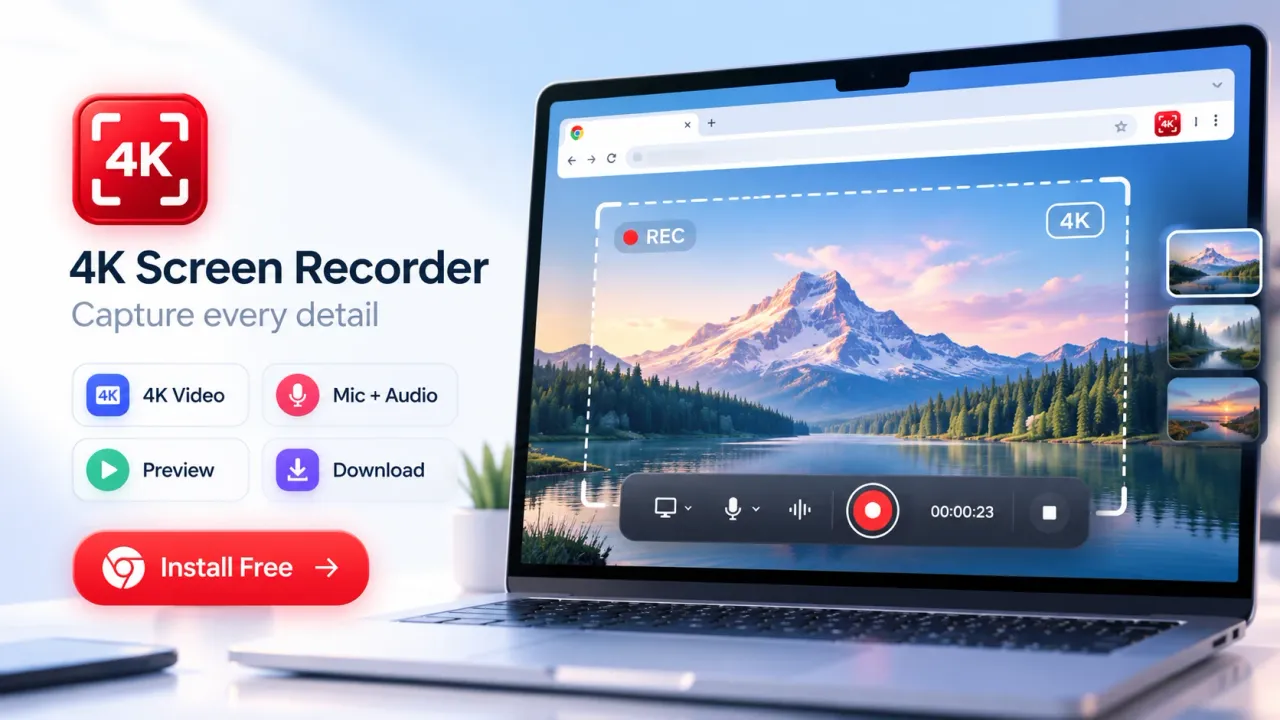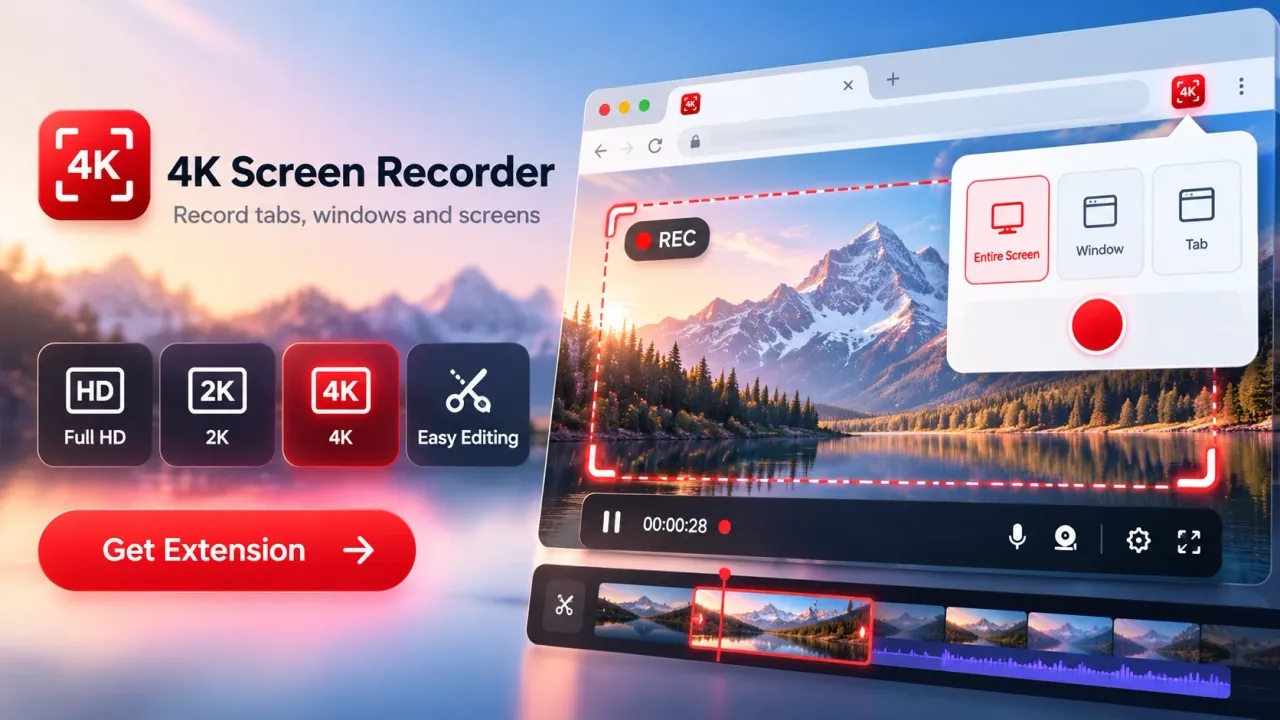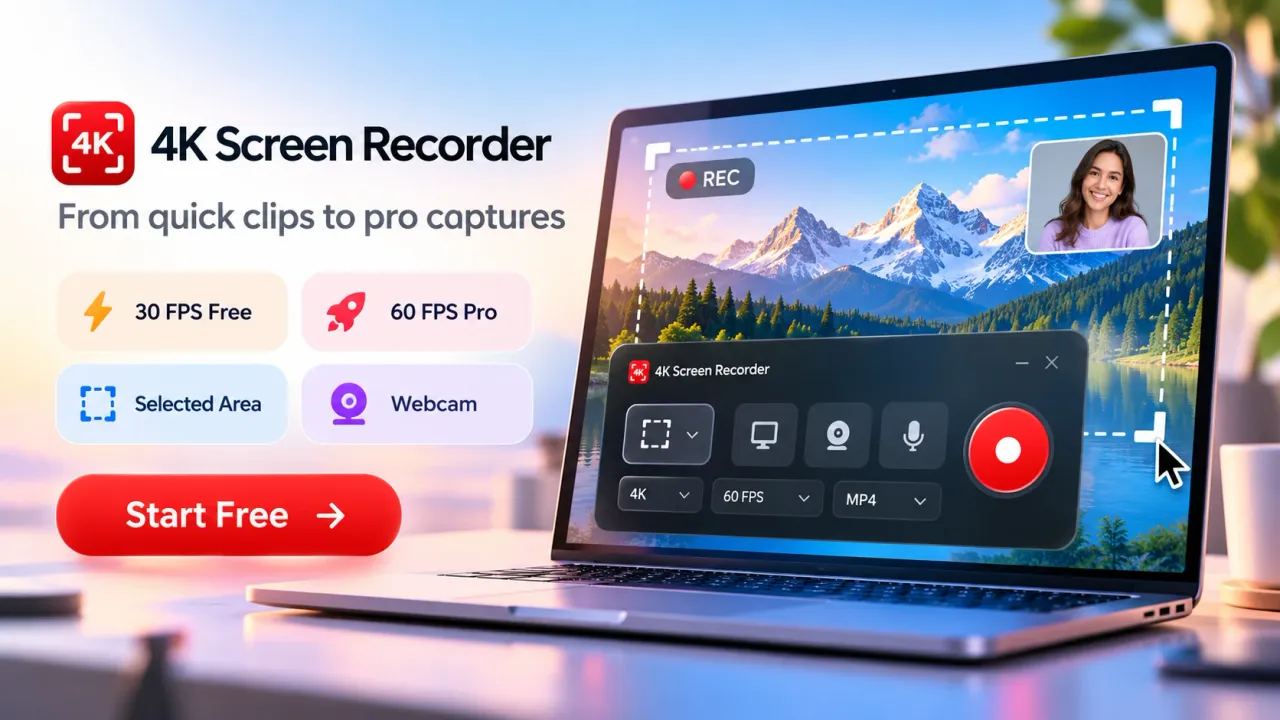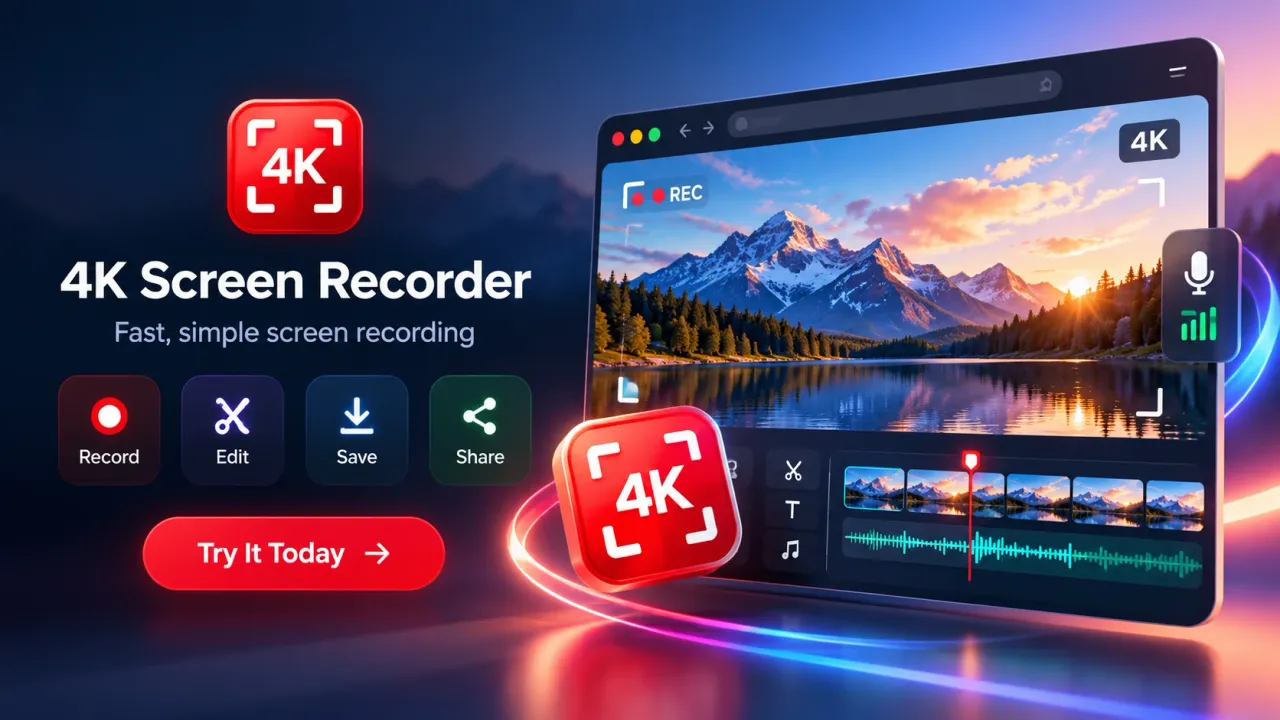

A free Chrome screen recorder for political campaigns lets campaign teams capture browser activity, application windows, full screens, audio, microphone narration, and webcam video directly from Google Chrome. For campaign managers, digital teams, volunteers, researchers, media staff, and coordinators, screen recording can replace many repetitive explanations, screenshot-heavy instructions, and basic editing tasks with short reusable videos. The current 4K Screen Recorder supports Full HD, 2K QHD, and 4K UHD recording, local browser processing, basic editing, and local export, while optional Pro tools support longer recordings and more advanced production needs. Political campaigns now…
A free Chrome screen recorder for political campaigns lets campaign teams capture browser activity, application windows, full screens, audio, microphone narration, and webcam video directly from Google Chrome. For campaign managers, digital teams, volunteers, researchers, media staff, and coordinators, screen recording can replace many repetitive explanations, screenshot-heavy instructions, and basic editing tasks with short reusable videos. The current 4K Screen Recorder supports Full HD, 2K QHD, and 4K UHD recording, local browser processing, basic editing, and local export, while optional Pro tools support longer recordings and more advanced production needs.
Political campaigns now perform much of their daily work inside browsers. Teams review websites, upload approved content, examine analytics, inspect advertising dashboards, manage volunteer portals, check forms, prepare presentations, review creative files, research public information, and coordinate remote staff through digital systems. A screen recorder converts those activities into video instructions or records that other team members can watch later.
The main budget benefit comes from reducing unnecessary production steps. A campaign does not need a full video editing project every time a volunteer needs a 45-second walkthrough or a digital manager needs to show a website error. A browser recording can capture the actual process while the person performs it, add narration, cut unwanted sections, combine clips, and export the result from the same browser-based workflow.
Why Chrome Screen Recording Fits Political Campaign Work
Chrome screen recording works well for political campaigns because many campaign tasks are visual, repeatable, browser-based, and time-sensitive. A screen video can show what happened, where to click, what information to review, and what order to follow without creating a long written manual.
Campaign teams often communicate instructions through messages, screenshots, calls, documents, and meetings. Each method has a cost in staff time. Written instructions can become long when a process includes multiple menus or changing screens. A live demonstration requires both people to be available at the same time. A sequence of screenshots requires capture, annotation, organization, and written explanations.
A screen recording combines several of those communication elements in one file. Cursor movement shows location. Screen changes show sequence. Microphone narration explains context. Tab or system audio can preserve relevant source audio when available. Webcam can add a speaker when personal presentation is useful.
Common campaign tasks suited to screen recording include:
- Explaining how to publish an approved social media update
- Showing volunteers where approved campaign assets are stored
- Recording instructions for digital forms and internal portals
- Reviewing a campaign landing page
- Documenting a website problem
- Explaining analytics or reporting dashboards
- Giving visual feedback to designers or editors
- Showing staff how to use an approved browser tool
- Recording a presentation for remote teams
- Documenting approval steps
- Creating voter-facing website or policy walkthroughs after review
The supplied research also identifies rapid-response clips, volunteer training, voter guides, social clips, and browser-based commentary as campaign uses.
Screen recording does not replace every political video format. Candidate speeches, rallies, interviews, field activity, door-to-door coverage, testimonials, public meetings, and location-based stories still require normal camera production. Screen recording is strongest when the content itself exists on a computer screen.
The Main Time Saving Comes From Fewer Production Steps
A Chrome screen recorder saves time when it lets a campaign move from explanation to finished file with fewer handoffs. The user records the actual task, previews it, makes basic edits, and exports the recording without building a separate presentation or moving immediately into a full desktop editor.
Consider a simple volunteer onboarding task. A coordinator wants to show a volunteer where to find an approved document, how to complete a form, and where to submit it.
A text-based workflow can require screenshots, arrows, captions, step descriptions, document formatting, corrections, and distribution.
A screen-recording workflow can be shorter:
- Open the correct page.
- Start recording.
- Perform the process.
- Explain each step through the microphone.
- Stop the recording.
- Remove unwanted material.
- Export the video.
- Send the approved file through the campaign's normal communication channel.
That same recording can then be reused for other volunteers who perform the same task.
The same principle applies to creative feedback. Rather than writing several messages describing where a problem appears in a web page or video draft, a reviewer can record the screen and explain the correction while showing the exact area.
The time benefit is operational. No reliable public data in the supplied research proves a specific percentage reduction in campaign production time, so a responsible article should not attach a made-up efficiency number to this workflow.
How the Free Plan Controls Campaign Costs
The free plan is most useful when campaign teams design recordings around short, focused tasks. As currently listed, free recordings can run for up to 60 seconds at Full HD, up to 30 seconds at 2K QHD, and up to 10 seconds at 4K UHD. Free recording runs at 30 frames per second and supports browser tab recording plus screen or window recording.
Those limits make the free tier suitable for activities such as:
- A short website issue report
- One volunteer instruction
- One publishing step
- One creative correction
- One dashboard explanation
- One public information page
- One approval check
- One quick browser demonstration
The free version also includes preview, downloading, Trim and Stitch editing, according to the current product information. Trim removes unwanted sections. Stitch joins clips into one recording.
A political campaign can control spending by matching recording length to the task rather than assuming every recording requires the paid tier.
For example, a campaign can record several focused Full HD clips for separate volunteer tasks. Each clip can cover one action, such as opening the campaign portal, locating approved material, submitting a form, or checking a schedule.
This structure can also improve training because each recording has one purpose. When a process changes, the team only needs to replace the affected clip rather than recreating one long training video.
The free tier becomes less practical when the campaign routinely needs long tutorials, detailed analytics reviews, complete training sessions, extended presentations, selected-area capture, 60 FPS recording, or advanced editing tools.
Full HD, 2K, and 4K Should Be Chosen by Task
Resolution affects readability, recording duration, file size, and the amount of visual detail preserved. 4K Screen Recorder currently offers Full HD at 1920 × 1080, 2K QHD at 2560 × 1440, and 4K UHD at 3840 × 2160. The product page lists 30 FPS as available on the free plan and 60 FPS as a Pro feature.
Full HD is usually the practical starting point for political campaign screen videos. Routine training, website demonstrations, internal messages, browser instructions, and short public explainers generally do not require 4K.
Full HD also provides the longest free recording duration, currently one minute.
2K becomes more useful when small text, charts, spreadsheets, dashboards, or dense interfaces must remain readable.
4K is useful when fine text, high-resolution creative assets, detailed interfaces, or future cropping require more pixels. The product documentation lists 4K UHD as 3840 × 2160 and notes that recording quality still depends on the selected source, browser capabilities, and computer performance.
Higher resolution should not be treated as a quality fix for poor source material. A low-resolution image does not gain missing original detail simply because the screen recording is captured at 4K.
For most campaign teams using the free tier, Full HD provides the best balance between clarity and available recording time.
Capture Mode Determines What the Campaign Records
Capture mode controls how much of the computer environment appears in the recording. 4K Screen Recorder supports browser tab capture, full-screen capture, application-window capture, and selected-area webpage capture. Selected-area recording is currently listed as a Pro feature.
Browser tab recording is a good choice when the activity stays inside one website. It can be used for campaign website reviews, public records, approved publishing instructions, browser dashboards, registration portals, or online forms.
Window recording is useful when a campaign wants to capture one application without exposing the rest of the desktop.
Full-screen recording works when a workflow moves between multiple windows or applications. Full-screen recording requires more preparation because notifications, private files, account names, messages, or unrelated content can appear.
Selected-area recording focuses on part of a webpage. A campaign can use that mode to isolate a chart, form, creative preview, result, or interface element while keeping surrounding content outside the recording.
The safest operational rule is to record the smallest area required for the task.
Microphone, Source Audio, and Webcam Add Context
4K Screen Recorder can include microphone narration, available tab or system audio, and an optional webcam overlay. Audio availability depends on the browser and selected recording source, while microphone and camera use require access permissions.
Microphone narration is especially useful for campaign instruction. Cursor movement shows where an action happens, while narration explains why the action matters.
A campaign analyst can explain a report while showing the dashboard. A volunteer coordinator can describe the correct sequence for completing a form. A digital manager can explain the approved publishing workflow while performing it.
Webcam overlay is useful when the speaker needs a visible presence. Internal briefings, remote training, presentations, and voter-facing explainers can benefit from showing the presenter.
Campaign teams should use audio and webcam only when they add useful information. Adding every input to every recording creates more opportunities for background information, private conversations, notifications, or unrelated content to appear.
Built-In Editing Can Remove the Need for a Separate Editor
The current recorder includes local preview and editing. Trim and Stitch are included in the free workflow, while Pro adds captions, text and overlays, branding controls, color controls, annotations, and thumbnail tools. Export prefers MP4 where browser support permits it, with WebM available as a compatibility fallback.
For short political campaign videos, basic editing can remove several production steps.
Trim can remove the preparation at the start of a recording or unnecessary material at the end.
Stitch can combine short takes. This is useful when a campaign wants to record a procedure in small sections rather than attempting a perfect long take.
Captions can make spoken information readable when viewers watch without audio.
Text overlays can identify a step, date, status, page section, or metric.
Annotations can point viewers toward a menu, field, setting, chart, or button.
Branding tools can apply approved visual elements to public campaign material when branding is required.
Thumbnail tools can prepare a preview image for channels that use thumbnails.
Campaign teams should keep editing factual. Cuts, annotations, captions, and overlays should not create a misleading impression of what a person said, what a public page displayed, or what happened during an event.
Rapid-Response Work Benefits From Short Screen Videos
Political campaigns often need to review new digital information quickly. Screen recording can document a browser page, public statement, news report, public record, campaign website issue, or internal response workflow while a team member explains what others need to review.
A short recording can show both the source and the commentary in one file.
For internal rapid response, a researcher can open the relevant browser page, record the section being discussed, and explain why the item requires attention.
For communications staff, a screen recording can document what was visible at a specific stage of review. The exported file can accompany normal internal notes.
For public communication, campaigns need a separate review step. Public screen recordings can raise questions about context, copyright, personal information, editing, disclosures, and political advertising rules.
A recording that is useful for internal review is not automatically suitable for publication.
Volunteer Training Is One of the Strongest Budget Uses
Volunteer training is a strong use for free campaign screen recording because many volunteer tasks repeat across people and locations. A coordinator can record one approved procedure and reuse the video for people who need the same instruction.
Useful training topics include:
- Accessing approved campaign files
- Finding schedules
- Completing digital forms
- Using event sign-up portals
- Following approved posting steps
- Submitting internal reports
- Locating communication materials
- Checking assigned digital tasks
Short modular recordings are often better suited to the free plan than one long training session.
For example, a volunteer onboarding series can contain separate clips for logging in, locating files, completing a form, and submitting work. If one procedure changes, only one recording needs revision.
Teams should still maintain written information for matters that require exact wording, legal instructions, contact details, deadlines, or formal procedures. Video and written documentation can serve different purposes.
Campaign Website and Policy Explainers Can Serve Voters
Screen recording can also create voter-facing educational material when the subject is a website, online service, policy page, public database, registration portal, or campaign information page.
A campaign can guide viewers through:
- Where policy information is located
- How to find candidate information
- Where public event details are published
- How to use a campaign website feature
- How to locate an official external voter service
- How to read a public document
- How to complete a permitted online process
Higher resolution becomes more useful when voters need to read small text during the recording.
Public explainers should clearly distinguish campaign-operated websites from government websites, public databases, media pages, or third-party services.
Campaign teams should also avoid recording private account information, personal voter data, private messages, passwords, contact lists, or restricted internal material.
Local Processing Changes the Privacy Model, but It Does Not Remove Security Duties
4K Screen Recorder processes core recordings locally inside Chrome. The product page states that screen recordings, webpage content, microphone audio, webcam video, and browsing content are not uploaded to an external recording server as part of the normal recording workflow. Recordings can be stored temporarily inside the browser or extension so the user can preview, edit, save, or delete them.
Local processing can be useful for campaign teams working with internal material because the basic screen recording does not require an external recording server.
Local processing does not make every recording safe.
A user can still accidentally capture voter information, account credentials, internal strategy, private communications, donor information, browser notifications, draft messaging, private dashboards, or restricted documents.
Campaign teams should create internal rules for:
- What information can be recorded
- Which accounts can appear
- Where exported files are stored
- Who can receive internal recordings
- How long sensitive recordings are retained
- How recordings are deleted
- How staff handle devices containing exported files
The Chrome Web Store also states that optional automatic transcription can send audio to the browser's speech-recognition service after user confirmation. Campaign teams should therefore distinguish core local recording from optional transcription when evaluating sensitive material.
Recording Rights, Consent, and Copyright Still Apply
A screen recorder does not create permission to record or republish content. Political campaign users remain responsible for determining whether they have the right to capture, edit, store, or share the material appearing in a recording.
That issue becomes important when recordings include people, meetings, copyrighted videos, subscription content, private systems, restricted documents, personal information, internal communications, or third-party websites.
Campaign staff should also check consent requirements before recording microphone conversations, webcam participants, calls, meetings, or material involving identifiable people.
Browser-based recording is a production method. It does not replace campaign legal review, privacy policies, copyright review, contractual restrictions, or applicable election rules.
Political Advertising Rules Begin to Matter When the Recording Is Published
An internal screen recording and a public political advertisement are different types of campaign content. A private tutorial can remain an internal operational file. Once a campaign edits a recording for public distribution, paid promotion, persuasion, fundraising, or election advertising, additional rules can apply.
The campaign should check the requirements that apply to the specific jurisdiction and publishing service before distribution.
Review areas can include:
- Sponsor identification
- Political advertising disclosures
- Required disclaimers
- Candidate authorization language
- Election-period restrictions
- Targeting restrictions
- Platform political advertising policies
- Copyright
- Privacy
- Consent
- Recordkeeping
- Approval procedures
Screen recording software can produce the video file. Compliance remains the campaign's responsibility.
A Simple Campaign Recording Standard Prevents Rework
A campaign-wide recording standard can save more time than recording technology alone. When staff use consistent settings and preparation steps, videos become easier to review, store, update, and reuse.
A practical standard can include:
- Use Full HD for routine internal recordings.
- Use higher resolution when small text must remain readable.
- Record one task per short video when possible.
- Use browser tab or window capture when full-screen recording is unnecessary.
- Close private messages and unrelated browser tabs.
- Disable distracting notifications.
- Confirm the correct microphone before recording.
- Use webcam only when seeing the presenter adds context.
- Name exported files consistently.
- Preview every recording before sharing it.
- Check sensitive information before distribution.
- Keep public and internal recordings in separate folders.
- Use approved branding only for material that requires it.
- Send public political content through the campaign's normal approval process.
Consistency matters because campaign staff often work under time pressure. A defined procedure reduces avoidable errors without requiring each user to invent a recording process.
Quick Facts About Free Chrome Screen Recording for Political Campaigns
A free Chrome screen recorder can support political campaign operations when teams understand what the free tier can and cannot do.
- 4K Screen Recorder supports Full HD at 1920 × 1080, 2K QHD at 2560 × 1440, and 4K UHD at 3840 × 2160.
- Current free limits are 60 seconds at Full HD, 30 seconds at 2K, and 10 seconds at 4K.
- The free plan records at 30 FPS. Pro adds 60 FPS.
- Browser tab, screen, and window recording are available on the free plan. Selected-area recording is a Pro feature.
- Trim and Stitch are included in the basic editing workflow. Advanced editing functions are tied to Pro.
- Microphone, available source audio, and webcam overlay can be included.
- Core recordings are processed and temporarily stored locally in the browser during the recording and editing workflow.
- MP4 is preferred where supported, with WebM used as a browser compatibility fallback.
When the Pro Plan Starts to Make Operational Sense
The Pro tier becomes relevant when the campaign repeatedly exceeds the free recording limits or needs production features unavailable in the free plan. Current Pro features include unlimited recording duration for the supported resolutions, 60 FPS, selected-area recording, and advanced editing functions.
Typical use cases include longer volunteer training, extended analytics walkthroughs, detailed presentations, long browser demonstrations, multi-step campaign procedures, and public videos requiring captions, branding, annotations, or thumbnails.
The decision should be based on workflow frequency rather than resolution alone.
A team producing occasional 30 to 60 second instructions can get meaningful use from the free tier.
A team recording long tutorials every day will spend more staff time working around duration limits. At that point, the paid plan can be evaluated against the value of the time being used to split and manage short recordings.
The current Chrome Web Store describes the extension as free to install with optional paid Pro functionality requiring subscription and license activation.
Current Product Status in November 2026
As of November 2026, the Chrome Web Store lists 4K Screen Recorder version 1.9.1, updated on October 28, 2026. The listing confirms free installation, optional in-app purchases, Full HD, 2K, and 4K recording, local browser storage, basic editing, optional Pro functions, microphone and webcam support, and optional automatic transcription.
The product documentation also warns that actual recording quality and frame delivery depend on the selected source, browser capabilities, and device performance. A 4K setting does not guarantee that every computer will produce identical results.
Browser capabilities can also affect audio availability and export format.
Campaign teams should therefore test the recorder on the actual computers used by staff before adopting one standard for an entire campaign.
Where a Free Chrome Screen Recorder Saves the Most Money
The largest practical saving comes from using screen recording for the right type of work. Campaigns gain less from trying to use a browser recorder for every video and more from using it for repeatable digital tasks that would otherwise consume staff time.
The strongest cost-saving areas are internal training, short operational instructions, website review, creative feedback, bug documentation, analytics explanations, remote presentations, rapid digital review, policy walkthroughs, and short public browser explainers.
The free tier is especially useful when campaign teams keep each video focused. One task, one recording, one audience, and one clear outcome make the duration limits easier to manage.
Campaigns should also separate production cost from campaign risk. Saving money on recording software does not justify publishing unchecked content, exposing private information, ignoring copyright, or skipping political advertising review.
A Chrome screen recorder works best as a practical campaign utility. It can shorten repetitive communication, reduce the need for separate basic editing, create reusable training material, and give distributed campaign teams a simple way to show digital work. Used with clear recording rules and the right resolution, the free plan can cover a meaningful range of short political campaign tasks without requiring a full desktop production workflow.
A free Chrome screen recorder can help political campaigns reduce routine production work by turning browser-based tasks into reusable video instructions, training clips, website reviews, policy explainers, creative feedback, and short digital updates. For many teams, Full HD recording, microphone narration, webcam support, Trim and Stitch editing, and local export are enough for everyday campaign communication without opening a separate desktop editor.
The free plan works best for short, focused recordings, while longer training sessions, 60 FPS capture, selected-area recording, captions, branding, annotations, and other advanced editing needs are better suited to the Pro tier. Campaign teams should choose recording quality according to the task rather than automatically selecting the highest resolution.
Cost savings should also be balanced with privacy, security, copyright, consent, and political advertising requirements. Local browser recording reduces dependence on external recording servers, but campaign staff still need to protect voter information, internal strategy, account details, private communications, and other sensitive material.
For political teams that spend much of their working day inside Chrome, 4K Screen Recorder can serve as a practical production and communication tool. Used with clear internal rules and the right recording settings, it can reduce repeated explanations, shorten basic video workflows, support distributed teams, and help campaigns create useful digital content while keeping software and production costs under control.
Free Chrome Screen Recorder for Political Campaigns: FAQs
What is a free Chrome screen recorder for political campaigns?
A free Chrome screen recorder lets political campaign teams record browser tabs, application windows, full screens, microphone narration, available source audio, and webcam video directly from Chrome. It can be used for volunteer training, website walkthroughs, analytics explanations, rapid-response reviews, policy explainers, creative feedback, and short campaign updates.
How can a Chrome screen recorder help political campaigns save money?
A Chrome screen recorder can reduce the need for separate video editing software, repeated live demonstrations, long written instructions, and multiple screenshots. Campaign staff can record a task, explain it with voice narration, trim unwanted parts, combine clips, and export the video from the same workflow.
What are the free recording limits of 4K Screen Recorder?
The free plan currently supports up to 60 seconds at Full HD 1920 × 1080, up to 30 seconds at 2K QHD 2560 × 1440, and up to 10 seconds at 4K UHD 3840 × 2160. The free tier records at 30 FPS.
Which recording quality is best for political campaign work?
Full HD is usually the most practical choice for volunteer training, website instructions, internal communication, and short campaign explainers. 2K is useful when small text, charts, or dashboards need more detail. 4K is better suited to high-resolution interfaces, detailed creative assets, or recordings that need extra visual detail.
Can campaign teams record browser tabs, windows, and the full screen?
Yes. The recorder supports browser tab recording, application-window recording, and full-screen recording. Selected-area webpage capture is available as a Pro feature. Campaign teams should record only the area needed for the task to reduce the risk of exposing unrelated or private information.
Can political campaign staff add microphone narration and webcam video?
Yes. Campaign staff can add microphone narration and an optional webcam overlay. Available tab or system audio can also be captured depending on the browser and recording source. These features are useful for training, presentations, analytics reviews, and voter-facing explainers.
Can a free Chrome screen recorder be used for volunteer training?
Yes. Volunteer training is one of the strongest campaign use cases. Coordinators can record short videos showing how to access approved files, complete forms, use event portals, follow publishing procedures, submit reports, or perform other repeated digital tasks.
Are political campaign recordings stored locally?
The core 4K Screen Recorder workflow processes recordings locally inside Chrome, with recordings temporarily stored in the browser or extension for preview, editing, saving, or deletion. Optional automatic transcription is different because confirmed transcription can send audio to the browser's speech-recognition service.
Can screen recordings be used as political advertisements?
Screen recordings can be used as campaign content, but publishing or promoting them as political advertisements can trigger additional requirements. Campaign teams should check applicable election laws, sponsor identification rules, disclaimer requirements, platform political advertising policies, copyright rules, consent requirements, and privacy obligations before publication.
When should a political campaign consider upgrading to the Pro plan?
The Pro plan becomes more useful when a campaign regularly needs longer recordings, 60 FPS capture, selected-area recording, captions, text overlays, branding controls, annotations, thumbnails, or other advanced editing functions. Short internal instructions and simple browser walkthroughs can often be handled within the free tier.