
A free screen recorder for Chrome is a browser extension or browser-based recording tool that captures a Chrome tab, application window, full display, or selected region as video, often with microphone audio, available tab or system audio, and an optional webcam overlay. For video creators, the main value is speed and control. Recording can begin from the browser, the source can be limited to the content that matters, and the finished video can move directly into preview, editing, and export. Current Chrome recording tools can support tutorials, product demos, course lessons, presentations, creator commentary, software walkthroughs, and short social videos without requiring a separate…
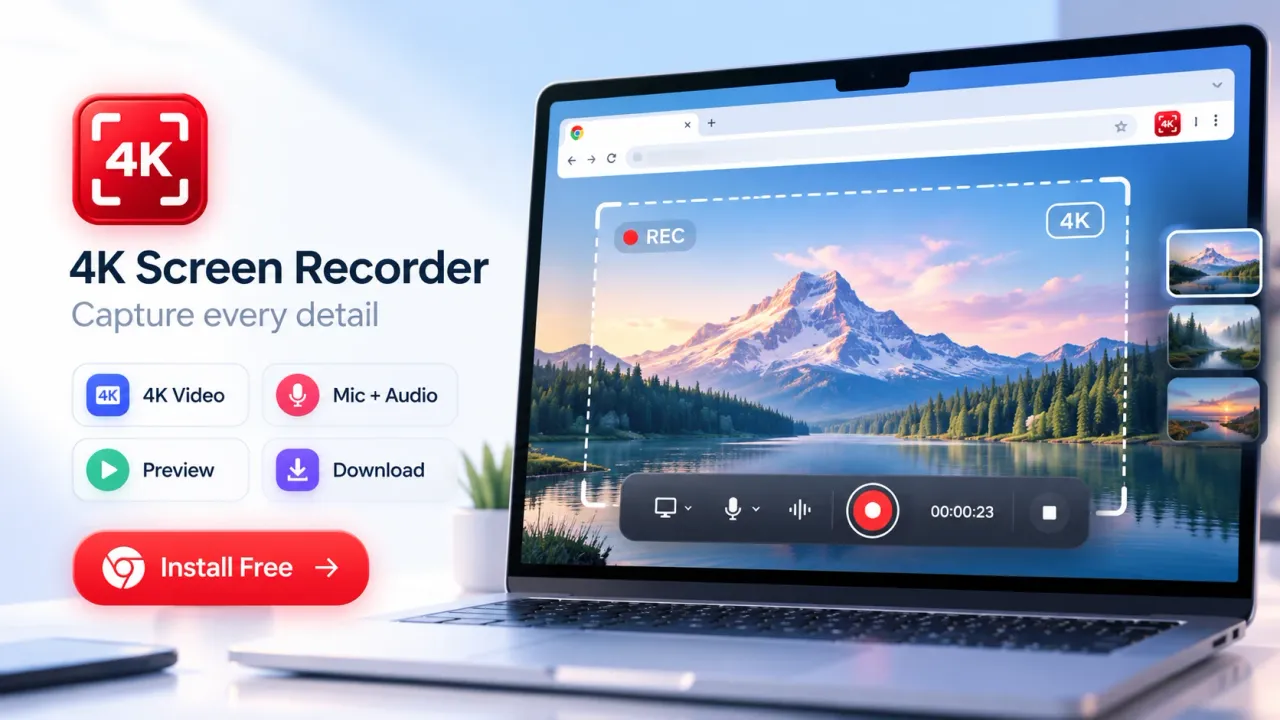
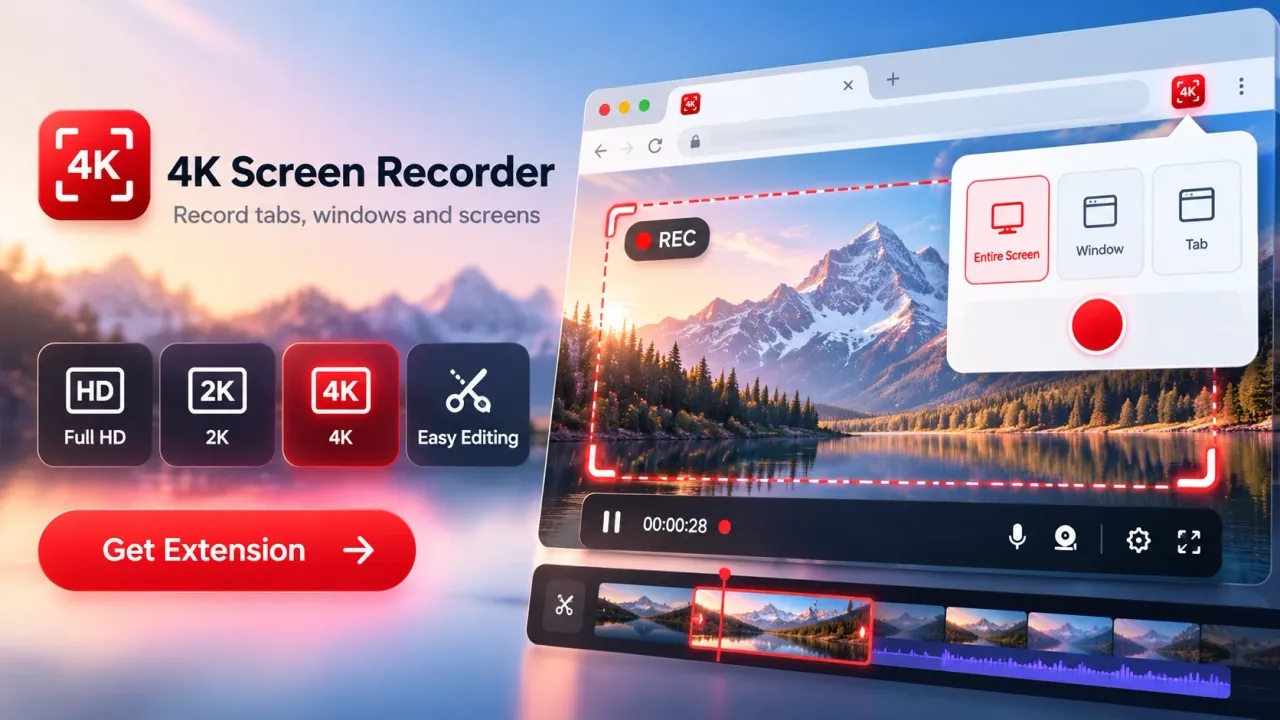
A free screen recorder for Chrome is a browser extension or browser-based recording tool that captures a Chrome tab, application window, full display, or selected region as video, often with microphone audio, available tab or system audio, and an optional webcam overlay. For video creators, the main value is speed and control. Recording can begin from the browser, the source can be limited to the content that matters, and the finished video can move directly into preview, editing, and export. Current Chrome recording tools can support tutorials, product demos, course lessons, presentations, creator commentary, software walkthroughs, and short social videos without requiring a separate desktop recorder for every job.
Why Chrome Screen Recording Now Fits a Creator Workflow
Chrome screen recording works because the browser provides screen-capture and media-recording capabilities that extensions can use after the user starts the action and grants access. Chrome can present a picker that lets the user choose a tab, application window, or display. Active-tab capture can also be initiated by an extension after a user action. These controls let a browser extension capture video while keeping source selection visible to the user.
Chrome's capture controls have expanded over time. System-audio controls appeared in Chrome 105, additional screen-sharing controls such as surface switching and self-browser-surface handling arrived in Chrome 107, and Chrome 116 expanded background tab-capture workflows through service workers and offscreen documents. These browser changes help explain why Chrome extensions can now handle recording tasks that previously required more desktop-specific workflows.
For creators, browser recording reduces the distance between the content being demonstrated and the recording tool. A software tutorial can be captured from the same browser where the software runs. A web product demo can focus on one tab. A presentation can use a single window. A creator who needs more context can capture the full display.
The most useful screen recorder is not necessarily the one with the longest feature list. Creator work depends on five practical decisions:
- What source must be visible.
- How much detail the audience needs to read.
- Whether motion requires 30 FPS or 60 FPS.
- Which audio sources must be included.
- How much editing is needed before publishing.
Current screen-recording products commonly focus on source selection, screen and webcam combinations, internal or microphone audio, editing, annotations, sharing, privacy, and creator or business use cases. Modern screen recording is therefore more than raw capture. It is a compact production workflow that starts with source control and ends with a usable video file.
4K Screen Recorder is one current Chrome extension built around that model. Its current Chrome Web Store listing describes tab, screen, and window recording, recording preview, downloads, microphone input, available tab or system audio, optional webcam overlay, and basic Trim & Stitch editing in the free version. The listing also states that the extension was updated on October 28, 2026, and lists version 1.9.1.
Choose the Recording Source Before Choosing the Resolution
The recording source controls what viewers can see, what can accidentally appear, which audio options are available, and how easy the video is to edit. Video creators should choose between tab, window, full-screen, and selected-area recording before thinking about 4K, frame rate, or effects.
Browser tab recording is usually the cleanest choice for web tutorials, website walkthroughs, browser-based product demos, dashboards, and online tools. The recording stays focused on one Chrome tab, which reduces unrelated desktop content. The reviewed extension supports active-tab recording and supported tab audio.
Application window recording fits workflows that move outside the browser but stay inside one program. A slide deck, design tool, spreadsheet, code editor, or desktop utility can be captured without showing the whole desktop. Window recording also lowers the risk of exposing unrelated applications.
Full-screen recording is useful when the creator must switch between multiple applications, browser windows, or system settings. It gives the audience more context, but it also creates more privacy risk. Notifications, file names, open folders, chat popups, account names, and other desktop details can appear. A creator should close or hide sensitive material before recording.
Selected-area recording is useful when only one part of a webpage matters. It can keep the viewer focused on a chart, control panel, video player, or demonstration region. In the reviewed extension, selected-area recording is a Pro feature.
Source selection also affects audio. Browser standards let recording tools request audio along with a display stream, but the browser and operating system decide which audio sources are available. A tab may offer tab audio while a full display or window may expose different choices.
A useful creator rule is simple. Record the smallest source that contains everything the audience needs. Smaller visual scope reduces clutter, lowers the chance of exposing private material, and makes later cropping or reframing easier.
Resolution and Frame Rate Should Match the Content
Resolution controls how much visual detail each frame can hold, while frame rate controls how frequently motion is sampled. Video creators should choose these settings according to text size, interface detail, motion, final platform, and device capability rather than selecting the highest setting by default.
The reviewed 4K Screen Recorder supports three stated resolution options:
- 4K UHD at 3840 × 2160, approximately 8.3 megapixels per frame.
- 2K QHD at 2560 × 1440, approximately 3.7 megapixels per frame.
- Full HD at 1920 × 1080, approximately 2.1 megapixels per frame.
Full HD at 30 FPS is a practical choice for many browser tutorials, slide presentations, simple software demos, and narrated walkthroughs. Text must still be large enough for the audience to read after the video is resized by the publishing platform.
2K can be useful when a tutorial contains smaller interface text, detailed charts, dense dashboards, or a large desktop that will later be cropped. The extra pixels give the editor more room to reframe while preserving detail.
4K is most useful when the original source contains enough detail to justify 3840 × 2160 output. A 4K export cannot restore information that was never visible in the source. If the source is low resolution or the browser window contains tiny unreadable text, a larger output frame does not fix the underlying presentation problem.
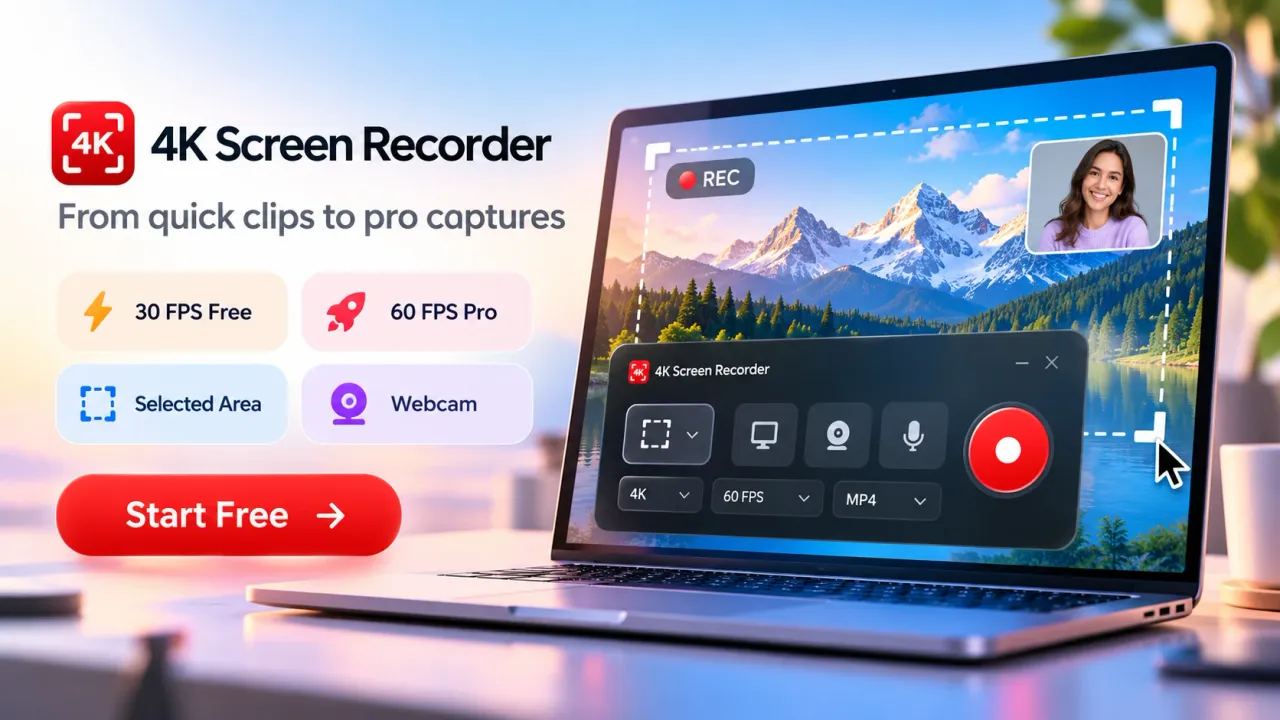
Frame rate matters most when the screen contains motion. Thirty frames per second works well for many instructional videos. Sixty frames per second can make fast scrolling, animated interfaces, cursor movement, drawing, gaming-style activity, or motion-heavy demonstrations look smoother. The reviewed extension reserves 60 FPS for Pro.
Higher resolution and higher frame rate also place more demand on the computer because more visual information must be captured, encoded, stored, previewed, and exported. The product documentation states that actual recording quality and frame delivery depend on the source, Chrome capabilities, and device performance.
Creators should run a short test before a long session. Read small text in the test file, listen for audio problems, inspect cursor motion, and confirm that the chosen resolution survives upload or editing. A short test can expose a poor configuration before a longer recording is lost.
Audio, Microphone, and Webcam Shape the Viewer Experience
Screen video explains what happens on a display, but audio explains why it happens. For most tutorials, reviews, demos, lessons, and walkthroughs, clear narration has more instructional value than an extra jump in resolution. The microphone, tab or system audio, and webcam should each have a defined role before recording starts.
Microphone audio carries the creator's explanation. The reviewed recorder lets the user enable a microphone before recording. A creator should choose the correct input device, place the microphone consistently, reduce background noise where possible, and record a short voice test. Audio meters or a quick playback check are more useful than assuming the default device is correct.
Tab or system audio is useful when the content itself produces sound. Examples include a browser-based media demo, an audio-editing tutorial, or a product walkthrough where sound is part of the interface. Browser support varies. The web platform documentation states that a request for system audio does not guarantee that the browser will provide it.
Webcam overlay adds a face to the recording. It works well for lessons, commentary, personal walkthroughs, and presentations where facial expression adds context. The reviewed extension supports an optional webcam overlay. The webcam window should not cover buttons, subtitles, charts, or other interface areas that viewers need to see.
Creators should also decide whether the screen audio and microphone need equal prominence. A tutorial may require strong narration and quiet interface audio. A media review may need more of the source audio. The final balance should match the video's purpose.
Privacy and consent matter when a recording includes other people. A creator should avoid recording private calls, personal messages, customer data, or participant audio without the necessary permission. Screen recording makes hidden details easy to capture by accident, especially during full-display recording.
A Creator Workflow From Recording to Publish-Ready Video
A good Chrome screen-recording workflow separates preparation, capture, review, editing, and export. This sequence reduces re-recording and keeps the final video focused on the viewer's task.
Start by preparing the screen. Close unrelated tabs and windows. Turn off notifications. Remove private information. Set the browser zoom so labels and controls can be read. Place the cursor where the first action begins. If a webcam overlay will be used, reserve an empty corner for it.
Next, choose the capture source. Use a tab for browser-only content, a window for one application, a full display for multi-app work, or a selected region when only a small area matters. Chrome's display-capture flow gives the user control over the source selection.
Then configure quality and inputs. Choose Full HD, 2K, or 4K according to the content. Choose 30 FPS for normal instruction or 60 FPS when motion quality matters and the plan supports it. Enable only the microphone, source audio, and webcam inputs that the video actually needs.
Record with a short pause at the beginning and end. Move the pointer deliberately. Avoid rapid scrolling when the viewer must read. If the tool supports pause and resume, use it when a long interruption would otherwise create unnecessary footage. The reviewed extension includes countdown, pause and resume, live controls, custom file naming, and preview.
Review the recording before editing. Check the first and last seconds, audio synchronization, microphone level, small text, webcam position, and any private content. A preview step catches problems that are difficult to repair after publishing.
Edit for clarity. The reviewed free plan includes Trim & Stitch, while the Pro editor adds captions, overlays, branding tools, color controls, annotations, and thumbnail tools. Trimming should remove setup time, mistakes, dead air, and repeated actions. Annotations should point to information that is hard to notice without help. Captions should improve comprehension and accessibility, not simply decorate the frame.
Export in a format that matches the next step. The reviewed recorder prefers MP4 where browser support allows it and uses WebM when needed. MediaRecorder support for containers and codecs can vary, so a browser can support one output combination and reject another. Creators who plan to edit in another program should confirm that the exported file imports correctly before recording a large batch.
Local Processing Changes the Privacy and Storage Model
Local processing means the recording is captured and processed inside the browser rather than being uploaded to an external recording server as part of the normal recording workflow. For creators handling unreleased content, internal dashboards, client demonstrations, or private project material, this changes where raw video exists during capture and editing.
The reviewed privacy policy states that screen recordings, selected webpage content, microphone audio, and webcam video are not uploaded to an external recording server as part of the recording workflow. It also states that recordings can be held temporarily in browser or extension storage so the user can preview, edit, save, or delete them. The policy was last updated on September 29, 2026.
Chrome still controls permissions for screen sharing, microphone, and camera access. The user chooses the source for screen or window sharing, and microphone or webcam input requires permission when those inputs are enabled. These browser controls are part of the security model, not an optional editing feature.
Local processing does not mean every optional feature must remain fully local. The current Chrome Web Store listing states that optional automatic transcription may send audio to the browser's speech-recognition service after confirmation. Recording and transcription should therefore be treated as separate data flows. A creator who works with sensitive material should check which optional features are enabled before using them.
Local storage also creates responsibility. Long or high-resolution recordings can occupy browser or device storage. Creators should export finished files, confirm the export opens correctly, and remove temporary recordings that are no longer needed. A local-first workflow reduces one kind of exposure, but it does not replace good file management.
The current Chrome Web Store listing also contains data-handling disclosures for categories such as personally identifiable information, authentication information, web history, user activity, and website content. The listing states that declared data is not sold to third parties outside approved use cases and is not used for unrelated purposes or creditworthiness. Creators evaluating any extension should read both the store disclosure and the developer privacy policy because each can describe a different part of the product's data handling.
Free and Paid Limits Matter Most Before a Long Recording
Free Chrome screen recorders can be useful for short creator tasks, but the main limits usually appear around recording duration, higher frame rates, selected-area capture, advanced editing, or storage and sharing. The current 4K Screen Recorder plan makes those boundaries explicit by resolution and feature.
The free version currently provides:
- Full HD recording for up to 1 minute per recording.
- 2K QHD recording for up to 30 seconds per recording.
- 4K UHD recording for up to 10 seconds per recording.
- 30 FPS recording.
- Browser-tab recording.
- Screen or window recording.
- Recording preview and download.
- Basic Trim & Stitch editing.
The Pro plan currently adds or expands:
- Unlimited recording according to the product's plan description.
- 60 FPS capture.
- Selected-area recording.
- Advanced editing.
- Captions and overlays.
- Branding tools.
- Color controls.
- Annotations.
- Thumbnail tools.
The Chrome Web Store describes Pro as a paid subscription with license activation. That distinction matters for creators who are choosing a tool for frequent production. A free plan can be enough for short demonstrations, test recordings, quick social clips, and brief bug reports. Longer tutorials, 4K sessions, or motion-heavy recordings can reach the free limits quickly.
Creators should check plan details before recording because product limits can change. A recording workflow should not depend on an assumed duration, resolution, export type, or editing feature that is no longer part of the current plan.
Where Screen Recording Adds the Most Value for Video Creators
Screen recording is strongest when the content itself lives on a display. It lets the audience watch a process rather than rely on a verbal description. Tutorials, product demos, lessons, presentations, creator commentary, and visual feedback are the clearest creator use cases.
Software tutorials benefit from direct capture because viewers can see each click, menu, setting, and result. Browser-tab recording works well for web apps, while window recording fits desktop software.
Product demos can show how a website, dashboard, SaaS feature, or digital workflow works. Webcam can add a presenter, while annotations can direct attention to a control or result.
YouTube and social video can use screen recording for explainers, reviews, how-to content, commentary, and short demonstrations. A clean horizontal master can also provide source material for later cropping when the original recording has enough detail.
Online lessons and presentations often benefit from screen plus microphone. Captions can support viewers who watch without sound or who benefit from text. A window is often enough for slides, while full-screen capture works when the presenter must switch between applications.
Bug reports and visual feedback use recording as documentation. A short capture can show the exact sequence that causes an issue more clearly than a long written description. The reviewed product lists bug reports among its supported use cases.
The recording setup should follow the use case. Static slides rarely need the same frame rate as fast interaction, and a short social clip does not need the same production process as a long lesson.
Common Mistakes That Reduce Screen-Recording Quality
Screen recordings usually fail because of preparation, source choice, audio, or readability rather than a lack of resolution. A short setup check prevents many avoidable problems.
- Recording too much of the desktop: Use tab or window capture when the video does not need the full display.
- Using 4K for a low-detail source: Improve browser zoom, source size, and text readability before increasing output resolution.
- Recording tiny interface text: Increase browser zoom or application scaling so controls remain readable on smaller screens.
- Ignoring audio-source limits: Browser documentation states that system-audio availability is not guaranteed. Test the exact capture source before a long session.
- Covering key controls with the webcam: Place the camera in a low-information area.
- Skipping preview: Check image clarity, audio, cursor visibility, webcam placement, and private information before editing.
- Assuming every export behaves the same: Media recording depends on supported media types and codecs. Test the exported file in the next editor or publishing tool.
- Leaving raw recordings unmanaged: Use clear filenames, export completed work, and remove temporary captures after verifying the final file.
What to Look for in a Free Screen Recorder for Chrome
A good free Chrome screen recorder should match the creator's production needs, not simply advertise the largest resolution. Evaluation should cover capture control, audio, editing, privacy, export, limits, and performance.
Look for clear tab, window, and display choices, plus selected-area capture if the work requires it. Full HD should cover normal creator work, while 2K or 4K can help when small interface details must remain readable. Thirty FPS is enough for many tutorials, while 60 FPS can help fast motion.
Audio controls should separate microphone input from available source audio. Webcam should be optional. Pause and resume, preview, trimming, clip joining, captions, and annotations can reduce extra editing work. Storage and permissions should be clearly documented, and free-plan limits should be visible before recording.
Current screen-recording products commonly emphasize recording length, watermark rules, editing, annotation, webcam, privacy, sharing, and format options. The best choice for a creator is the tool whose limits are clear and whose recording model fits the content being produced.
The Current 4K Screen Recorder Position in 2026
4K Screen Recorder is currently listed in the Chrome Web Store as version 1.9.1, updated October 28, 2026. The free version supports short Full HD, 2K, and 4K recordings at 30 FPS, plus preview, download, and Trim & Stitch editing. Pro adds the stated unlimited recording, 60 FPS, selected-area recording, and advanced editing.
The product uses local recording for its normal capture workflow. Its privacy policy says recordings stay in the browser until the user saves or deletes them. The store listing adds one qualification: optional automatic transcription may send audio to the browser's speech-recognition service after confirmation.
For creators, the main lesson is to match the source, resolution, frame rate, audio, and editing level to the job. Chrome screen recording is most useful when the capture setup is deliberate, the text is readable, audio is tested, and the exported file is verified before publishing.
A free screen recorder for Chrome can give video creators a fast way to capture tutorials, product demos, presentations, lessons, reviews, walkthroughs, and short-form content directly from the browser. The quality of the final video depends less on choosing the highest resolution and more on selecting the right capture source, making on-screen text readable, testing microphone and source audio, choosing an appropriate frame rate, and reviewing the recording before export.
4K Screen Recorder brings tab, window, and full-screen capture together with microphone input, available source audio, webcam overlay, preview, download, and basic editing. Higher-resolution recording, 60 FPS capture, selected-area recording, and advanced editing can support more demanding creator workflows when needed.
For most creators, Full HD at 30 FPS is a practical starting point. 2K and 4K become more useful when small interface details, cropping flexibility, or high-resolution publishing matter. Sixty FPS is better suited to faster movement, scrolling, animation, and motion-heavy demonstrations.
Privacy should remain part of the recording workflow. Choosing the smallest necessary capture area, closing private tabs, disabling notifications, checking permissions, and managing locally stored recordings can reduce accidental exposure.
A strong Chrome screen-recording workflow is simple: prepare the screen, choose the correct source, test video and audio, record clearly, review the result, remove unnecessary footage, and export in a format that fits the publishing platform. When these steps are handled well, browser-based screen recording becomes a practical production tool for creators who need to turn on-screen activity into clear, useful video content.
Free Screen Recorder for Chrome: FAQs
What is a free screen recorder for Chrome?
A free screen recorder for Chrome is a browser extension or browser-based tool that records a Chrome tab, application window, full display, or supported screen area. Depending on the tool and browser permissions, it can also record microphone audio, tab or system audio, and webcam video.
Is a Chrome screen recorder useful for video creators?
Yes. Chrome screen recording works well for tutorials, software walkthroughs, product demos, online lessons, presentations, reviews, bug reports, and social media videos. It allows creators to record on-screen activity without moving through a complex desktop recording setup.
Which recording mode should creators use in Chrome?
Browser-tab recording is best for websites and web applications. Window recording works well for a single desktop application. Full-screen recording is useful when the video requires switching between multiple programs. Selected-area recording is useful when only one part of the screen needs to appear in the final video.
Is 1080p or 4K better for screen recording?
1080p Full HD is suitable for most tutorials, presentations, and browser demonstrations. 2K or 4K is more useful when the recording contains small text, detailed dashboards, charts, or content that may be cropped later. Higher resolution does not improve a source that is already blurry or difficult to read.
Should screen recordings use 30 FPS or 60 FPS?
Thirty frames per second is suitable for most instructional videos, slides, software demonstrations, and normal browser activity. Sixty frames per second is more useful for fast scrolling, animations, cursor movement, gaming-style content, drawing, and other motion-heavy recordings.
Can a Chrome screen recorder capture microphone and computer audio?
Chrome screen recorders can record microphone input and, where browser and operating-system support permits, tab or system audio. Available audio options can vary depending on the selected capture source, Chrome version, operating system, and browser permissions. A short audio test before a long recording is recommended.
Can creators record their webcam while recording the screen?
Yes, supported Chrome screen recorders can add a webcam overlay while capturing the screen. Webcam recording is useful for tutorials, lessons, commentary, product demonstrations, and presentations where the creator's face adds context. The webcam window should be positioned so it does not cover important controls or text.
Does 4K Screen Recorder process recordings locally?
The reviewed 4K Screen Recorder documentation states that its normal recording workflow processes recordings locally in the browser rather than uploading the raw recording to an external recording server. Temporary browser or extension storage can be used for previewing, editing, saving, or deleting recordings. Optional features such as automatic transcription can have a separate data flow.
What are the main free limits of 4K Screen Recorder?
The reviewed free plan supports Full HD recording for up to 1 minute, 2K recording for up to 30 seconds, and 4K recording for up to 10 seconds per recording. It also supports 30 FPS, tab recording, screen or window capture, preview, download, and basic Trim & Stitch editing. Plan limits can change, so creators should check the current product details before recording.
How can creators get better quality from Chrome screen recordings?
Creators should choose the smallest capture area that contains all required content, increase browser zoom when text is too small, use the correct microphone, test source audio, select a suitable resolution and frame rate, disable notifications, close private content, and review a short test recording before starting a longer session. Good preparation usually has a greater effect on usability than selecting the highest available resolution.