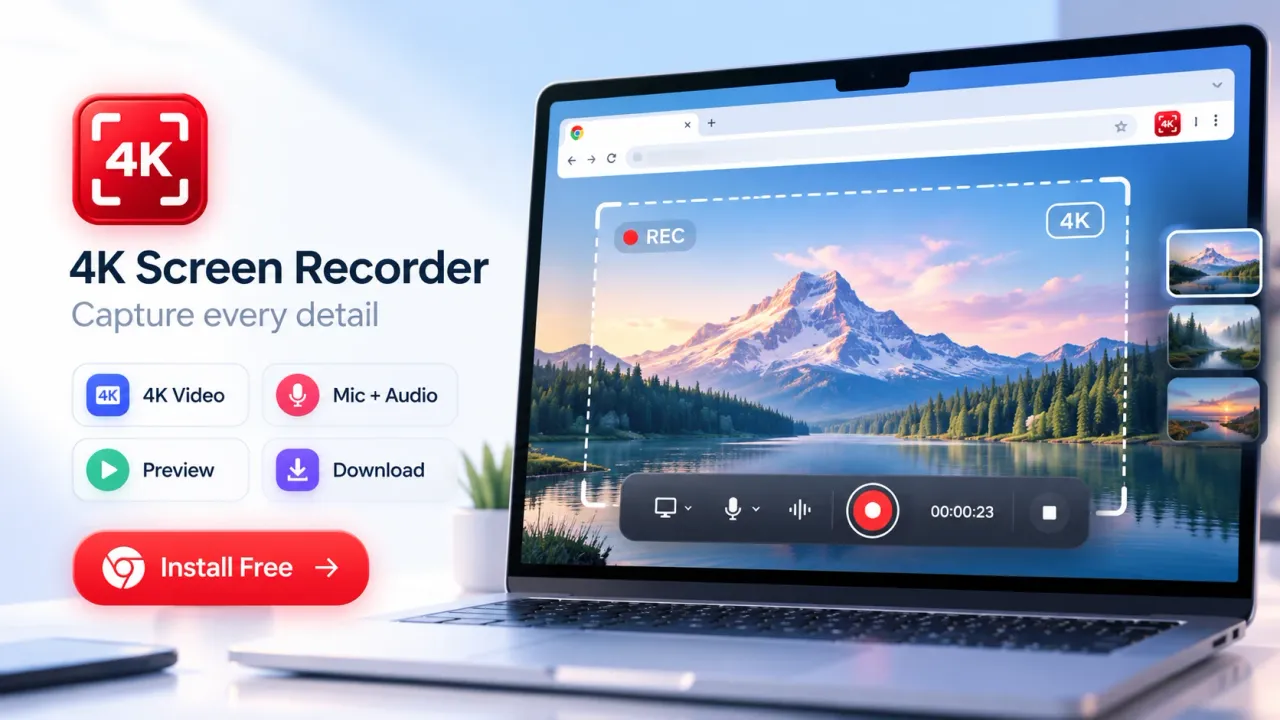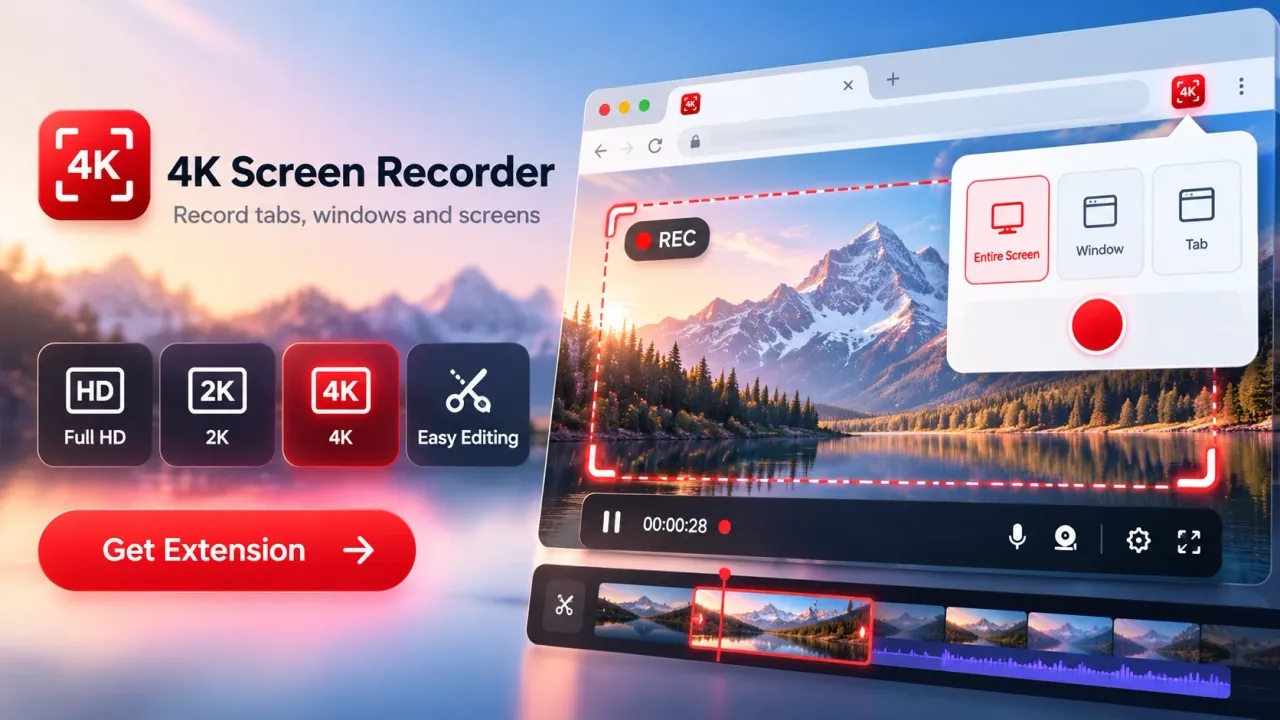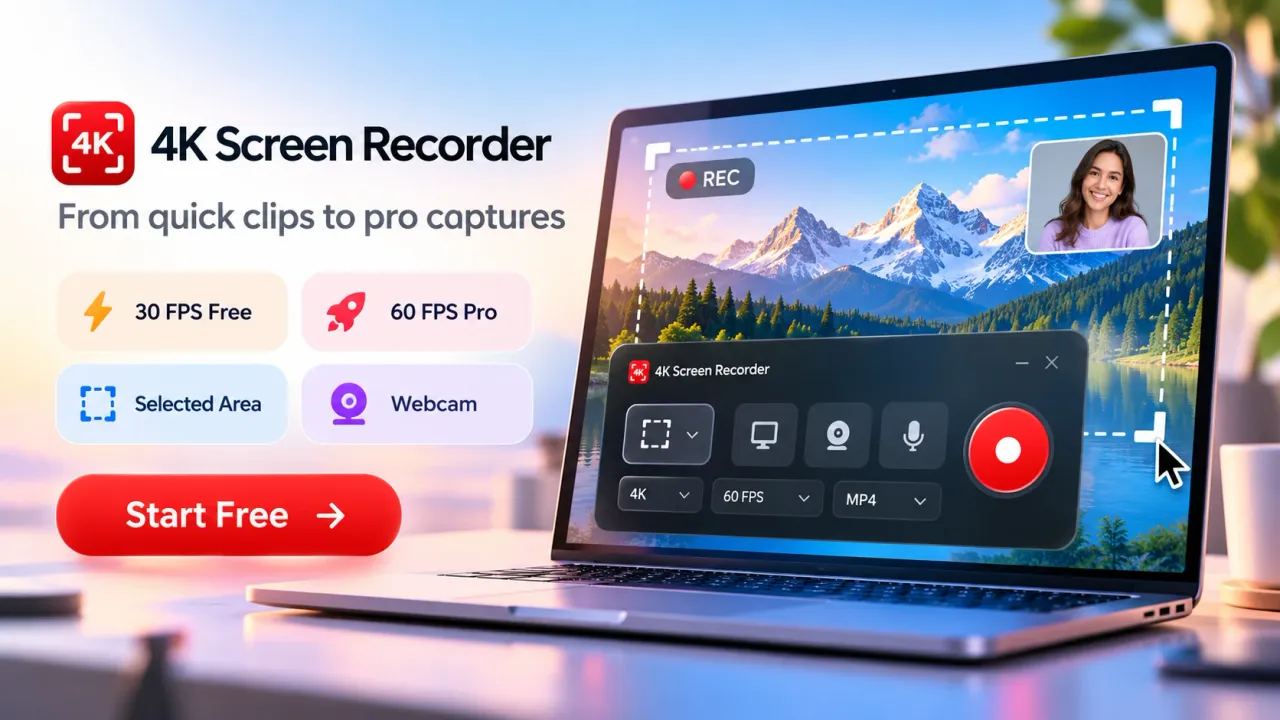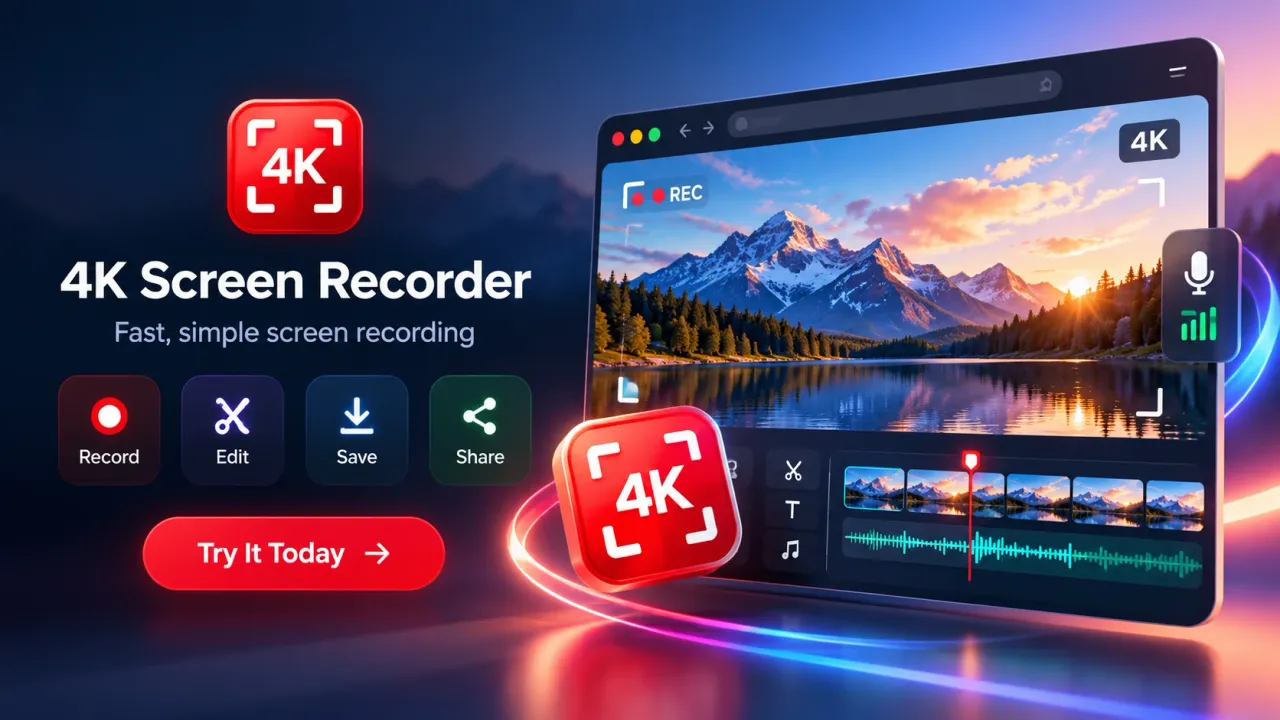

The best free Chrome screen recorder for serious video creators should record sharp screen video, capture the correct browser tab, window, display, audio source, microphone, and webcam, then provide a practical path from recording to editing and export. 4K Screen Recorder is a Chrome extension built around that workflow. It supports Full HD, 2K QHD, and 4K UHD capture, multiple recording sources, optional audio and webcam, local processing, preview, basic editing, and local video export. Free recording is available with time limits that vary by resolution, while Pro adds unlimited recording, 60 FPS, selected-area capture, and expanded editing tools. For serious creators, resolution alone…
The best free Chrome screen recorder for serious video creators should record sharp screen video, capture the correct browser tab, window, display, audio source, microphone, and webcam, then provide a practical path from recording to editing and export.
4K Screen Recorder is a Chrome extension built around that workflow. It supports Full HD, 2K QHD, and 4K UHD capture, multiple recording sources, optional audio and webcam, local processing, preview, basic editing, and local video export.
Free recording is available with time limits that vary by resolution, while Pro adds unlimited recording, 60 FPS, selected-area capture, and expanded editing tools.
For serious creators, resolution alone does not decide whether a screen recorder is useful. Capture source, frame rate, audio quality, editing control, privacy, export compatibility, computer performance, recording limits, and the type of video being produced all affect the final result.
A creator recording a 20-second browser feature demonstration has different requirements from someone producing a 20-minute software tutorial. The right Chrome screen recorder must fit the production workflow, not simply offer the highest resolution on a feature list.
What Serious Video Creators Need From a Chrome Screen Recorder
A screen recorder for serious content work needs to capture readable interface details, preserve motion clearly, record useful audio, keep unwanted desktop content outside the frame, and produce a file that can move into publishing or further editing without unnecessary steps.
Video creators commonly use screen recording for software tutorials, YouTube videos, browser walkthroughs, product demonstrations, online lessons, presentations, support videos, bug reports, training material, and social content.
Those workflows create several practical requirements.
A serious creator should be able to control:
- Recording source
- Output resolution
- Frame rate
- Browser or system audio
- Microphone input
- Webcam visibility
- Recording duration
- Pause and resume
- Preview
- Trimming
- Clip assembly
- Export format
- Local storage and deletion
4K Screen Recorder supports browser-tab capture, full-screen capture, individual application windows, and selected webpage regions. Selected Area recording is a Pro feature. The recorder also supports microphone input, available tab or system audio, webcam overlay, pause and resume, recording preview, and local storage before export.
The advantage of having these controls inside Chrome is workflow speed. A creator working mainly with websites, web applications, browser presentations, dashboards, online tools, or web-based software can start recording without opening a separate desktop recorder.
That does not mean every creator should record everything through a browser extension. Long-form gaming capture, demanding multi-source production, advanced audio routing, or complex studio recording can require dedicated desktop software. Chrome recording is strongest when the content itself already lives inside the browser or can be selected through Chrome's screen-sharing controls.
4K, 2K, and Full HD Serve Different Creator Workflows
Resolution determines how many pixels are recorded in each video frame. 4K Screen Recorder currently supports 3840 × 2160 4K UHD, 2560 × 1440 2K QHD, and 1920 × 1080 Full HD capture.
4K UHD contains about 8.3 million pixels per frame. Full HD contains about 2.1 million. That means 4K carries roughly four times as many pixels as Full HD.
For screen-based content, that extra resolution can matter because computer interfaces contain small text, thin icons, menus, charts, code, browser controls, and detailed application panels.
A 4K recording can be useful for:
- Detailed software demonstrations
- Coding videos
- Design application tutorials
- Dashboard walkthroughs
- Browser-based product demonstrations
- Content that will be cropped during editing
- Videos intended for 4K publishing
Full HD remains practical for many tutorials, presentations, social videos, support recordings, and general browser demonstrations.
2K QHD sits between the two. It provides more detail than Full HD while producing less demanding recordings than 4K in many situations.
Higher resolution does not automatically create better content. A poorly framed 4K recording can be less useful than a clean Full HD recording that keeps the important interface elements large and readable.
Source resolution also matters. Selecting 4K output cannot create genuine source detail that was never present. The product documentation also states that actual recording quality depends on the selected source, Chrome capabilities, and computer performance.
For creators, resolution should therefore be chosen according to the content being captured and the final publishing requirement.
30 FPS and 60 FPS Affect Motion More Than Static Detail
Frame rate controls how many individual frames are recorded each second. 4K Screen Recorder supports 30 frames per second in the free plan and 60 FPS with Pro.
Thirty FPS is suitable for many screen-recording tasks. Slides, website explanations, dashboards, static software demonstrations, and educational walkthroughs usually do not require high frame rates.
Sixty FPS becomes more useful when the viewer needs to follow frequent movement.
Examples include:
- Fast webpage scrolling
- Animated user interfaces
- Rapid cursor movement
- Motion-heavy browser demonstrations
- Interactive software
- Detailed visual transitions
A 60 FPS recording contains twice as many frames per second as a 30 FPS recording. That can make movement appear smoother, but it also increases the amount of video information that must be captured and processed.
High resolution and high frame rate together place greater demands on the computer. A creator trying to record 4K at 60 FPS should consider processor performance, graphics performance, available memory, browser workload, the complexity of the source, and other applications running at the same time.
For mostly static tutorials, 30 FPS can preserve processing resources without sacrificing useful visual information. For motion-heavy recordings, 60 FPS can provide a clearer result when the computer can maintain it.
Choosing the Right Capture Source Matters Before Choosing Resolution
Capture source determines what appears in the recording. 4K Screen Recorder supports browser-tab recording, screen recording, application-window recording, and Pro selected-area recording.
Browser-tab recording is suited to content contained inside one Chrome tab. Examples include website tutorials, online dashboards, web applications, browser-based tools, online presentations, and web product demonstrations.
Window recording is useful when one application needs to remain visible while unrelated desktop activity stays outside the recording.
Full-screen recording is useful when a creator needs to move between applications or show a workflow that extends beyond a single window.
Selected-area recording focuses capture on a defined webpage region. This can help when only one dashboard panel, video player, tool interface, chart, browser section, or content area needs to appear.
Source selection also affects privacy and editing workload.
Recording an entire display when only one window is required can expose desktop notifications, unrelated tabs, file names, messages, or other information. A narrower capture source reduces the amount of unnecessary material entering the recording.
Good source selection also reduces later cropping. Recording only what viewers need makes the video easier to understand and can reduce editing work.
Screen Audio, Microphone, and Webcam Create Different Types of Videos
4K Screen Recorder can combine screen capture with available tab or system audio, microphone narration, and an optional webcam overlay. Audio availability depends on the browser and selected source.
Microphone recording is central to instructional content. A creator can explain what is happening while demonstrating software, teaching a process, reviewing a website, or presenting slides.
Source audio serves another purpose. Browser or system audio can preserve sound from the material being demonstrated when Chrome and the selected capture source make that audio available.
Webcam overlay adds the presenter to the screen recording. That format can work well for courses, educational videos, walkthroughs, commentary, presentations, and creator-led tutorials.
These audio sources should be treated separately.
The microphone records the creator.
Source audio records available sound from the captured content.
The webcam provides a visual presenter layer.
Using all three is not always necessary. A software tutorial may need only screen capture and narration. A presentation may benefit from webcam plus microphone. A browser demonstration involving media playback can require source audio as well.
Creators should test audio before recording important material. Screen resolution cannot compensate for narration that is too quiet, distorted, noisy, or missing.
The Creator Workflow Runs From Capture to Local Export
4K Screen Recorder uses a record, preview, edit, and export workflow inside Chrome. The creator first selects a recording source, configures resolution, frame rate, audio, microphone, webcam, and recording preferences, then records the content and reviews the result before export.
Recording controls include a countdown, custom filenames, pause and resume, a timer, and stop controls.
After capture, the recording can be previewed before the creator decides whether to edit, save, or remove it.
The built-in editor includes basic Trim and Stitch functionality in the free plan. This allows unwanted beginning or ending sections to be removed and clips to be joined.
Pro expands the editing workflow with features listed by the product as:
- Captions
- Text and overlays
- Branding controls
- Color adjustments
- Annotations
- Thumbnail creation
- Additional editing controls
The editor operates locally in the browser according to the current product documentation.
This matters for creators producing short or medium screen-based videos because basic recording corrections can be completed without moving every clip into a separate editor.
A full video editor can still be useful when the project requires multiple video tracks, advanced sound processing, complex transitions, detailed motion graphics, extensive color work, or a large multi-clip timeline.
The built-in editor is more directly suited to screen-recording tasks such as trimming mistakes, combining clips, adding explanatory elements, preparing a thumbnail, and exporting a finished recording.
MP4 Export and WebM Fallback Affect Publishing Compatibility
4K Screen Recorder prefers MP4 export where the browser supports it and uses WebM as a compatibility fallback when required.
MP4 is widely accepted by video publishing systems, social platforms, editing applications, media players, and content-management systems. That makes MP4 a practical output for creator workflows.
WebM is also a standard web video format, but creators should check whether their next editing or publishing tool accepts the exact file they export.
Browser capability affects format availability. A Chrome extension works within browser recording and encoding capabilities, so creators should not assume that every computer will produce exactly the same encoding path.
The safest workflow is to make a short test recording using the intended resolution, frame rate, audio configuration, and source. Export that recording and open it in the next tool in the production process.
A 15-second test can confirm several things at once:
- Video opens correctly
- Resolution is correct
- Audio is present
- Microphone level is usable
- Webcam appears correctly
- Motion is smooth enough
- Export format works with the next application
That small test is especially useful before recording a long tutorial or presentation.
Local Recording Changes the Privacy Model
4K Screen Recorder processes the core screen-recording workflow locally inside Chrome. The published privacy policy states that screen recordings, selected webpage content, microphone audio, and webcam video are not uploaded to an external recording server as part of the recording workflow.
Recordings can be temporarily stored in browser or extension storage so the creator can preview, edit, export, or delete them. The user decides when a finished recording is saved to the device.
Chrome controls permission prompts for display sharing, microphone access, and camera access. The extension records the source selected by the user, while microphone and webcam access require the related options and browser permissions.
There is one important qualification for creators reviewing privacy.
The current Chrome Web Store listing states that optional automatic transcription can send audio to the browser's speech-recognition service after user confirmation.
That means core local recording and optional transcription should be treated as separate processes.
The Chrome Web Store privacy disclosure also lists personally identifiable information, authentication information, web history, user activity, and website content among categories handled by the extension. The developer declares that the disclosed data is not sold to third parties, is not used or transferred for unrelated purposes, and is not used for creditworthiness or lending decisions.
Creators handling client systems, unpublished material, private dashboards, account information, or confidential business content should review extension permissions and the current privacy disclosure before recording sensitive material.
The Free Plan Is Useful, but Its Recording Limits Matter
4K Screen Recorder is free to install, but the free recording duration depends on the selected resolution. Current product information lists free recording limits of up to 10 seconds at 4K UHD, 30 seconds at 2K QHD, and one minute at Full HD.
The free plan includes:
- 4K, 2K, and Full HD recording at 30 FPS
- Browser-tab recording
- Screen and window recording
- Recording preview
- Downloads
- Trim and Stitch editing
The Pro plan removes the listed recording-time limits and adds 60 FPS recording, selected-area capture, and expanded editing functions.
These limits change how the word free should be interpreted for serious creators.
The free tier works well for testing recording quality, checking computer performance, capturing short demonstrations, creating brief browser clips, or evaluating whether the workflow fits a creator's production process.
A one-minute Full HD limit is less suitable for long tutorials, full lessons, extended product demonstrations, or lengthy YouTube videos.
Creators should therefore evaluate the free version according to the actual length of their content rather than resolution alone.
A 10-second 4K recording can be enough for a short product feature clip. It is not enough for a complete long-form tutorial.
Quick Facts About 4K Screen Recording for Creators
4K Screen Recorder combines high-resolution capture with browser-based recording, local editing, and local export. The main facts that affect creator workflows are straightforward.
- 4K UHD recording uses a resolution of 3840 × 2160.
- 2K QHD recording uses 2560 × 1440.
- Full HD recording uses 1920 × 1080.
- Free recording runs at 30 FPS with resolution-based time limits.
- Pro adds 60 FPS and removes the listed recording-time limits.
- Browser tab, screen, and window capture are available.
- Selected Area recording requires Pro.
- Core recording and editing are processed locally in Chrome, while optional transcription can use the browser's speech-recognition service after confirmation.
These facts make it easier to match the recorder to a specific creator workflow before production begins.
YouTube Tutorials and Software Walkthroughs Need Readable Interfaces
YouTube tutorials benefit from screen recordings where menus, labels, buttons, code, form fields, and application controls remain readable after upload and playback.
4K recording can help when the source interface contains very small elements or when the editor expects to crop the recording later.
A creator does not need 4K for every YouTube tutorial.
If the browser window is framed correctly and important interface elements occupy a useful part of the screen, Full HD can remain effective.
Cursor movement also matters. Slow, deliberate pointer movement is easier to follow than rapid movement across a large desktop.
60 FPS can improve motion during fast scrolling or highly interactive demonstrations, but viewers gain more from clear framing and understandable narration than from frame rate alone.
For long YouTube tutorials, the free duration limits are a bigger production constraint than resolution. A creator planning a ten-minute tutorial would need to account for those limits before choosing the recorder for the complete project.
Product Demos Benefit From Controlled Capture Areas
Product demonstrations work best when the recorded frame contains only the product experience viewers need to understand.
Browser-tab recording can isolate a web application from unrelated desktop content. Window recording can isolate a desktop application. Selected-area recording can focus attention on a specific part of a webpage when Pro is available.
This type of framing is useful for:
- Feature announcements
- SaaS demonstrations
- Website walkthroughs
- Sales presentations
- Customer onboarding
- Feature documentation
- Short promotional clips
Product demonstrations also benefit from custom filenames and preview controls because creators often record several versions of the same sequence.
A naming system such as product-feature-version can make recordings easier to manage before publishing.
Courses and Training Videos Need Stable Narration More Than Maximum Resolution
Educational screen recording depends heavily on clarity of explanation. A clean Full HD recording with understandable narration can be more useful than a 4K recording with poor audio or inconsistent pacing.
The webcam overlay can help when instructor presence is part of the course format. Microphone recording provides spoken explanation, while screen capture shows the process being taught.
Pause and resume can also reduce unnecessary retakes during lessons.
Creators recording educational material should prepare the screen before starting. Notifications should be disabled, unrelated tabs should be closed, personal information should be removed, and the browser zoom level should make important text readable.
The selected resolution should support the final delivery format. Recording at a much higher resolution than needed can increase computer workload without adding meaningful value for the learner.
Bug Reports and Support Videos Need Accuracy More Than Production Effects
Screen recording is useful for bug reports because a video can show the exact sequence that leads to an error.
A useful bug recording should show:
- Starting state
- User action
- Visible response
- Error message
- Reproduction sequence
Window or tab recording can keep the report focused on the affected application.
Microphone narration can add context, but visual reproduction should remain clear even without extensive editing.
For support videos, Trim and Stitch can remove setup time and failed attempts before the video is shared with the intended recipient.
Creators should still avoid recording credentials, customer information, private messages, API keys, payment information, or unrelated confidential data.
Computer Performance Sets the Real Recording Ceiling
A recorder can offer 4K and 60 FPS while the actual computer still determines whether those settings can be sustained during a real recording.
The product documentation specifically states that quality and frame delivery can depend on the source, browser capabilities, and device performance.
Creators should treat resolution and frame rate as workloads.
A computer simultaneously running Chrome, a demanding web application, webcam capture, microphone capture, source audio, 4K recording, and other software has more work to perform than a computer recording one static browser tab at Full HD.
Before an important recording:
Close unnecessary applications.
Reduce unused browser tabs.
Check available storage.
Connect power on laptops where practical.
Test the intended microphone and camera.
Record a short movement-heavy sample.
Play the sample from beginning to end.
Check audio synchronization.
If frames appear uneven, lowering resolution or frame rate can produce a more usable final recording than forcing the highest setting.
Current 2026 Product Status
The current Chrome Web Store listing shows 4K Screen Recorder version 1.9.1, updated on October 28, 2026. The extension is listed as free to install with optional paid Pro features and in-app purchases.
The listing showed 19 users and no published ratings when checked on November 12, 2026. That is a small public usage base, so creators evaluating the extension should rely on their own workflow testing rather than assuming maturity from a large volume of public reviews.
A Windows desktop edition is also described as coming soon. The published product page says the planned Windows version will use a one-time purchase model, include updates, support license movement to another PC, and continue working offline for periods after activation.
Those Windows details describe a planned product and should not be confused with the currently available Chrome extension.
When a Chrome Screen Recorder Is the Right Creator Tool
A Chrome screen recorder is a strong fit when most of the video production happens around websites, browser applications, presentations, software interfaces, online education, web products, or screen-based explanations.
4K Screen Recorder is especially relevant when the creator values:
- Up to 4K UHD capture
- Choice of tab, screen, window, or area
- Microphone recording
- Available source audio
- Webcam overlay
- Basic editing inside Chrome
- Local recording processing
- Local preview and export
- A simple route from browser activity to finished video
A dedicated desktop production tool becomes more appropriate when the project requires advanced multi-track editing, complex audio routing, large multi-camera projects, demanding game capture, extensive motion graphics, or studio-level post-production.
The two categories solve different production problems.
Serious creators benefit from choosing the smallest tool that can complete the actual production job reliably.
Who 4K Screen Recorder Fits Best
4K Screen Recorder fits creators who produce browser-centered tutorials, demonstrations, educational content, presentations, support recordings, and short screen-based videos and who want resolution control up to 4K UHD without moving the core recording workflow outside Chrome.
The free tier is most practical for short recordings and product evaluation because Full HD is limited to one minute, 2K to 30 seconds, and 4K to 10 seconds. Longer production work requires consideration of Pro or another workflow.
The strongest creator-focused features are not simply 4K resolution. The useful combination is source selection, resolution control, audio input, webcam support, preview, editing, local processing, and export.
For serious video work, the right decision comes from matching those controls to the content being produced.
A short browser demonstration can prioritize fast capture and high resolution.
A tutorial can prioritize narration, readable interface elements, pause controls, and clean editing.
A software walkthrough can prioritize tab or window isolation.
A course can prioritize stable Full HD capture and microphone quality.
A motion-heavy demonstration can benefit from 60 FPS when Pro and computer performance support it.
4K Screen Recorder provides those recording paths inside Chrome, while its free limits, browser-dependent audio and export behavior, hardware requirements, privacy disclosures, and current public adoption should remain part of any serious creator's evaluation.
The best free Chrome screen recorder for serious video creators is not defined by resolution alone. A useful recording tool must combine clear video capture, flexible source selection, reliable audio, webcam support, practical editing, privacy controls, and export options that fit the creator’s workflow.
4K Screen Recorder covers browser tab, window, full-screen, and selected-area recording, with support for Full HD, 2K, and 4K capture. The free plan is well suited to short recordings, testing, quick demonstrations, and evaluating recording quality, while Pro removes recording-time limits and adds 60 FPS, selected-area recording, and expanded editing tools.
For YouTube tutorials, software demonstrations, online courses, product walkthroughs, support videos, and browser-based content, the most effective setup depends on the job. Full HD is enough for many tutorials, 4K is useful when small interface details or later cropping matter, and 60 FPS is more relevant when the recording contains frequent motion.
Creators should also consider microphone quality, computer performance, browser compatibility, privacy settings, recording duration, and export format before starting a major project. A short test recording using the intended resolution, frame rate, audio source, and capture mode can prevent problems before a longer production begins.
For creators who spend much of their production time inside Chrome, 4K Screen Recorder provides a focused path from screen capture to preview, editing, and local export without adding unnecessary complexity.
Best Free Chrome Screen Recorder for Serious Video Creators: FAQs
What is 4K Screen Recorder for Chrome?
4K Screen Recorder is a Chrome screen recording extension designed to capture browser tabs, application windows, full screens, and selected webpage areas. It supports Full HD, 2K QHD, and 4K UHD recording, along with microphone input, available source audio, webcam overlay, preview, editing, and local video export.
Can 4K Screen Recorder record videos in 4K resolution?
Yes. 4K Screen Recorder supports 3840 × 2160 4K UHD recording. It also supports 2560 × 1440 2K QHD and 1920 × 1080 Full HD. Actual recording quality can depend on the selected source, Chrome capabilities, and computer performance.
Is 4K Screen Recorder free to use?
Yes. The Chrome extension includes a free plan with resolution-based recording limits. The free version currently supports up to 10 seconds at 4K, 30 seconds at 2K, and one minute at Full HD. Pro removes the listed recording-time limits and adds more recording and editing features.
Does 4K Screen Recorder support 60 FPS recording?
Yes, 60 frames per second recording is available with Pro. The free plan supports recording at 30 FPS. Sixty FPS is most useful for fast scrolling, animated interfaces, rapid cursor movement, and screen content with frequent motion.
Can I record microphone, browser audio, and webcam together?
4K Screen Recorder supports microphone recording, available tab or system audio, and an optional webcam overlay. Audio availability can depend on Chrome and the selected recording source. Creators should make a short test recording before an important session to confirm that every required audio source is captured correctly.
Can I edit screen recordings directly in Chrome?
Yes. The free plan includes Trim and Stitch tools for removing unwanted sections and combining clips. Pro includes additional editing options such as captions, text, overlays, branding controls, annotations, color adjustments, and thumbnail creation.
Does 4K Screen Recorder upload my recordings to a server?
The core recording workflow is processed locally inside Chrome according to the published product information. Screen recordings, microphone audio, webcam video, and selected screen content are not uploaded to an external recording server as part of normal recording. Optional transcription can use the browser's speech-recognition service after user confirmation.
What video formats can 4K Screen Recorder export?
4K Screen Recorder prefers MP4 export when supported by the browser and uses WebM as a compatibility fallback when required. Creators should test the exported file with their preferred video editor, publishing service, or content-management system before recording a long project.
Is 4K better than Full HD for YouTube tutorials and software demos?
4K is useful when tutorials contain small text, detailed interface elements, code, charts, or footage that will be cropped during editing. Full HD remains suitable for many YouTube tutorials, presentations, courses, and browser demonstrations. The best resolution depends on source detail, publishing requirements, computer performance, and recording duration.
Who should use 4K Screen Recorder?
4K Screen Recorder is suited to YouTube creators, educators, software teams, marketers, course creators, support teams, and anyone producing browser-based tutorials, product demonstrations, presentations, training videos, or software walkthroughs. It is most useful when the production workflow needs screen capture, narration, webcam, basic editing, and local export inside Chrome.