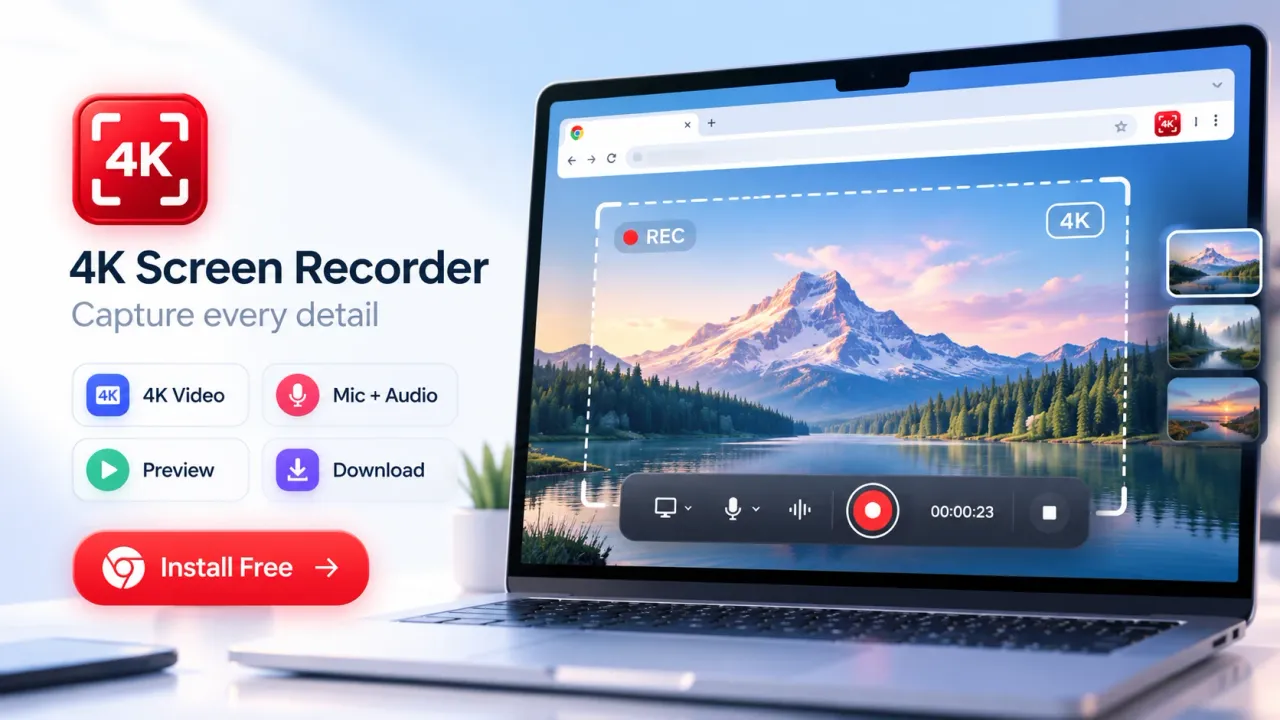

Free Chrome screen recorders are browser extensions that let video creators capture a Chrome tab, an application window, or an entire display, often with microphone narration, source audio, webcam video, local preview, editing, and export. They matter because creators can make tutorials, demos, training clips, bug reports, product walkthroughs, and social videos without opening separate desktop recording software. In 2026, creator-focused Chrome recorders can offer Full HD, 2K, and 4K capture, 30 FPS or higher frame-rate options, and browser-controlled permissions, although free tiers can place limits on recording length or advanced editing. Why Chrome Screen Recording Fits the Creator…
Free Chrome screen recorders are browser extensions that let video creators capture a Chrome tab, an application window, or an entire display, often with microphone narration, source audio, webcam video, local preview, editing, and export.
They matter because creators can make tutorials, demos, training clips, bug reports, product walkthroughs, and social videos without opening separate desktop recording software.
In 2026, creator-focused Chrome recorders can offer Full HD, 2K, and 4K capture, 30 FPS or higher frame-rate options, and browser-controlled permissions, although free tiers can place limits on recording length or advanced editing.
Why Chrome Screen Recording Fits the Creator Workflow
Chrome screen recording fits creators because much of modern video work already happens inside a browser. Research, dashboards, publishing tools, website builders, web applications, analytics pages, presentations, learning portals, and client systems can all be demonstrated directly from Chrome.
A recorder in the browser reduces the number of applications a creator must open before recording begins.
The strongest benefit is speed from idea to usable footage. A creator can open the extension, choose a source, select video quality, enable audio or webcam inputs, and begin recording. After capture, local preview and trim controls can shorten the path from raw recording to an exportable file.
This approach suits several common creator jobs:
- YouTube tutorials that show browser settings, software, websites, analytics, or publishing steps
- Product demonstrations that explain a web application or feature
- Marketing videos that walk through reports, campaign dashboards, or landing pages
- Online lessons and training clips that combine slides, browser activity, and narration
- Technical bug reports that reproduce an issue on screen
- Client updates that explain progress using real interfaces
- Short social clips built from a focused screen demonstration
The appeal is not simply that a recorder is free. The larger value is that recording becomes part of the same browser-based work process the creator is already using.
How Chrome Screen Recording Evolved Into a Full Creator Tool
Chrome screen recording began with the basic need to capture browser content, but current browser technology supports a broader recording model. Modern screen capture can ask the user to choose a browser tab, application window, or display and return that selection as a media stream that can be recorded. Chrome also provides extension APIs for capturing tab audio and video after a user invokes the extension.
Browser security remains part of the process. Screen capture does not silently expose every open window to a recorder. The browser presents a source-selection interface, and web screen capture requires user permission. The standard display-capture model also requires a fresh permission decision for each capture session rather than allowing permanent permission for unrestricted screen access.
By 2026, creator-oriented Chrome recorders can combine capture with features that once required several separate steps. Current capabilities can include source selection, microphone narration, tab or supported system audio, webcam overlays, countdowns, pause and resume controls, preview, trimming, stitching, captions, annotations, and local export. The exact feature set depends on the extension and plan.
That shift matters because the recorder is no longer only a capture button. For many short-form or instructional jobs, the recorder can cover preparation, capture, review, light editing, and export in one browser-based flow.
Quick Facts About Free Chrome Screen Recorders
Free Chrome screen recorders are easiest to understand by separating browser capability from product-specific limits.
- A Chrome recorder can capture a browser tab, application window, or display when the recorder and browser support those sources.
- Microphone and webcam use require the appropriate browser permissions.
- Tab audio or system audio availability can vary by capture source, browser behavior, and operating system.
- Full HD is 1920 × 1080, 2K QHD is 2560 × 1440, and 4K UHD is 3840 × 2160 in the current product options reviewed.
- A 4K output setting does not create detail that is missing from the original source. Actual sharpness depends on the captured display, browser capability, and computer performance.
- Local recording can keep captured video inside the browser or device until the user saves or deletes it, depending on the recorder.
- Free installation does not always mean unlimited recording. Some products limit duration by resolution and place advanced editing or higher frame rates in a paid plan.
Choosing the Right Capture Source Before Recording
The capture source determines what viewers can see and how much cleanup the creator needs after recording. A focused source usually produces clearer footage and reduces the chance of exposing unrelated information.
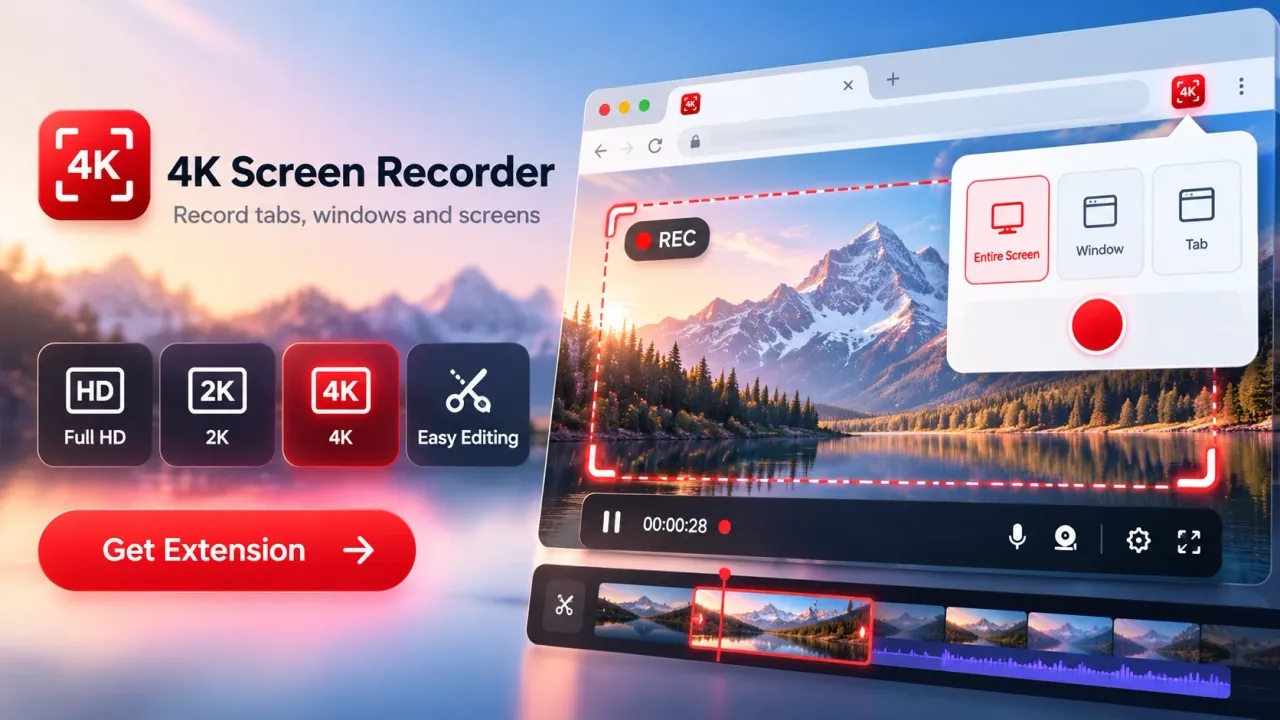
Browser-tab recording is best when the full demonstration stays inside one website or web application. It works well for browser tutorials, analytics walkthroughs, content management systems, online tools, and web-based product demonstrations. Tab capture also helps keep unrelated desktop windows outside the recording.
Application-window recording is useful when the tutorial centers on one desktop program. The recording follows the selected application window rather than the whole desktop, which can reduce distraction and limit unrelated content.
Full-screen recording is better when a workflow moves between several applications. A creator might need to show a browser, a local file, a presentation, and a publishing tool in one sequence. Full-screen capture gives that freedom, but it also increases privacy risk because notifications, personal files, messages, and unrelated windows can appear. Browser screen-capture guidance warns that accidental exposure of private information is a real concern when an entire display is shared.
Selected-area recording can be useful when only one region of a page matters. In the current 4K Screen Recorder for Chrome plan structure, selected-area capture is a Pro feature rather than part of the free tier.
A creator should choose the narrowest source that still shows the complete task. That choice improves viewer focus and often reduces editing work later.
4K, 2K, and Full HD Are Recording Choices, Not Quality Guarantees
Resolution determines the pixel dimensions of the recorded frame, but resolution alone does not determine whether a screen recording looks professional. Readable interface text, stable motion, clean audio, correct source selection, and a well-prepared screen can matter as much as the headline resolution.
The current recording options reviewed define Full HD as 1920 × 1080, 2K QHD as 2560 × 1440, and 4K UHD as 3840 × 2160. A 4K frame contains four times as many pixels as a Full HD frame.
Creators should match resolution to the content:
- Full HD is a practical choice for most tutorials, presentations, and social clips.
- 2K can preserve extra interface detail when charts, code, fine text, or design elements need more room.
- 4K can help when the original display and source contain enough detail to benefit from 3840 × 2160 output.
A recorder cannot recover detail that was never present in the selected source. The current product documentation also states that actual 4K results depend on the selected source, Chrome capabilities, and computer performance.
Higher resolution can also increase processing and storage demands. Creators working on older hardware or making simple instructional clips can often get a cleaner result by choosing a lower resolution and prioritizing readable text, steady motion, and clear narration.
30 FPS and 60 FPS Serve Different Types of Screen Video
Frame rate controls how many video frames are recorded each second. For screen recording, 30 frames per second is usually suitable for tutorials, presentations, dashboards, and standard interface demonstrations. A 60 FPS option is more useful when the recording contains faster motion, rapid scrolling, animation, or other movement that benefits from additional temporal detail.
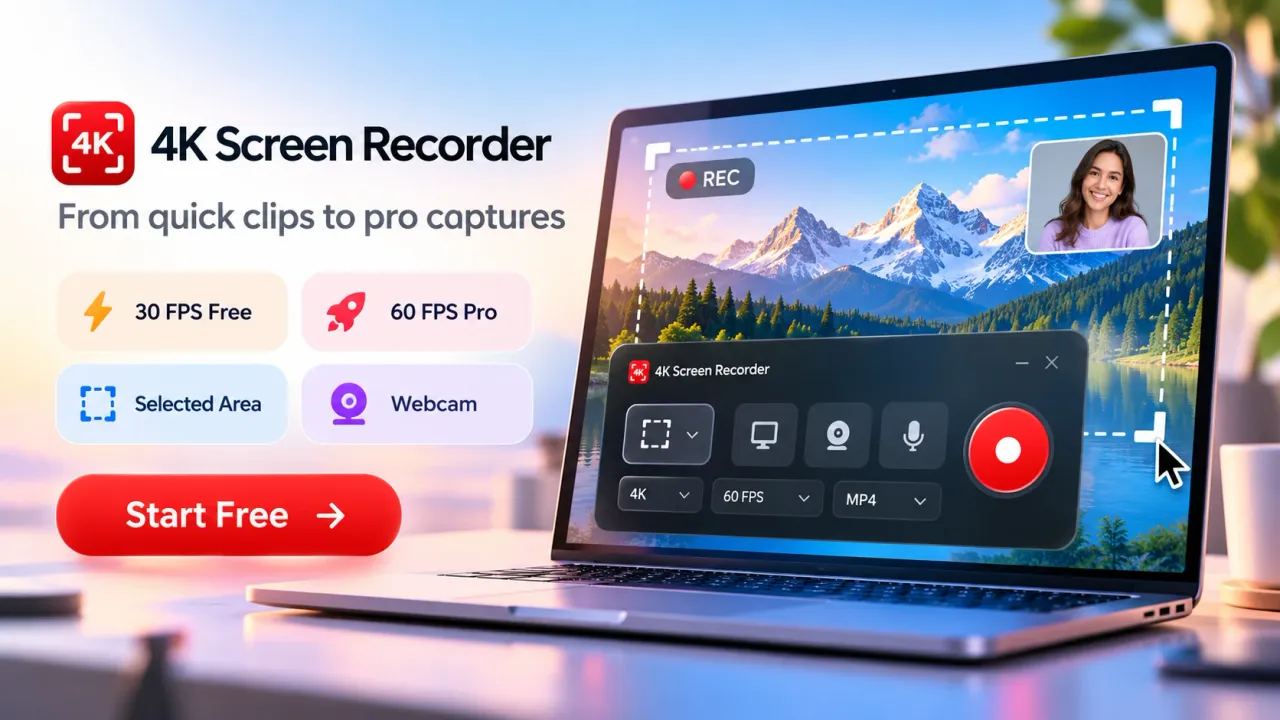
The current free 4K Screen Recorder for Chrome tier records at 30 FPS. The Pro tier adds 60 FPS. The same current plan limits free recordings to up to 10 seconds at 4K, 30 seconds at 2K, and one minute at Full HD. Pro removes those recording-length limits.
Those limits change how creators should use the free version. Short demonstrations, recording tests, interface examples, hooks, brief social clips, and short bug reproductions fit the free model well. Longer tutorials, training sessions, or extended walkthroughs require either multiple shorter recordings or a plan that supports longer sessions.
Frame rate should follow the actual content. Recording a mostly static dashboard at 60 FPS can add processing load without adding much viewer value.
Microphone, Tab Audio, System Audio, and Webcam Each Solve a Different Problem
Audio and camera inputs make screen recordings more explanatory, but each input has a separate role. A creator should enable only the inputs that support the message.
Microphone narration explains actions that viewers cannot understand from cursor movement alone. A creator can explain why a setting matters, what result to expect, or what a chart means while the relevant interface is visible. The current recorder supports microphone input when the user enables it and grants permission.
Tab audio captures sound from a selected browser tab when supported. It is useful for demonstrating media playback, website audio, interactive content, or browser-based applications where sound is part of the example. System audio can cover a broader set of sounds, but availability depends on the browser, operating system, selected source, and capture path. Browser standards do not guarantee that a requested screen capture will always include an audio track.
A webcam overlay adds the presenter’s face to the screen recording. This can help lessons, commentary, training, and personal demonstrations. The webcam should not cover buttons, charts, menus, captions, or other information that viewers need to see.
For instructional content, clear narration often matters more than maximum resolution. A technically sharp video is still hard to follow if the explanation is noisy, too quiet, or poorly timed.
Why Local Recording and Privacy Matter to Creators
Local recording gives creators more control over unpublished footage because the recording can remain in the browser or on the device during capture, preview, editing, and export. The current privacy policy for 4K Screen Recorder states that screen recordings, selected webpage content, microphone audio, and webcam video are not uploaded to an external recording server as part of the recording workflow.
The policy also states that temporary recording data can be stored in local browser or extension storage for previewing, editing, saving, or deletion. The user decides when a finished recording is exported to the device.
Local processing does not remove every privacy risk. The larger operational risk is often accidental capture. Full-screen recording can expose private messages, account details, email, passwords, customer information, browser bookmarks, or notifications. Browser capture guidance specifically warns about unintended sharing of private content visible in other windows or display areas.
A safer creator routine includes:
- Close unrelated tabs and applications.
- Hide notifications before recording.
- Use tab or window capture when full-screen capture is not required.
- Check microphone and webcam permissions before starting.
- Review the finished recording before publishing.
- Delete temporary recordings that are no longer needed.
- Review or revoke Chrome extension permissions when a recorder is no longer in use.
Privacy should be treated as part of production quality, not only as a technical setting.
Built-In Editing Reduces the Distance Between Capture and Publishing
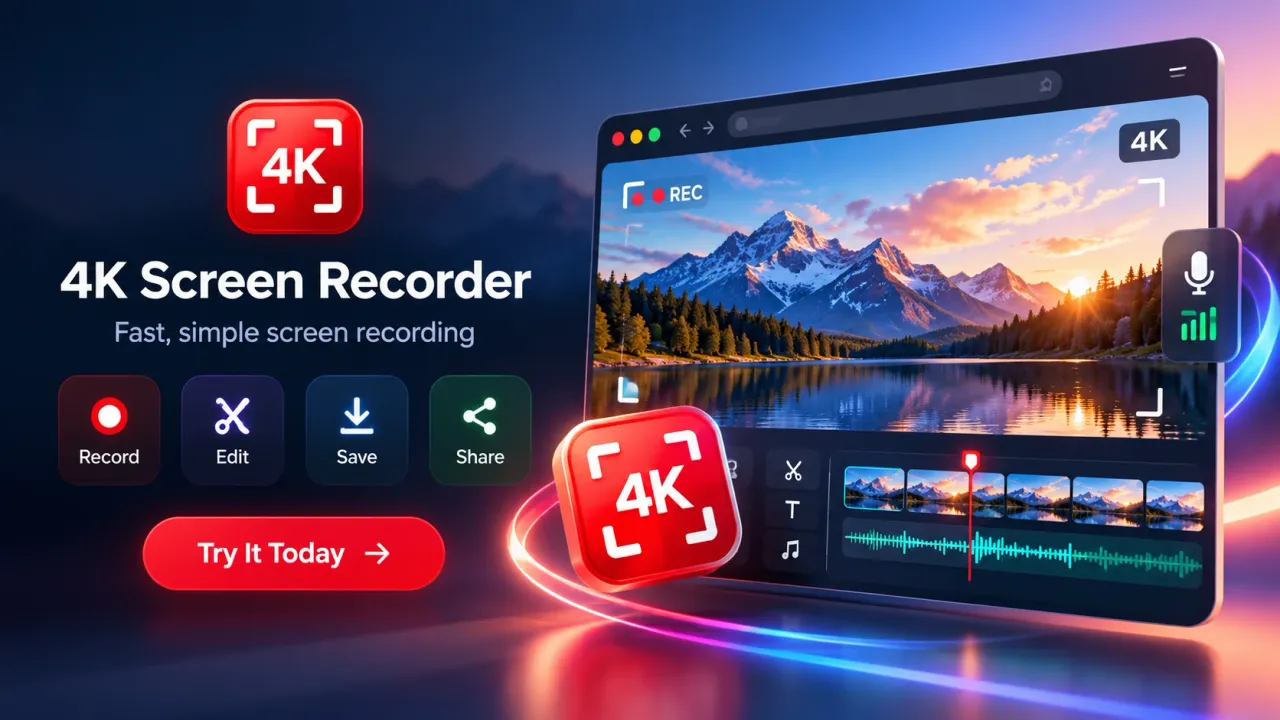
Built-in editing is one reason Chrome recorders are attractive for short creator workflows. A recording can be previewed, trimmed, combined with another clip, and exported without moving immediately into a separate editor.
The current free Chrome recorder reviewed includes trim and stitch controls. Advanced editing, captions, overlays, branding tools, color controls, annotations, and thumbnail tools are part of the paid tier. The recorder can export MP4 where supported and use WebM when browser compatibility requires it.
For creators, the most valuable editing step is often removal. Cutting the countdown, mistakes, dead time, repeated actions, or irrelevant sections can make an instructional video easier to follow.
Captions and annotations add another layer of clarity. Text can identify a setting or command. Boxes and arrows can point viewers toward a button or field. Timed captions can support comprehension when narration is difficult to hear or when viewers watch without sound.
Good editing begins before capture. A prepared browser, a short outline, a clean desktop, and a clear recording objective reduce how much repair work is needed after recording.
A Repeatable Chrome Recording Process for Video Creators
A repeatable process helps creators produce screen videos with fewer mistakes. The goal is to make source selection, audio checks, capture, review, and export predictable.
Start by defining one clear outcome for the recording. A tutorial should teach one task or a connected sequence. A product demo should show the feature that matters. A bug report should reproduce the problem with the fewest unrelated steps.
Next, prepare the screen. Close private tabs, hide notifications, enlarge small interface text when needed, position important windows, and open every page or file required for the demonstration.
Choose the capture source. Use a browser tab for a browser-only workflow, an application window for one desktop program, and the full display only when the demonstration genuinely moves across applications.
Set the recording quality. Use Full HD for standard instructional work, 2K when extra interface detail helps, and 4K when the source and output need it. Choose 30 FPS for typical screen instruction and 60 FPS only when smoother motion adds visible value.
Configure audio and webcam. Test the microphone. Enable tab or system audio only when the source includes sound that viewers need. Add the webcam only when the presenter adds context.
Start recording after the browser source-selection prompt is complete. Use the countdown to prepare the first action. Demonstrate one concept at a time and pause when the recorder supports it.
Review the recording before export. Check source selection, readable text, audio clarity, webcam position, timing, and any private information that should not be visible. The supplied creator workflow guidance recommends previewing the result before final export.
Trim unnecessary material, stitch clips when needed, then export the finished file. Open the exported file once more to confirm that video and audio are present before deleting temporary recording data.
Free Chrome Recording Works Best When the Job Is Focused
A free Chrome screen recorder is a strong fit when the creator needs short, direct, browser-centered content. It is especially useful for quick tutorials, feature demonstrations, browser walkthroughs, short training segments, support clips, creator updates, and test recordings.
Free plans are less suitable when the production requires long uninterrupted capture, several independent audio tracks, advanced color work, complex motion graphics, high-end scene switching, or detailed post-production. A desktop recorder or full video editor can be a better fit for those jobs.
The current 4K Screen Recorder free tier illustrates the tradeoff clearly. It provides access to Full HD, 2K, and 4K capture at 30 FPS, browser-tab recording, screen or window recording, and trim and stitch tools, while longer recording, 60 FPS, selected-area capture, and advanced editing sit in Pro.
Creators should judge a free recorder by the work it can complete, not by the word “free” alone. Recording duration, source types, audio support, webcam support, local storage, export formats, editing controls, privacy practices, and permission requirements all affect whether a tool fits a real publishing workflow.
Common Recording Problems and Practical Fixes
Most Chrome screen-recording problems come from source selection, permissions, audio availability, hardware load, or an unprepared screen.
If the wrong content appears, stop and restart the recording with the correct tab, window, or display selected in Chrome’s sharing interface. Browser capture is designed around explicit user selection, so the recorder cannot simply switch to an unrelated source without that process.
If audio is missing, check whether microphone permission was granted and whether the chosen source supports the requested tab or system audio. Browser documentation makes clear that screen audio is optional and can be unavailable even when audio is requested.
If interface text is hard to read, record a smaller, more focused source, increase browser zoom before capture, or use a higher resolution when the source display can support the extra detail.
If motion looks uneven, lower the recording resolution, use 30 FPS for standard tutorials, close heavy browser tabs or applications, and run a short test before recording the full clip.
If the webcam covers important interface elements, move the camera overlay or remove it. Screen content should remain readable throughout the demonstration.
If the recording becomes too long for a free tier, break the topic into shorter clips that each cover one step, or use a plan designed for longer sessions.
Screen Recording Quality Should Be Measured by Viewer Understanding
A technically valid screen recording is not automatically an effective creator video. Quality should be judged by whether viewers can see, hear, and follow the demonstration.
Before publishing, creators can review a few practical signals:
- Interface text remains readable at normal playback size.
- The cursor or pointer is easy to follow.
- Narration explains each action at the moment it happens.
- The relevant source stays visible without unrelated windows.
- Pauses and mistakes are removed.
- The video begins close to the useful action.
- Captions or annotations appear only where they improve understanding.
After publication, creators can evaluate performance using the analytics provided by the publishing service. For YouTube videos, relevant measures include impressions, click-through rate, watch time, and audience retention. These metrics help separate recording quality from packaging and audience response.
A screen recorder controls the source footage. Titles, thumbnails, topic choice, viewer intent, and distribution still affect whether the published video reaches and keeps an audience.
What Video Creators Should Look for in a Free Chrome Screen Recorder in 2026
A strong free Chrome screen recorder should make the recording process clear before the creator presses record. The key considerations are practical: what can be captured, what audio is available, how long the recording can run, where the video is processed, what file is exported, and what editing can be done without another application.
For a current creator workflow, the most useful capabilities include:
- Browser-tab, window, and display capture
- Clear source-selection controls
- Full HD recording as a practical baseline
- 2K or 4K options when higher resolution is genuinely useful
- Microphone input
- Tab or supported system audio
- Optional webcam overlay
- Countdown, pause, resume, and stop controls
- Local preview
- Basic trim and stitch editing
- MP4 export where supported, with a browser-compatible fallback
- Clear privacy and permission information
- Transparent free-tier recording limits
4K Screen Recorder for Chrome currently combines many of those functions in a free-to-install extension, with optional Pro features for unlimited recording, 60 FPS, selected-area capture, and expanded editing. Its privacy policy describes local browser processing for recordings and user-controlled export.
The reason free Chrome screen recorders appeal to video creators is practical. They put recording close to the work being recorded. When the creator chooses the right source, records clear audio, uses an appropriate resolution, protects private information, and reviews the export before publishing, a browser extension can cover a large share of everyday tutorial and demonstration work without a heavy production setup.
Free Chrome screen recorders have become practical tools for video creators because they combine fast browser-based capture with microphone recording, webcam support, tab or screen audio, multiple resolution options, basic editing, and local export. For tutorials, product demonstrations, training videos, support clips, and short social content, a browser recorder can reduce setup time while keeping the recording process close to the content being shown.
The best results still depend on choosing the correct capture source, using an appropriate resolution and frame rate, recording clear audio, protecting private information, and reviewing the finished video before publishing. Features such as 4K recording can improve detail when the original source supports it, but resolution alone does not determine video quality. Clear explanations, readable screen content, focused editing, and a well-prepared recording environment matter just as much.
For creators who mainly work inside Chrome, a free screen recorder can cover a large share of everyday recording needs without requiring complex desktop software. The right tool should provide clear permissions, transparent recording limits, useful export options, dependable audio controls, and a workflow that helps creators move efficiently from screen capture to publishable video.
Free Chrome Screen Recorders: FAQs
What is a free Chrome screen recorder?
A free Chrome screen recorder is a browser extension or browser-based recording tool that can capture a Chrome tab, application window, or full display. Depending on the tool, it can also record microphone audio, browser audio, webcam video, and export the finished recording as a video file.
Why do video creators use Chrome screen recorders?
Video creators use Chrome screen recorders because they can capture tutorials, software demonstrations, website walkthroughs, training videos, support clips, and social content directly from the browser. The recording process is usually faster than opening separate desktop recording software.
Can a Chrome screen recorder record in 4K?
Some Chrome screen recorders support 4K UHD recording at 3840 × 2160. Actual recording quality depends on the source resolution, browser capability, computer performance, and recording settings. Selecting 4K does not create extra detail if the original content is lower resolution.
What is the difference between tab, window, and full-screen recording?
Tab recording captures one browser tab. Window recording captures one selected application window. Full-screen recording captures the entire display. Tab or window recording is generally better when creators want to limit distractions and reduce the risk of showing private information.
Can Chrome screen recorders capture microphone and system audio?
Many Chrome screen recorders can record microphone audio and browser-tab audio. System audio support can depend on the operating system, browser, capture source, and recorder. Creators should run a short test before making an important recording.
Can a Chrome screen recorder record webcam video at the same time?
Many creator-focused Chrome screen recorders support webcam overlays while recording the screen. The webcam can be useful for tutorials, training, commentary, and presentation videos where the creator wants to appear alongside the screen content.
Is 30 FPS enough for screen recording?
Thirty frames per second is suitable for most tutorials, presentations, dashboards, and browser demonstrations. Sixty frames per second can provide smoother motion for fast scrolling, animation, gaming-related content, or demonstrations with frequent movement.
Are free Chrome screen recorders really unlimited?
Not always. Some free screen recorders limit recording duration, frame rate, editing tools, selected-area capture, or advanced features. Creators should review the free plan limits before starting longer tutorials or training recordings.
Are Chrome screen recordings stored locally?
Some Chrome screen recorders process and temporarily store recordings locally in the browser or on the device before export. Local recording can provide more control over unpublished footage, but creators should still review the recorder's privacy policy and extension permissions.
How can creators improve the quality of Chrome screen recordings?
Creators can improve screen recordings by choosing the narrowest useful capture source, increasing interface readability, using a clear microphone, hiding notifications, selecting the right resolution and frame rate, removing unnecessary pauses, reviewing the recording before export, and checking that no private information appears in the final video.