
A free screen recorder helps video creators produce more content by capturing computer screens, browser tabs, application windows, voice narration, and webcam footage without requiring a traditional filming setup. Creators can record tutorials, software demonstrations, product walkthroughs, educational lessons, and short social media videos directly from their computers. Tools such as 4K Screen Recorder for Google Chrome combine screen capture, audio recording, video preview, basic editing, and local export in a single workflow. For YouTubers, educators, freelancers, digital marketers, and independent video creators, screen recording offers a practical way to create reusable footage,…
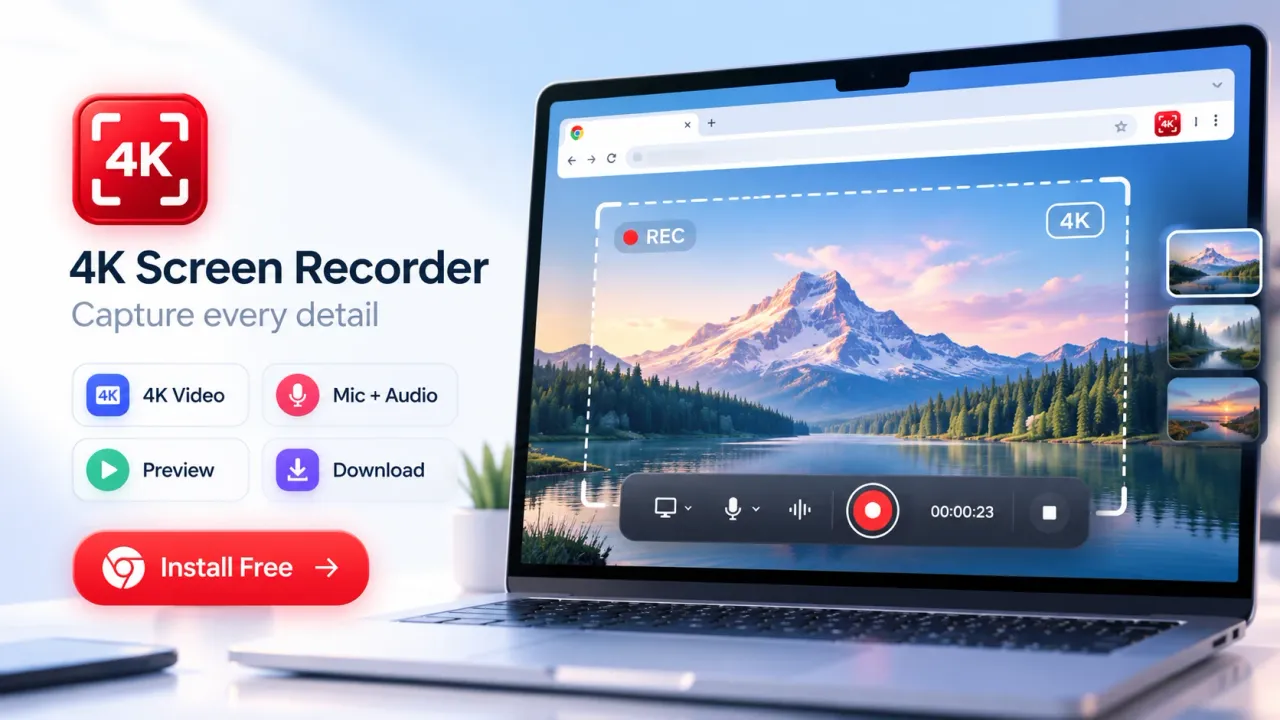
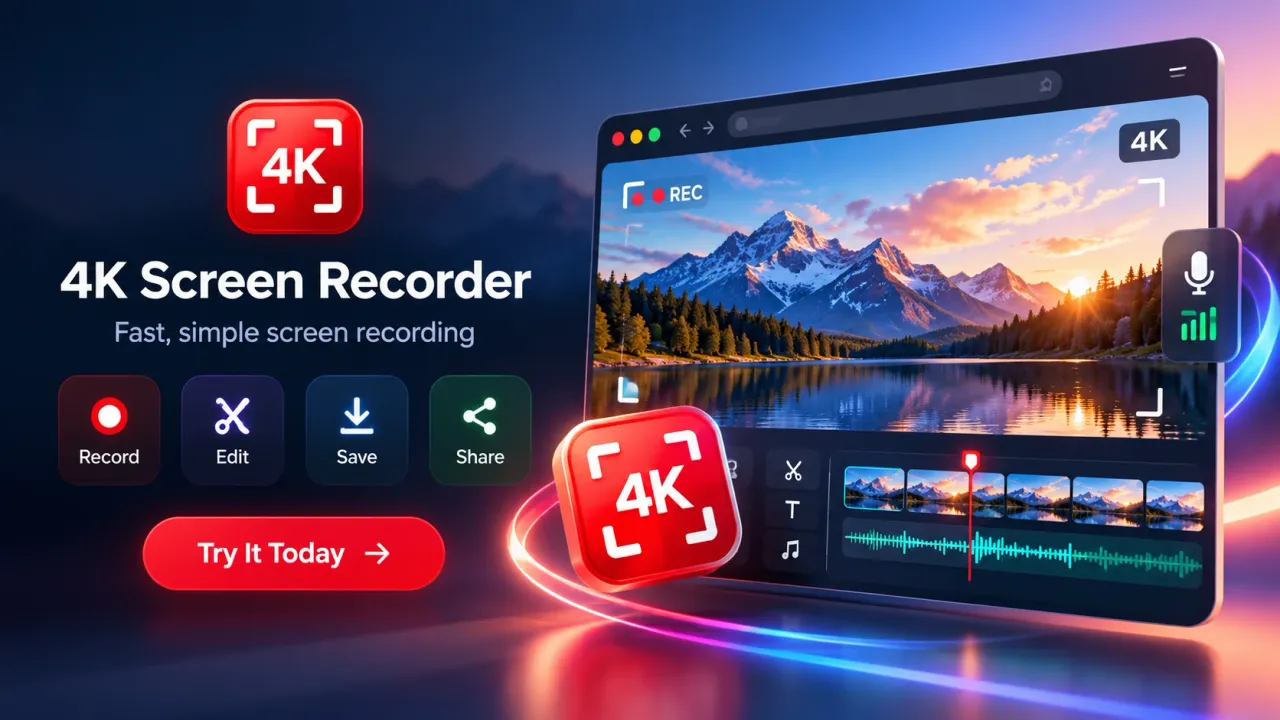
A free screen recorder helps video creators produce more content by capturing computer screens, browser tabs, application windows, voice narration, and webcam footage without requiring a traditional filming setup. Creators can record tutorials, software demonstrations, product walkthroughs, educational lessons, and short social media videos directly from their computers. Tools such as 4K Screen Recorder for Google Chrome combine screen capture, audio recording, video preview, basic editing, and local export in a single workflow. For YouTubers, educators, freelancers, digital marketers, and independent video creators, screen recording offers a practical way to create reusable footage, reduce unnecessary production steps, and maintain a more consistent publishing schedule.
Creating more videos does not always require additional cameras, lighting equipment, studio space, or complicated editing software. Many useful video ideas already exist inside the applications, websites, presentations, and digital tools that creators use every day.
A software tutorial can begin with a browser tab. A product demonstration can use an application window. A quick educational video can combine presentation slides with microphone narration.
Screen recording makes these everyday activities available as video content.
The biggest advantage is not simply recording a computer screen. It is the ability to organize a repeatable content production process that turns individual demonstrations into finished, publishable videos.
Why Screen Recording Helps Creators Increase Video Production
Screen recording helps creators increase production by reducing the preparation and technical work required for screen-based videos. A creator can record an activity while performing it, capture the explanation through a microphone, and edit the resulting footage without arranging a separate camera shoot.
Traditional video production often involves multiple activities before recording begins.
A creator may need to prepare a filming space, position a camera, check lighting, record several takes, transfer footage, and organize files for editing.
Screen-based content can require fewer steps because the computer becomes both the subject of the video and the recording environment.
The main production advantages include:
- Faster preparation: Creators can begin recording after selecting a screen, tab, or window.
- Less equipment: A computer and microphone may be sufficient for many tutorials.
- Direct demonstrations: Viewers see actual software operations rather than reconstructed examples.
- Reusable footage: A recorded walkthrough can supply several short clips.
- Simpler revisions: Creators can record a corrected section without rebuilding an entire filming setup.
- Flexible production: Short videos can be created between other work activities.
- Lower initial costs: Free recording features allow creators to begin without purchasing dedicated recording software.
These advantages are particularly relevant to creators who produce information-based content.
A tutorial channel may publish software tips. A freelance designer may create interface demonstrations. A marketing consultant may record website audits or campaign reporting explanations.
Screen recording supports all these formats because the content depends primarily on showing and explaining something happening on a screen.
However, higher production volume is not automatic. Creators still need useful topics, clear explanations, careful editing, and a publishing process.
The recorder reduces recording-related work. The creator remains responsible for the quality and usefulness of the final video.
How 4K Screen Recorder Supports a Complete Creator Workflow
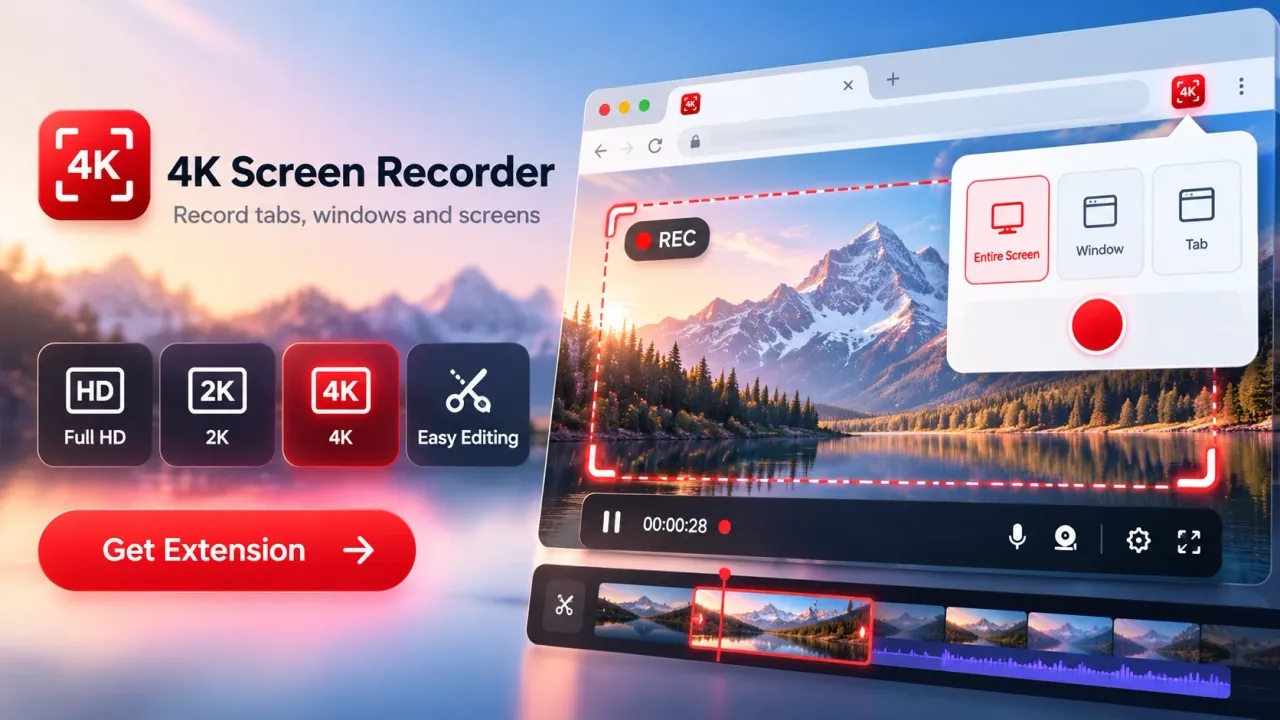
4K Screen Recorder supports browser-tab capture, desktop recording, application-window recording, microphone narration, supported source audio, webcam overlays, video preview, editing, and export.
The Google Chrome extension offers a free plan with recording limits and optional Pro features. A separate Windows desktop application provides another recording option with its own licensing and feature structure.
The Chrome extension supports three recording resolutions:
- 4K Ultra HD: 3840 × 2160 pixels
- 2K QHD: 2560 × 1440 pixels
- Full HD: 1920 × 1080 pixels
Creators can select a recording source, configure the available video and audio settings, record their content, preview the result, remove unwanted sections, and export the finished video.
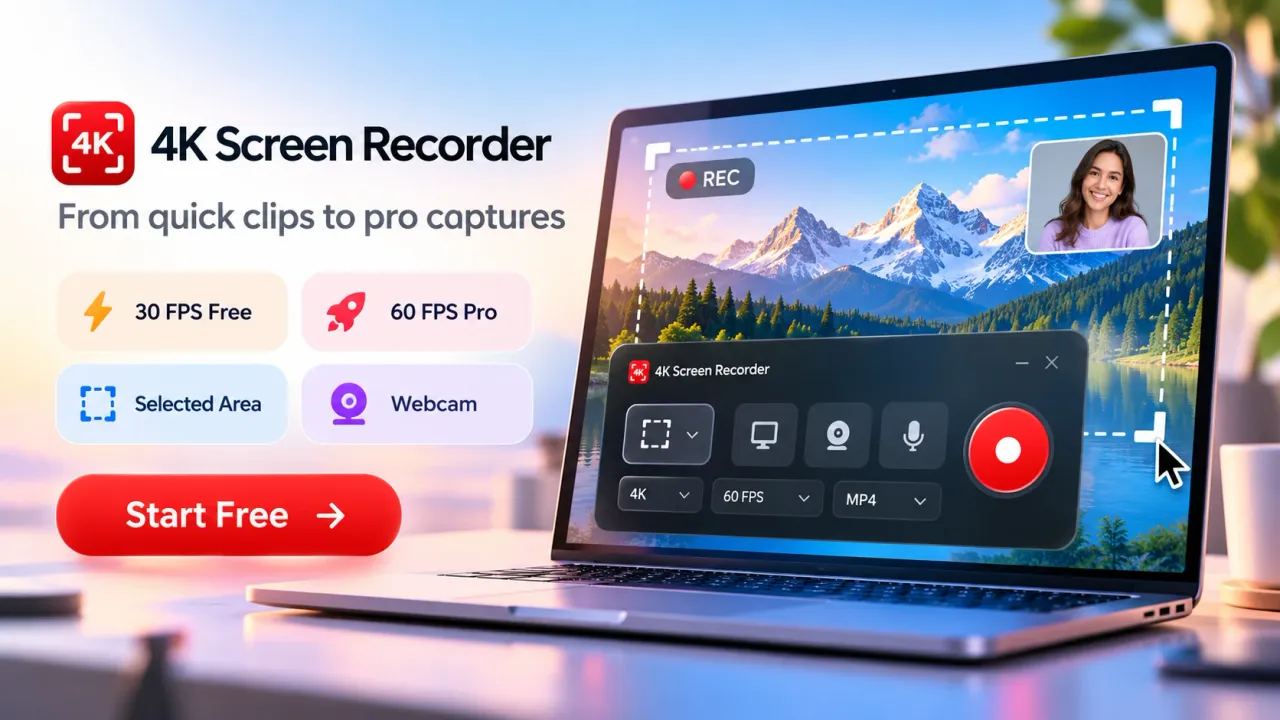
The free Chrome plan includes 30 frames per second, browser-tab recording, screen and window capture, and basic Trim & Stitch editing.
Pro adds longer recording capability, 60 FPS, selected-area recording, captions, overlays, annotations, branding features, and additional editing controls.
For creators, the combination of recording and editing matters because an efficient workflow requires fewer unnecessary transitions between tasks.
For example, a creator explaining a website feature can open the website, record the required actions, narrate the process, preview the footage, and trim the beginning and end.
The recording is ready for export without automatically requiring a separate editing application.
More complex videos may still benefit from external editing software, particularly when they involve multiple camera angles, advanced motion graphics, detailed sound mixing, or complex timelines.
The useful distinction is that basic screen-based videos can be completed with fewer production stages.
The Types of Video Content Creators Can Produce Using a Free Screen Recorder
A free screen recorder supports several content formats because many educational, professional, and promotional videos depend on actions performed inside computer applications.
The most valuable format depends on the creator's audience, subject knowledge, and publishing platform.
Software Tutorials
Software tutorials demonstrate how to complete specific activities inside an application.
A creator can record the process of changing settings, creating a document, editing a photograph, or using a particular software feature.
Screen recording works particularly well because viewers can follow cursor movements, menus, buttons, and the order of operations.
Short tutorials can cover one action. Longer tutorials can explain complete workflows.
YouTube Educational Videos
Educational creators can record presentation slides, browser-based lessons, research explanations, and digital whiteboards.
Microphone narration adds context to the recorded screen.
A webcam overlay can show the instructor while the presentation remains visible.
This format is useful for technical education, online learning, professional training, and practical demonstrations.
Product Demonstrations
Product demonstrations show potential users how a digital product works.
Creators can capture account setup, dashboard features, user interactions, settings, and common workflows.
A product demonstration generally becomes more useful when it focuses on a specific audience need.
For example, a short video demonstrating how to export a report can communicate more clearly than a broad promotional video listing every feature.
Social Media Tips
Short social media videos can demonstrate a single technique or useful feature.
Examples include showing a browser shortcut, explaining a website setting, highlighting a design trick, or demonstrating a productivity method.
Screen recordings can be cropped, reformatted, or combined with captions during editing for vertical social media distribution.
Creators should check whether their editing workflow supports the required output format.
Website Reviews and Audits
Digital marketers, designers, and consultants can record website performance observations, navigation problems, design changes, and user experience recommendations.
A recorded website review allows clients to see the exact page element being discussed.
Gaming and Interactive Content
Screen capture can document browser-based games, interactive applications, and gameplay demonstrations when the recording environment supports the required performance.
Fast-moving gameplay may benefit from higher frame rates and dedicated recording configurations.
Creators should test performance before relying on a browser recorder for demanding games.
Online Courses and Training
Course creators can develop individual lessons around software operations, browser tools, dashboards, and presentation slides.
Separating a course into focused recordings makes it easier to revise specific lessons when a feature changes.
Customer Support Videos
Creators working with software businesses can record short answers to common support questions.
A video showing how to change an account setting can communicate the steps more clearly than a long written explanation.
These examples show how a single recording tool can support multiple content categories without requiring a different production setup for every video.
Record Once and Create Multiple Videos From the Same Footage
Repurposing screen recordings allows creators to develop several content assets from a longer demonstration. The process involves planning reusable segments, capturing the activity clearly, identifying self-contained moments, and editing those moments for different publishing formats.
A recording should be designed for reuse before production begins.
Consider a creator preparing a detailed tutorial about managing a website.
The original recording might cover account access, dashboard navigation, configuration settings, and publishing a page.
Each stage can become a separate short tutorial.
The same footage could support:
- A complete YouTube walkthrough explaining the entire process.
- A short video demonstrating one dashboard feature.
- A vertical social clip highlighting a useful setting.
- An educational excerpt for an online course.
- A support video showing how to solve a common problem.
- A product demonstration featuring a specific action.
- A website article with selected video examples.
These are possible outputs from a planned recording, not guaranteed results from every video.
The source footage must contain enough detail and appropriate framing to support each use.
A creator who records a cluttered desktop with unreadable text may struggle to produce useful short clips later.
Good reusable footage includes deliberate cursor movement, readable interfaces, short pauses between topics, and clear narration.
A simple repurposing process involves:
- Identify the main tutorial topic.
- Divide the topic into individual actions.
- Record each action with a clear beginning and ending.
- Review the footage for useful standalone explanations.
- Trim or combine the relevant sections.
- Add captions or contextual text using available editing tools.
- Prepare the appropriate aspect ratio for each destination.
- Export and organize the finished videos.
The main objective is to preserve useful explanations while reducing repeated recording work.
Repurposing does not mean publishing the same clip without changes everywhere. A YouTube tutorial, Instagram Reel, and LinkedIn demonstration serve different viewing situations.
Each version should provide enough context to make sense on its own.
Choosing the Right Screen Recording Resolution for Different Videos
Screen recording resolution determines the number of pixels available in each recorded video frame. Higher resolutions capture more pixel detail, while lower resolutions generally require fewer processing and storage resources.
The correct setting depends on the recorded content and the final viewing environment.
Full HD for Everyday Video Creation
Full HD uses 1920 × 1080 pixels.
It is a practical starting point for browser tutorials, social media demonstrations, educational recordings, and general software walkthroughs.
Full HD is often sufficient when the interface is readable and the recording does not require extensive cropping.
Creators producing short tips can start with Full HD and evaluate the result before selecting a higher resolution.
2K QHD for Detailed Demonstrations
2K QHD uses 2560 × 1440 pixels.
This resolution offers more detail than Full HD and can be useful for software dashboards, presentation recordings, detailed menus, and interfaces containing smaller text.
It can also provide additional room for reframing during editing.
4K UHD for High-Detail Screen Content
4K UHD uses 3840 × 2160 pixels.
A 4K frame contains approximately 8.3 million pixels, compared with approximately 2.1 million pixels in Full HD.
That difference gives 4K four times the pixel count of Full HD.
High-resolution recording can benefit creators demonstrating graphic design tools, software development environments, detailed charts, or complex application interfaces.
However, selecting 4K does not automatically improve a low-resolution source.
Actual recording quality depends on screen resolution, browser capabilities, hardware performance, scaling, and the quality of the original material.
Resolution Should Follow the Content
Creators should prioritize readability over selecting the highest available setting.
A clearly framed Full HD tutorial can communicate information better than a poorly framed 4K recording.
Screen recording resolution should support the message, not become the main production objective.
Understanding 30 FPS and 60 FPS for Creator Videos
Frame rate measures the number of individual images recorded per second. A higher frame rate can show movement more smoothly, while a lower frame rate is often sufficient for relatively static screen content.
4K Screen Recorder supports 30 FPS on the free Chrome plan and up to 60 FPS with Pro.
30 FPS is suitable for:
- Presentation recordings
- Website tutorials
- Document editing demonstrations
- Educational videos
- Software settings walkthroughs
- Slowly moving interfaces
60 FPS is useful for:
- Fast cursor movements
- Rapid scrolling
- Animated interfaces
- Motion-heavy application demonstrations
- Some interactive content
- Recordings where smooth movement is a production requirement
A 60 FPS recording contains twice as many frames per second as a 30 FPS recording.
Higher frame rates can increase processing requirements and output size, depending on encoding settings.
Creators should choose frame rate according to the activity being recorded.
For an instructional video showing a static dashboard, 30 FPS is generally a sensible choice.
For a demonstration containing frequent animation or rapid movement, 60 FPS may produce a more comfortable viewing experience.
How Microphone Narration and Webcam Overlays Improve Screen Videos
Microphone narration and webcam overlays add spoken explanation and presenter context to screen recordings. These features help viewers understand not only which actions happen on the screen but also why the creator performs them.
A clear voice explanation can make a technical process easier to follow.
For example, a recorded demonstration may show a creator changing settings inside a web application.
Without narration, viewers see the actions but may not understand their purpose.
With narration, the creator can explain the setting, describe the expected result, and mention potential mistakes.
Good recording practices include:
- Use a quiet recording environment.
- Keep the microphone at a consistent distance.
- Test audio before beginning the main recording.
- Speak at a comfortable pace.
- Explain actions before or while performing them.
- Avoid unnecessary background sounds.
- Leave short pauses between important steps.
A webcam overlay adds another communication option.
Creators can display their face in a corner while demonstrating a website, application, or presentation.
This arrangement is particularly useful for teaching, product walkthroughs, consulting explanations, and personal educational channels.
However, a webcam is not required for every screen recording.
Some tutorials benefit from an uninterrupted view of the application.
Creators should ensure that the webcam overlay does not cover important buttons, charts, instructions, or other information.
Audio source selection also matters.
Microphone audio captures spoken narration. Tab or system audio captures available sound from the selected recording source, subject to browser and operating-system support.
Creators should check both audio sources before recording a complete video.
Short-Form Video Production With Free Recording Limits
Short-form video production is a practical application for free screen recording tools because a single useful action can often be demonstrated in less than one minute.
The free Chrome version of 4K Screen Recorder supports:
- Full HD: Up to 60 seconds per recording.
- 2K QHD: Up to 30 seconds per recording.
- 4K UHD: Up to 10 seconds per recording.
- Frame rate: 30 FPS.
- Basic editing: Trim & Stitch included.
- Capture modes: Browser tab, full screen, and application window.
The free plan does not include unlimited recording or selected-area capture. Those features belong to Pro.
These limits shape how creators should plan their recordings.
A 10-second 4K recording can capture a brief interface interaction.
A 30-second 2K recording can demonstrate a small workflow.
A one-minute Full HD recording can explain a short process with narration.
For example, a creator showing how to activate a browser setting can divide the video into an opening explanation, the actual steps, and the expected result.
A focused recording will usually communicate the instruction more effectively than an unplanned demonstration that contains unnecessary waiting.
The included Trim & Stitch functions also support short, separate takes.
Creators can capture individual sections and join them where the available editor permits.
That approach does not remove the need for careful editing. Recordings still need consistent audio, visual continuity, and a logical sequence.
The free plan is best understood as a useful starting point for short videos rather than an unlimited long-form production solution.
A Repeatable Workflow for Producing More Videos Every Week
A repeatable screen recording workflow helps creators move from topic selection to publication without making every video a separate production project.
The goal is to standardize routine tasks while leaving room for useful explanations and creative presentation.
Plan Content Around Specific Problems
Begin by identifying questions, tasks, or problems relevant to the audience.
A software education channel might focus on common settings, frequent errors, and useful shortcuts.
A marketing channel might demonstrate reporting features, content planning methods, or website improvements.
Each topic should have a clearly defined viewer outcome.
Prepare the Recording Environment
Before recording, close unrelated browser tabs, hide sensitive information, and arrange the required application windows.
Increase interface text size when necessary.
Disable distracting notifications.
Select a recording resolution suitable for the intended video.
Create a Short Recording Outline
A recording outline does not need to contain every spoken sentence.
For a simple tutorial, the outline can identify the topic, the starting screen, the actions to demonstrate, and the expected result.
This approach keeps the demonstration organized without making the narration sound overly scripted.
Capture Content in Sections
Recording a long tutorial in separate sections can make revisions easier.
If a creator makes a mistake during one section, only that portion may need to be recorded again.
This approach is especially useful when working with software applications containing several independent workflows.
Review Before Export
Watch the recording and check whether the viewer can follow every action.
Look for unreadable text, incorrect clicks, unnecessary pauses, missing explanations, and audio problems.
Make supported edits before exporting.
Prepare Titles, Descriptions, and Publishing Assets
Recording is only one stage of video production.
Creators should also prepare a clear title, relevant description, suitable thumbnail, and appropriate publishing format.
The title should communicate the topic and viewer benefit.
The thumbnail should identify the subject without introducing details that the video does not contain.
Organize the Final Content
Use consistent filenames and folders.
A practical structure separates raw footage, edited videos, thumbnails, and final exports.
For example, creators can organize recordings by subject and date.
Consistent organization reduces the time spent searching for footage when updating or repurposing older content.
Editing Screen Recordings Without Complicating Production
Screen recording editing focuses on removing distractions, improving explanation, and presenting the captured activity clearly. For many tutorial videos, careful trimming and logical sequencing matter more than advanced visual effects.
4K Screen Recorder includes local preview and Trim & Stitch capabilities in its free Chrome version.
Creators can use the preview to check recorded material before exporting.
Trimming removes unnecessary content from supported sections.
Stitching combines recordings into a connected video.
The Pro plan extends editing with captions, overlays, annotations, branding controls, color adjustments, and thumbnail tools.
These features serve different production purposes.
Trimming improves pacing. Removing preparation time, unnecessary waiting, and repeated actions helps viewers reach useful information sooner.
Stitching organizes separate demonstrations. A creator can combine an introduction, a screen demonstration, and a final explanation.
Captions support comprehension. Text captions help viewers follow spoken information and make videos more accessible when captions are accurate.
Annotations direct attention. Markers and visual explanations can identify important buttons, controls, or data fields.
Branding improves consistency. Consistent typography, colors, and visual presentation can help audiences recognize content from the same creator.
The editing method should match the complexity of the video.
A short browser tutorial may need only trimming.
A complete educational course may require chapter planning, additional graphics, audio editing, and a more advanced production environment.
The most useful editing workflow is one that improves the viewer's understanding without creating unnecessary work.
Creating YouTube Videos, Shorts, Reels, and Professional Content
Screen recordings can supply footage for YouTube, YouTube Shorts, Instagram Reels, Facebook videos, LinkedIn posts, and other video publishing formats. However, the recording needs to be prepared for each platform's viewing experience.
Screen recordings commonly begin in a horizontal format because computer monitors and browser windows are generally wider than they are tall.
Many short-form social video formats use vertical framing.
Moving a horizontal screen recording into a vertical frame requires attention to composition.
Simply shrinking an entire computer screen into a narrow frame can make text unreadable.
Creators should identify the relevant area, adjust framing, and ensure that viewers can see the demonstrated action.
YouTube Tutorials
Longer YouTube tutorials can benefit from horizontal recordings that preserve application layouts.
Readable text, clear navigation, and descriptive chapters can improve the viewing experience.
Creators using the free Chrome plan must account for its recording time limits.
YouTube Shorts
A YouTube Short should focus on a compact explanation or demonstration.
Short topics work well when viewers can understand the problem and the solution without needing a lengthy introduction.
Vertical reframing should keep important interface elements visible.
Instagram Reels and Facebook Videos
Short screen-recorded demonstrations can work for productivity tips, design techniques, digital tools, and educational content.
Captions and readable on-screen elements are particularly helpful for viewers watching without sound.
LinkedIn Videos
Professional screen recordings can demonstrate workflows, reporting techniques, software applications, and practical business knowledge.
A clear explanation of a specific problem is generally more useful than a recording that simply displays a dashboard without context.
A single source recording can serve several channels, but creators should adapt the presentation, description, framing, and length to the destination.
Measuring Whether Screen Recording Actually Improves Content Output
Screen recording productivity should be measured through production time, completed videos, revision work, and content quality. Publishing more videos is useful only when the additional content serves audience needs.
Creators can establish a baseline before introducing a new recording workflow.
The most direct production measurements include:
Time to Produce One Video
Measure the time from preparing the recording to completing the export.
Include preparation, recording, editing, revisions, and final checks.
This gives a more accurate view than measuring recording time alone.
Completed Videos Per Production Session
Track the number of usable videos created during a planned recording session.
A creator who records several related demonstrations can compare the output with earlier sessions.
Recording Retake Frequency
Count how often a recording needs to be repeated because of incorrect actions, poor audio, missing information, or technical problems.
High retake frequency may indicate a need for better preparation.
Editing Time Per Video
Measure the time required to turn captured footage into a publishable file.
Editing time can reveal whether complex recording choices are making production unnecessarily difficult.
Reuse of Original Footage
Track how many useful content assets are produced from an original recording.
Only count assets that contain meaningful information and are suitable for publication.
Audience Response and Content Performance
Production efficiency should be considered alongside audience response.
For YouTube creators, relevant measurements include:
- Impressions
- Impressions click-through rate (CTR)
- Average view duration
- Audience retention
- Watch time
- Traffic sources
- Returning viewers
YouTube Analytics provides information about how viewers discover and watch published content.
A higher number of recordings does not guarantee improved CTR, retention, or watch time.
These outcomes depend on factors such as subject relevance, presentation quality, audience expectations, titles, thumbnails, and competition for viewer attention.
Creators should compare videos with similar formats and audience intent rather than treating every upload as equivalent.
Privacy and Local Recording for Independent Creators
Local screen recording processes video content on the creator's device rather than requiring the original screen footage to be uploaded to a remote recording service.
4K Screen Recorder for Chrome supports local recording, preview, editing, and temporary storage within the extension.
Captured screen footage is processed locally as part of the recording workflow, and exported files can be saved locally.
This approach can be useful for creators working with internal applications, unpublished product demonstrations, client presentations, and private research material.
However, local processing does not automatically make every screen recording safe to publish.
Creators should check for:
- Personal information displayed in browser tabs.
- Email addresses and phone numbers.
- Passwords, account tokens, and security credentials.
- Confidential customer or client information.
- Private dashboards and business records.
- Browser notifications containing sensitive information.
- Copyright-protected audio or video.
- Material subject to workplace or client confidentiality requirements.
A screen recorder can capture information that was never intended to appear in a public video.
Recording a single application window rather than the complete desktop can reduce accidental exposure of unrelated content.
Creators should also inspect exports before sharing them.
Local recording improves control over the recording process, but responsible handling of the resulting files remains essential.
Free Screen Recording Versus Paid Recording for Content Creators
Free screen recording is suitable for creators whose requirements fit the available recording duration, capture modes, frame rates, and editing capabilities. Paid functionality becomes relevant when those limits interrupt the intended production process.
The Chrome version of 4K Screen Recorder offers a free plan and a Pro upgrade.
Free users can record short videos at supported resolutions, capture browser tabs or windows, use available audio and webcam functions, preview footage, and perform basic Trim & Stitch editing.
Pro provides additional recording and editing capabilities.
A separate 4K Screen Recorder application is also available for Windows 10 and Windows 11.
The Windows version is a paid desktop product with a one-time license rather than the Chrome extension's Free and Pro plan structure.
Its available capabilities include unlimited recording duration, 4K, 2K, Full HD, 30 or 60 FPS, selected-area capture, microphone and system audio, webcam overlay, editing, and MP4 export.
Free Recording Is Appropriate When
A creator primarily produces brief tips, simple software demonstrations, short training clips, or occasional screen recordings.
The free Chrome plan is also useful for evaluating recording quality and developing a repeatable production process before paying for additional functionality.
Pro Recording Is Appropriate When
A creator regularly produces longer tutorials, needs 60 FPS, requires selected-area recording, or wants the advanced editing controls included in the paid extension.
Long-form educators and video creators with recurring production needs should assess these requirements before upgrading.
Desktop Recording Is Appropriate When
A creator prefers a dedicated Windows application, needs recordings outside a browser-centered workflow, or requires the desktop product's recording and editing capabilities.
The practical choice depends on recording length, operating system, source material, editing complexity, and available budget.
Paying for additional features does not automatically improve content quality. A paid recorder becomes useful when specific capabilities solve a real production problem.
Common Screen Recording Problems That Reduce Video Quality
Screen recording problems often result from incorrect source selection, inadequate preparation, computer performance limits, audio configuration, or recording settings that do not match the content.
Identifying these problems before a recording session can prevent avoidable revisions.
Unreadable Interface Text
Small buttons, menus, and labels become difficult to follow when a full desktop is displayed at reduced size.
Increase application scaling or browser zoom where appropriate.
Record a narrower source when that option is available.
Poor Audio Quality
Background noise, incorrect microphone selection, or inconsistent volume can make otherwise useful footage difficult to understand.
Run a short microphone test before recording.
Unnecessary Cursor Movement
Rapid or random cursor movement distracts viewers from the subject.
Move deliberately and pause briefly when identifying important controls.
Recording the Wrong Window
Capturing an unrelated window can interrupt a demonstration or reveal information that should remain private.
Verify the selected recording source before starting.
Recording Performance Problems
High-resolution recording places additional demands on the computer.
Performance can vary with processor capacity, graphics capabilities, available memory, browser behavior, and other running applications.
Reduce unnecessary background workloads or test a lower resolution when recording becomes unstable.
Incompatible Export Formats
4K Screen Recorder can use MP4 export where browser support permits and WebM when required.
Creators should verify that their editing software and intended publishing destination support the exported file.
Lack of Storage Management
Recording files can consume storage space, especially when creators accumulate high-resolution footage.
Organize recordings and remove unnecessary temporary copies after verifying that final exports are safely stored.
A reliable recording process prevents many common issues before they reach the editing stage.
How AI Tools Fit Into a Screen Recording Production Workflow
Artificial intelligence can support selected stages of video production, including transcription, captions, script preparation, topic organization, and repurposing. AI tools are separate from the core screen recording process unless a recorder specifically includes those functions.
For video creators, the most useful AI-supported tasks often happen before or after the recording.
Before recording, AI-assisted writing tools can help organize a tutorial outline or identify steps that need clearer explanations.
After recording, supported transcription tools can convert spoken narration into editable text.
Creators can use transcripts to prepare descriptions, identify useful short clips, or create supporting written content.
Captioning tools can help produce subtitles, although the output needs review for names, technical terminology, and transcription mistakes.
Some editing environments also support automated reframing and other assistance for preparing content for different aspect ratios.
These capabilities vary by product.
4K Screen Recorder includes caption-related tools in its Pro offering, but creators should not assume that every caption feature uses automatic AI transcription.
Likewise, AI-based video editing, automatic clip selection, translation, and voice generation should not be attributed to the recorder unless the specific feature is available.
Creators should treat AI assistance as a way to support editorial work, not a substitute for checking accuracy.
A useful video still needs correct instructions, readable demonstrations, and a clear purpose.
Building a Consistent Content Library With Screen Recordings
A screen recording content library is an organized collection of source footage, tutorials, demonstrations, and finished video assets that creators can reuse or update.
Building a useful library requires consistent topics, file organization, and attention to the lifespan of the information being recorded.
A creator can organize recordings into categories such as software tutorials, productivity methods, website demonstrations, training videos, and product updates.
Each category can contain smaller topics.
For example, a browser tutorial library might include settings, extensions, privacy features, downloads, and troubleshooting.
Organizing content this way has two practical benefits.
First, creators can identify what has already been recorded.
Second, older footage becomes easier to locate when producing an updated video.
Software interfaces change over time.
A tutorial recorded several months earlier may show buttons, menus, or features that no longer match the current application.
Creators should review older recordings before republishing them.
A content library should therefore distinguish between current tutorials, material requiring review, and archived recordings.
Useful file information includes the subject, recording date, application version where relevant, video length, recording resolution, and publication status.
This information makes the production library easier to maintain as the number of recordings grows.
A Practical Content Production Plan for Independent Video Creators
A practical screen recording content plan combines topic selection, short recording sessions, editing, and performance review.
The purpose is to produce useful content regularly without making production volume the only measure of success.
Consider an illustrative weekly workflow for a creator publishing software education videos.
Monday: Topic Preparation
Identify useful tutorial ideas from audience questions, application updates, search interests, and previous video performance.
Choose topics that can be demonstrated clearly.
Prepare short outlines and required screen examples.
Tuesday: Recording Session
Arrange the necessary browser tabs and application windows.
Record several related topics while the recording environment is already prepared.
Review audio and visual quality during the session.
Wednesday: Editing and Export
Trim unnecessary footage, combine relevant sections, and prepare finished videos.
Add captions, annotations, or other presentation features using the available tools.
Thursday: Content Repurposing
Identify demonstrations that can become shorter standalone videos.
Prepare appropriate framing and contextual explanations.
Create titles, descriptions, and thumbnails.
Friday: Publishing and Review
Publish scheduled content and review available performance information.
Record observations about production difficulties and audience response.
Use those observations when planning future topics.
This schedule is an example of workflow organization, not a measured productivity result.
Creators can adapt it to their available time, content format, and audience needs.
A creator producing highly technical tutorials may require more research and testing before recording.
A creator publishing short software tips may be able to prepare several videos during one session.
The central principle is to group related production tasks and reduce repeated setup work.
Why Content Quality Still Matters More Than Recording Volume
A free screen recorder can make video production more accessible, but publishing more content does not guarantee more views, subscribers, engagement, or revenue.
Video performance depends on whether the content answers a real audience need and communicates the answer effectively.
For educational videos, accuracy matters.
For software tutorials, the demonstrated steps should work with the relevant application version.
For marketing videos, the demonstration should explain a useful product or process without misleading viewers.
For professional training, the explanation should be clear enough for the intended audience to follow.
Creators should prioritize:
- Correct and current information.
- Clear demonstration of the intended task.
- Readable screen elements.
- Consistent audio.
- Logical editing.
- Appropriate video length.
- Accurate titles and thumbnails.
- Useful context for each publishing platform.
A shorter, focused video can be more useful than a longer recording containing repeated explanations.
A detailed tutorial can also be more useful than several disconnected short clips when the subject requires a complete explanation.
The right output volume depends on the content, audience expectations, and creator resources.
Screen recording provides a way to produce videos with fewer technical barriers. Editorial judgment determines whether the finished content deserves the viewer's attention.
The Long-Term Value of Free Screen Recording for Video Creators
Free screen recording gives creators a practical starting point for building a repeatable video production process.
It makes screen-based knowledge, software activities, and digital demonstrations available as recorded content without requiring a complete filming setup.
4K Screen Recorder for Google Chrome supports this process through browser capture, available audio and webcam recording, resolution choices, local preview, basic editing, and export.
The free plan is suitable for short recordings within its available limits.
Additional paid features support longer or more involved production requirements.
The most productive creators will not necessarily be those who record the greatest amount of footage.
They will be those who identify useful topics, prepare clear demonstrations, record efficiently, edit carefully, and reuse valuable material when appropriate.
A screen recorder becomes more useful when it is part of an organized content workflow rather than an isolated recording utility.
For YouTubers, online educators, digital marketers, freelancers, software trainers, and independent video creators, that workflow can make video production easier to manage and more consistent over time.
The practical starting point is simple: choose one useful topic, record a clear demonstration, remove unnecessary footage, and publish a video that helps viewers complete a specific task.
Repeat the process with new topics, measure the results, and improve the workflow as production requirements grow.
A free screen recorder gives video creators a practical way to produce tutorials, product demos, educational videos, social clips, and training content without relying on a complex filming setup. By recording browser tabs, application windows, microphone narration, and webcam footage, creators can turn everyday digital work into useful video content.
4K Screen Recorder for Google Chrome supports short-form and screen-based production with Full HD, 2K, and 4K recording options, basic editing, local processing, and upgrade paths for longer recordings and advanced features. The real value comes from building a repeatable workflow that combines planning, recording, trimming, repurposing, and performance review.
For creators who want to publish more consistently, the best approach is to start with one clear topic, record only what the viewer needs, reuse strong footage across suitable platforms, and improve future videos using real audience and production data. A free screen recorder can reduce production friction, while clear ideas, accurate information, and useful editing determine the quality of the final content.
Free Screen Recorders for Video Creators: FAQs
How does a free screen recorder help video creators produce more content?
A free screen recorder helps creators capture tutorials, software demonstrations, product walkthroughs, lessons, and social media clips directly from their computer. It reduces the need for cameras, lighting setups, and repeated filming, making it easier to produce screen-based videos regularly.
What can video creators record with 4K Screen Recorder?
Creators can record browser tabs, full screens, application windows, microphone narration, supported source audio, and webcam overlays. This makes the recorder useful for tutorials, training videos, product demos, educational content, website reviews, and short-form videos.
Does 4K Screen Recorder support Full HD, 2K, and 4K recording?
Yes. 4K Screen Recorder supports Full HD at 1920 × 1080, 2K QHD at 2560 × 1440, and 4K UHD at 3840 × 2160. The best resolution depends on screen detail, recording length, hardware performance, and the final publishing platform.
What are the recording limits of the free Chrome version?
The free Chrome version supports up to 60 seconds in Full HD, 30 seconds in 2K QHD, and 10 seconds in 4K UHD per recording. The free version also supports 30 FPS and basic Trim & Stitch editing.
Can a free screen recorder be used for YouTube videos and Shorts?
Yes. Screen recordings can be used for YouTube tutorials, educational videos, product demonstrations, YouTube Shorts, and other creator formats. Longer tutorials may require several recordings or additional recording capabilities, while short demonstrations work well within free recording limits.
Can screen recordings be used for Instagram Reels and Facebook videos?
Yes. Screen recordings can be edited and reframed for vertical video formats such as Instagram Reels and Facebook videos. Creators should keep text readable, focus on the relevant part of the screen, and avoid shrinking a full desktop view so much that viewers cannot follow the demonstration.
Does 4K Screen Recorder include video editing features?
Yes. The free version includes basic Trim & Stitch functions for removing unnecessary footage and combining recordings. Additional editing features such as captions, overlays, annotations, branding controls, and other tools are available with advanced plans.
Can creators record their voice and webcam while recording the screen?
Yes. Microphone narration and webcam overlays can be used while recording supported screen content. Voice narration helps explain each step, while a webcam overlay can add presenter context to tutorials, training videos, product walkthroughs, and educational content.
Is screen recording useful for creating multiple pieces of content from one recording?
Yes. A longer screen recording can be divided into shorter tutorials, social clips, training segments, product demonstrations, and support videos. Planning recordings in clear sections makes it easier to reuse useful footage for different platforms and audiences.
What should creators check before publishing a screen recording?
Creators should check screen readability, audio quality, recording accuracy, sensitive information, browser notifications, passwords, private dashboards, confidential data, and copyright-protected material. They should also review the final export to make sure the video clearly explains the intended task and does not reveal information that should remain private.